Setting up a project often requires input from several people - someone who understands the build system, another who knows the business logic, and maybe a third who owns the test infrastructure. Collaborative onboarding lets your team take turns driving the setup, handing off control as needed without losing progress. To keep the conversation with consistent and avoid conflicting edits, one person drives the onboarding at a time. That person can edit the Project Spec, chat with , and approve setup steps. Everyone else sees the project in read-only mode until control is handed to them.

When to Use This

  • Domain handoff - You have finished configuring the build environment but a teammate needs to review and refine the Project Spec sections related to their area of expertise.
  • Shift handoff - Your workday is ending and a colleague in another timezone can continue the setup.
  • Specialist input - The onboarding agent is asking questions about test infrastructure or CI pipelines that someone else on the team is better equipped to answer.

Handing Over From the Roadmap

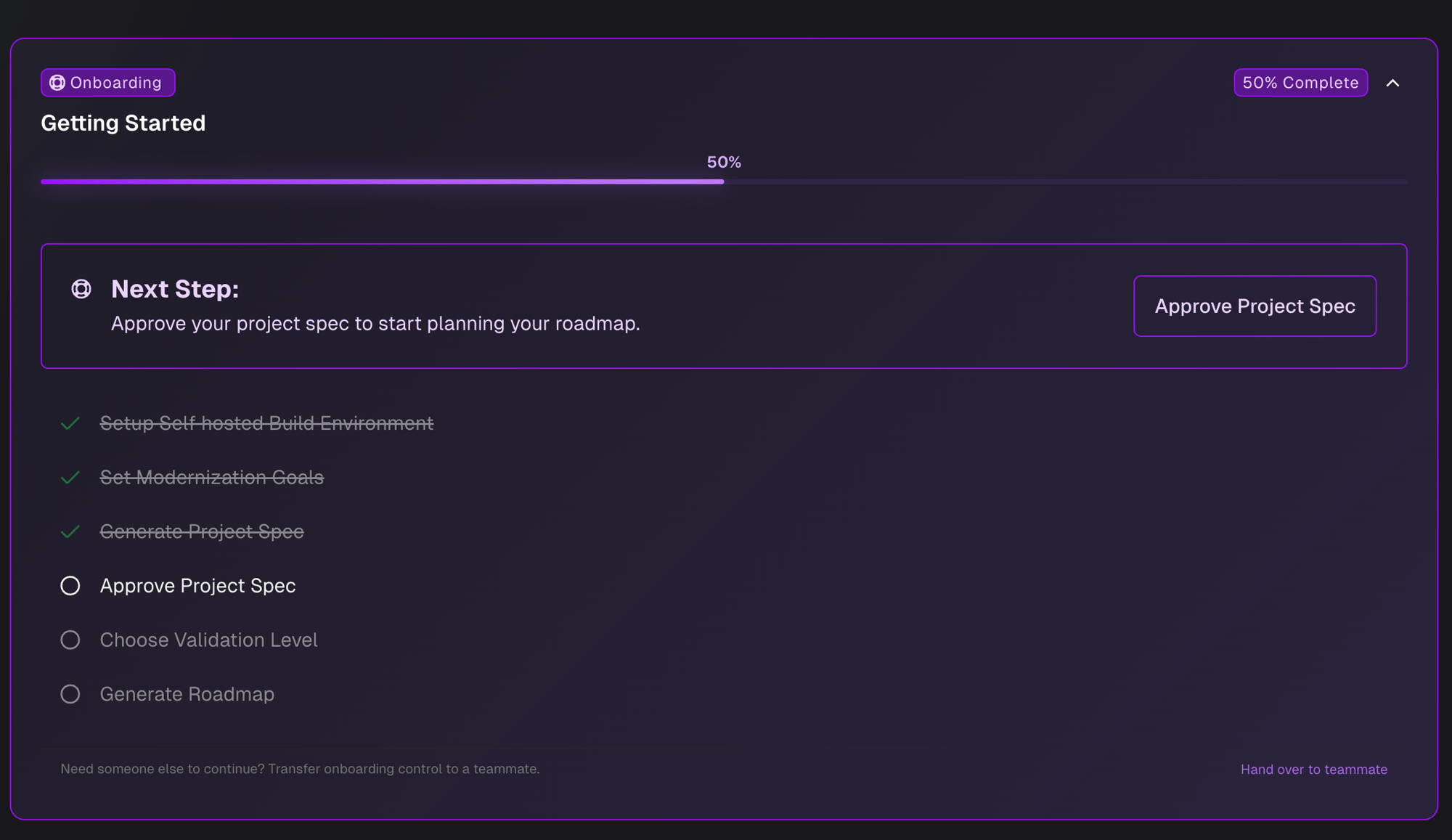
The Getting Started checklist on the Roadmap shows a Hand over to teammate link at the bottom. Getting Started checklist with Hand over to teammate link at the bottom
Handing Over From Knowledge Chat

Inside the Project Knowledge drawer, a bar appears above the chat input with the same Hand over to teammate link.

The Handover Dialog

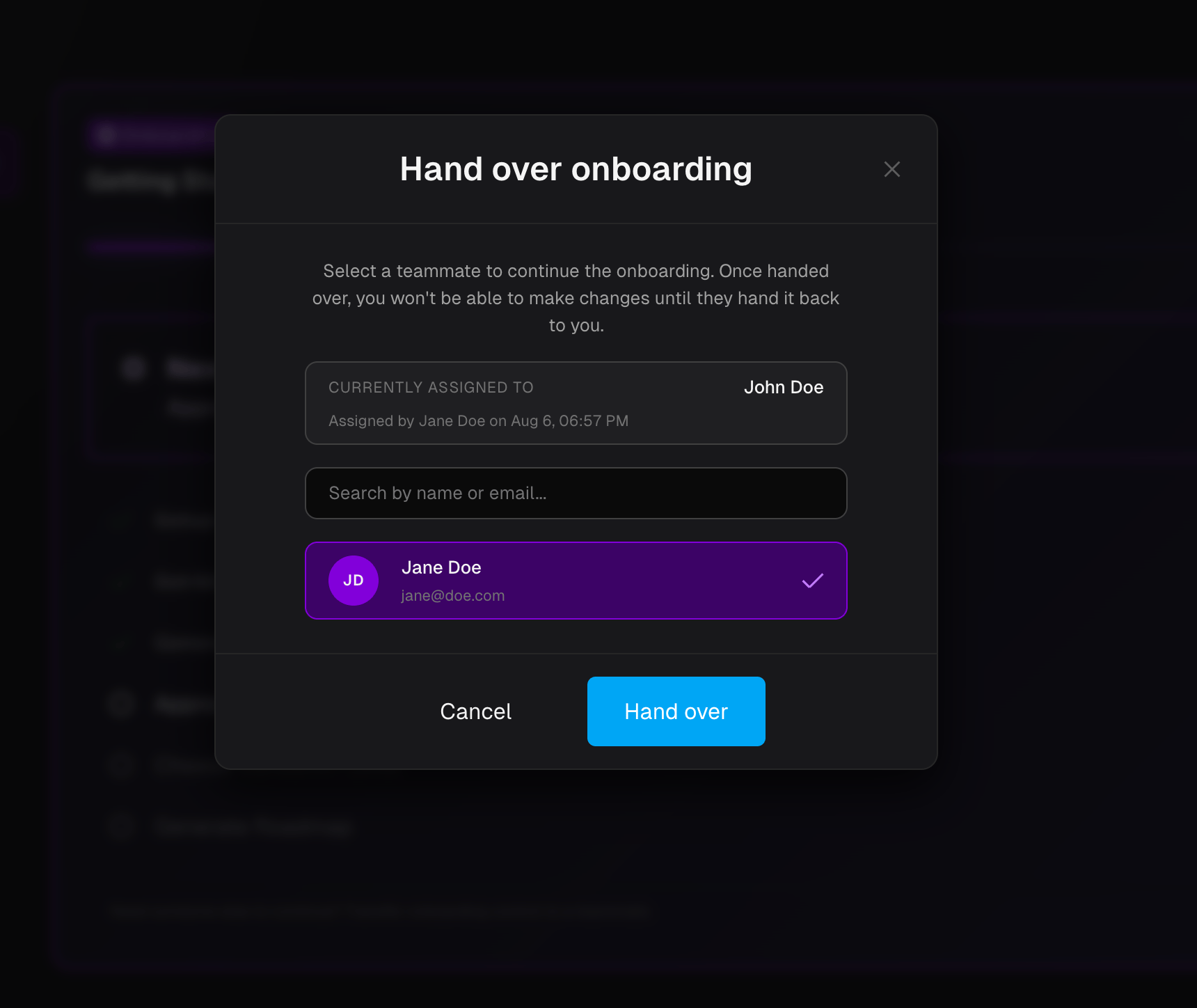
Clicking Hand over to teammate from either location opens the same dialog. It shows who is currently onboarding the project and lists your team members. Select a teammate, then click Hand over. Hand over onboarding dialog with a teammate selected Once confirmed:
  • The selected teammate receives an email notification
  • They gain full control of the onboarding session
  • Your view switches to read-only
If the agent is actively responding when you try to hand over, the dialog shows a notice asking you to wait until it finishes.

Read-Only View

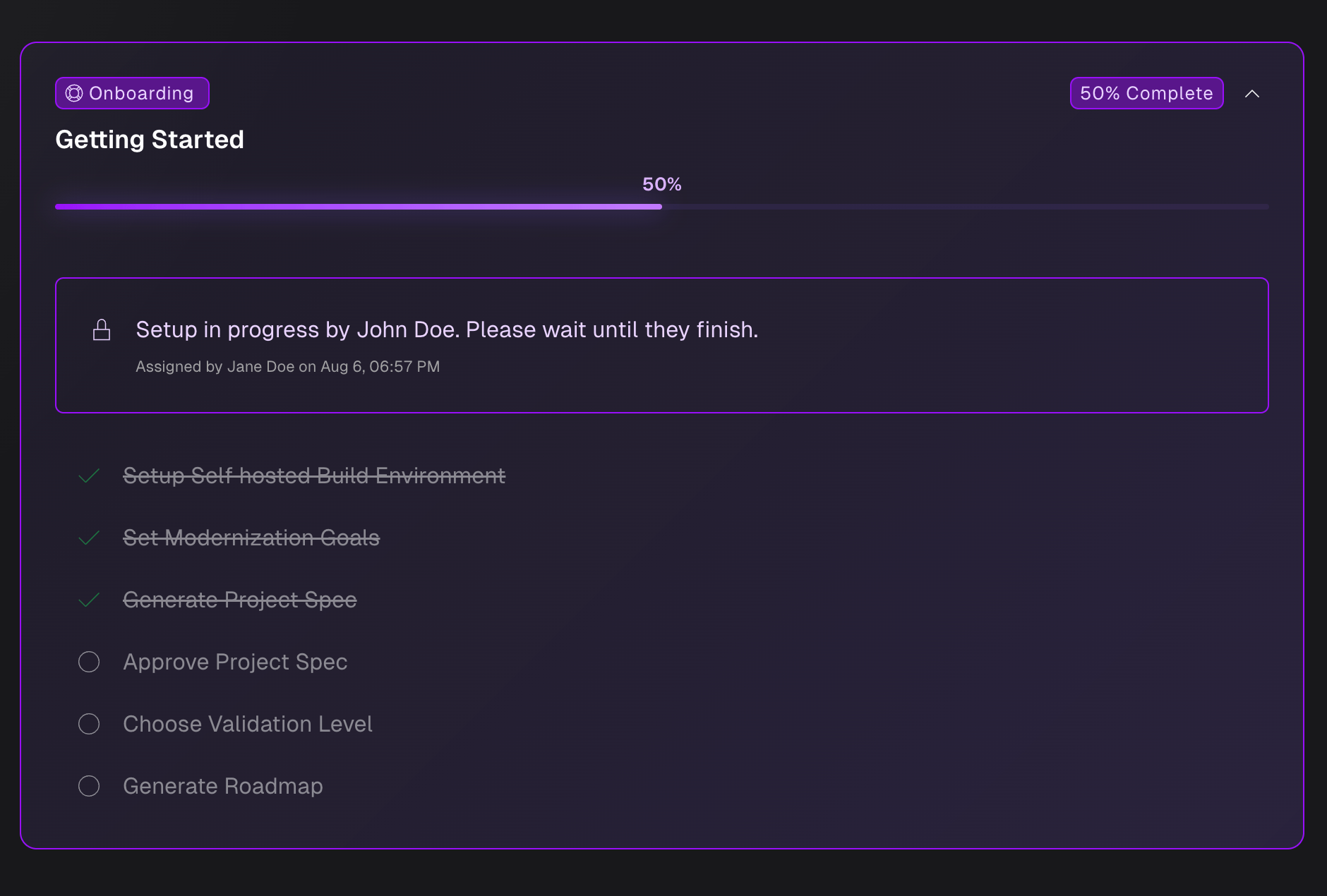
When another team member is onboarding the project, the Roadmap and Project Knowledge show a banner with their name and who assigned them. Roadmap showing setup in progress by another team member You can still view the Project Spec, browse Knowledge chat history, and see progress on the Getting Started checklist. You cannot edit the spec, send chat messages, or approve steps until they hand over to you.
Permissions

Handing over requires the Project Update permission. By default, Admin and Member roles have this permission. If your role does not include it, the handover option will not appear.