

Prerequisites
- A Modelcode account (sign up at modelcode.ai)
- A Microsoft account with access to one or more Azure DevOps organizations
- Organization admin access for the Azure DevOps organizations you want to onboard
How It Works
Modelcode uses a two-step Microsoft authentication flow. You will see two separate Microsoft login screens — this is expected and required.
The two logins are required because Microsoft issues separate tokens for Microsoft Graph (identity) and Azure DevOps (repository access). They cannot be combined into a single sign-in. Modelcode handles the transition automatically — you just need to sign in when prompted both times.
Both logins go to the same Microsoft sign-in page
(
login.microsoftonline.com). Use the same Microsoft account for both. If
Microsoft remembers your session from the first login, the second login may
show an account picker instead of a full password prompt.Signing In with Microsoft
First Login — Authenticate Your Identity
- Go to modelcode.ai
- On the login page, click Sign in with Microsoft
- You’ll be redirected to Microsoft’s sign-in page (
login.microsoftonline.com) - Enter your Microsoft account credentials (work, school, or personal)
- If prompted, complete any multi-factor authentication (MFA) steps
- Microsoft redirects you back to Modelcode
Second Login — Authorize Azure DevOps
Immediately after the first login completes, Modelcode shows a loading screen with the message:“Connecting to Azure DevOps — please sign in when prompted…”After a brief pause you are redirected to Microsoft’s sign-in page a second time.
- Microsoft may show an account picker — select the same account you used in the first login
- If this is your first time, you may see a consent screen asking you to grant Modelcode permissions to access Azure DevOps on your behalf — click Accept
- Microsoft redirects you back to Modelcode
Configuring Your Azure DevOps Organization
After connecting, Modelcode displays a Setup Checklist on the Projects page. You must complete these steps for each Azure DevOps organization and project you want to onboard.Step 1: Enable Third-Party OAuth Access
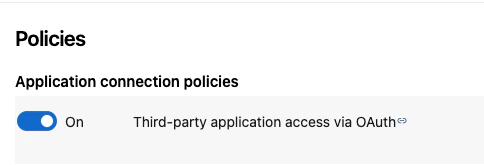
Azure DevOps organizations block third-party OAuth applications by default. You must enable this policy for Modelcode to access the organization.- Go to your Azure DevOps organization:
https://dev.azure.com/{your-org} - Click Organization Settings (bottom-left gear icon)
- Navigate to Policies under the Security section
- Toggle Third-party application access via OAuth to On
Step 2: Add the Modelcode Application as a User
Modelcode’s application identity needs to be added as a user in your organization so it can access projects and repositories.- Go to Organization Settings → Users
- Click Add users
- Add the Modelcode application identity (shown during onboarding or provided by your admin)
- Set the Access Level to at least Basic
- Grant access to the projects you want to onboard

Step 3: Grant Project Administrator Permissions
For Modelcode to create branches and manage repository operations within a project, the application identity needs the Project Administrator role.- Navigate to the Azure DevOps project you want to onboard
- Go to Project Settings (bottom-left gear icon)
- Navigate to Permissions under the General section
- Find the Project Administrators group
- Add the Modelcode application identity to this group

Repeat for All Organizations and Projects
These three steps must be completed for every Azure DevOps organization and project you intend to onboard to Modelcode:Creating a Project with Azure DevOps Repositories
Once your organization is configured:- Click Create Project on the Projects page
- Enter a project name
- Modelcode automatically discovers all repositories across your connected organizations and projects
- Select one or more repositories from the dropdown
- For each repository, confirm or change the origin branch
- Set a feature branch name (prefixed with
morph-) - Click Create Project
Approving a Migration Plan
When reviewing and approving a migration plan for an Azure DevOps project:- Open Project Knowledge from the Roadmap (Modernization → Project Knowledge) with Project Spec selected
- Review the generated migration plan
- For each new repository in the plan, select the Azure DevOps organization from the dropdown
- Select the Azure DevOps project where the output repository should be published
- Click Approve
Troubleshooting
”No Repositories Found”
If Modelcode says Azure DevOps is connected but no repositories are available:- Verify Third-party application access via OAuth is enabled (Step 1)
- Confirm the Modelcode application identity is added as a user (Step 2)
- Check that the application has access to the correct projects
- Try clicking Reconnect Azure DevOps to re-authenticate
”Azure DevOps organization dropdown is empty”
If the organization or project dropdowns are empty when approving a migration plan:- Ensure at least one organization has third-party OAuth enabled
- Verify the application identity has been added to the organization
- Refresh the page — the dropdowns are populated from a live API call
”Why am I seeing two Microsoft logins?”
This is expected. The first login authenticates your identity with Microsoft Graph. The second login authorizes Modelcode to access Azure DevOps. Microsoft requires separate tokens for these services, so two sign-in prompts are necessary. See How It Works above for details. If the second login fails or you dismiss it:- Go back to modelcode.ai and sign in again
- Both logins will repeat — complete them both
- If you see an error like “interaction_required”, your browser may be blocking the redirect — allow pop-ups from
login.microsoftonline.com
”Second login shows a different account”
If the account picker during the second login shows accounts you don’t recognize or defaults to the wrong one:- Select the same Microsoft account you used for the first login
- If the correct account isn’t listed, click Use another account and enter your credentials
- Both logins must use the same Microsoft account for the connection to work
”Permission denied” errors during migration
If Modelcode encounters permission errors when creating branches or pushing code:- Verify the application identity has the Project Administrator role (Step 3)
- Check that the permissions apply to the specific project containing the target repository
- If the project was recently added, wait a few minutes for permissions to propagate
Next Steps
- Quickstart — Create your first migration project
- Define Modernization Goals — Write effective goals for your migration
- Reviewing the Project Spec — Learn how to review and approve your migration plan