

What Project Knowledge Is
Think of Project Knowledge as structured context for Morph agents, surfaced in a full-height drawer on the Roadmap. Every time an agent works on a task, the agent reads this knowledge to understand your project’s architecture, conventions, how the application actually runs, and decisions already made. When an agent learns something new during execution — a pattern the agent discovered, an architectural decision, a fix to a startup script — the agent writes that back (often as wiki pages, rules, or lifecycle updates). This is how agents pass knowledge to each other. Onboarding establishes how the app installs, builds, and runs (for projects on High validation). Milestone 1 might establish a database access pattern. Milestone 5, handled by a different agent, reads both from the same project knowledge and follows them. The result is consistent code across your migration — and a configuration the agent can actually run — even when different agents handle different parts.What’s Inside
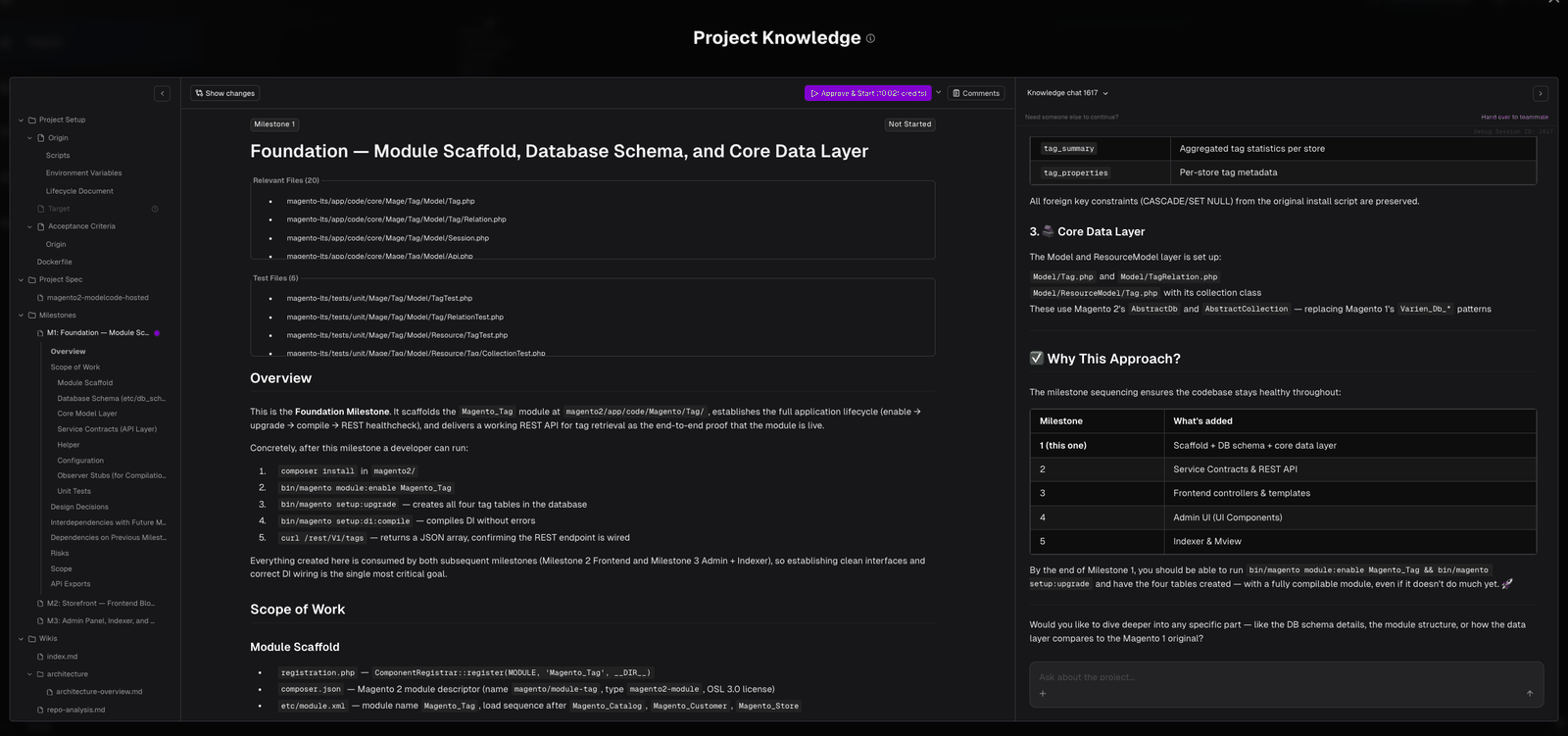
Project Knowledge is organized in a tree:How Agents Use It
When an agent starts working on a milestone:- It reads the Project Spec to understand the migration’s overall goals
- It reads the Project Setup to know how to install, build, run, and health-check the app
- It reads all rules to know which standards to follow
- It reads relevant wiki pages to understand architecture and patterns
- It reads the milestone description to know what to build
Opening Project Knowledge
During onboarding — Project Spec: When your Project Spec finishes generating, the drawer opens with Project Spec selected so you can review and approve it. During onboarding — Project Setup: After you approve the spec and pick the High validation level, the Project Setup stage on the Roadmap opens the drawer again with Knowledge chat seeded to start setup — the agent walks you through discovering and validating how your application installs, builds, runs, and is health-checked. See Project Setup (Onboarding) below. Any time after that: Go to the project’s Roadmap. In the left Modernization column, click Project Knowledge to open the drawer. You can also open it from flows that link knowledge (for example, opening a rule, milestone, or lifecycle script in context).Project Setup (Onboarding)
Project Setup is the branch of the Project Knowledge tree that holds everything needs to actually run your application. It’s also where the Project Setup onboarding stage happens — the agent collaborates with you in Knowledge chat to fill this branch in, then validates it end to end.Project Setup runs only at the High validation level, after the Project Spec is approved. At Low and Mid, never builds or runs the origin application, so there is no origin lifecycle to set up. See Validation Level.
- Origin — How the source application builds and runs. Discovered together with you during onboarding and used as the behavioral baseline for functional testing.
- Target — How the destination application builds and runs. Discovered automatically during the foundation milestone (Milestone 1) so the target side is ready before migration code starts landing.
- Dependencies and Dockerfile — Project-wide artifacts the agent builds during onboarding and keeps in sync as the project evolves.
How Project Setup flows through this drawer
The Project Setup stage on the Roadmap routes you into the Project Knowledge drawer with the chat focused on lifecycle discovery. Until the agent has discovered something to show, the drawer is chat only — the tree and content pane appear once the configuration exists. From there:- The agent inventories your repository — framework, install/build/run commands, healthcheck signals, env vars and secrets, external service dependencies — and reports back what it found before writing anything.
- It proposes the lifecycle phases (install / build / run / healthcheck / test, plus optional steps like
migrateor per-service splits in multi-environment projects) and confirms them with you. - It registers the scripts and environment variables, asking you for any values it can’t infer (service URLs, tenant-specific config). Credentials are requested with a Provide Secret card that encrypts the value immediately — never type a secret into the chat box.
- It executes the lifecycle end-to-end to validate it actually works. On failure, it surfaces the failing phase, the last lines of output, and a proposed fix before retrying.
- Once validation passes, the lifecycle is marked Validated and onboarding continues to Generate Roadmap. If the agent can’t get it fully healthy, it asks you to confirm saving the configuration as Draft — Needs Review so you can correct it.
Lifecycle validation statuses
A status bar at the top of the Project Setup panel tells you whether your lifecycle is ready — and, when it isn’t, what to do next. The statuses and what each one asks of you are covered in Lifecycle Setup.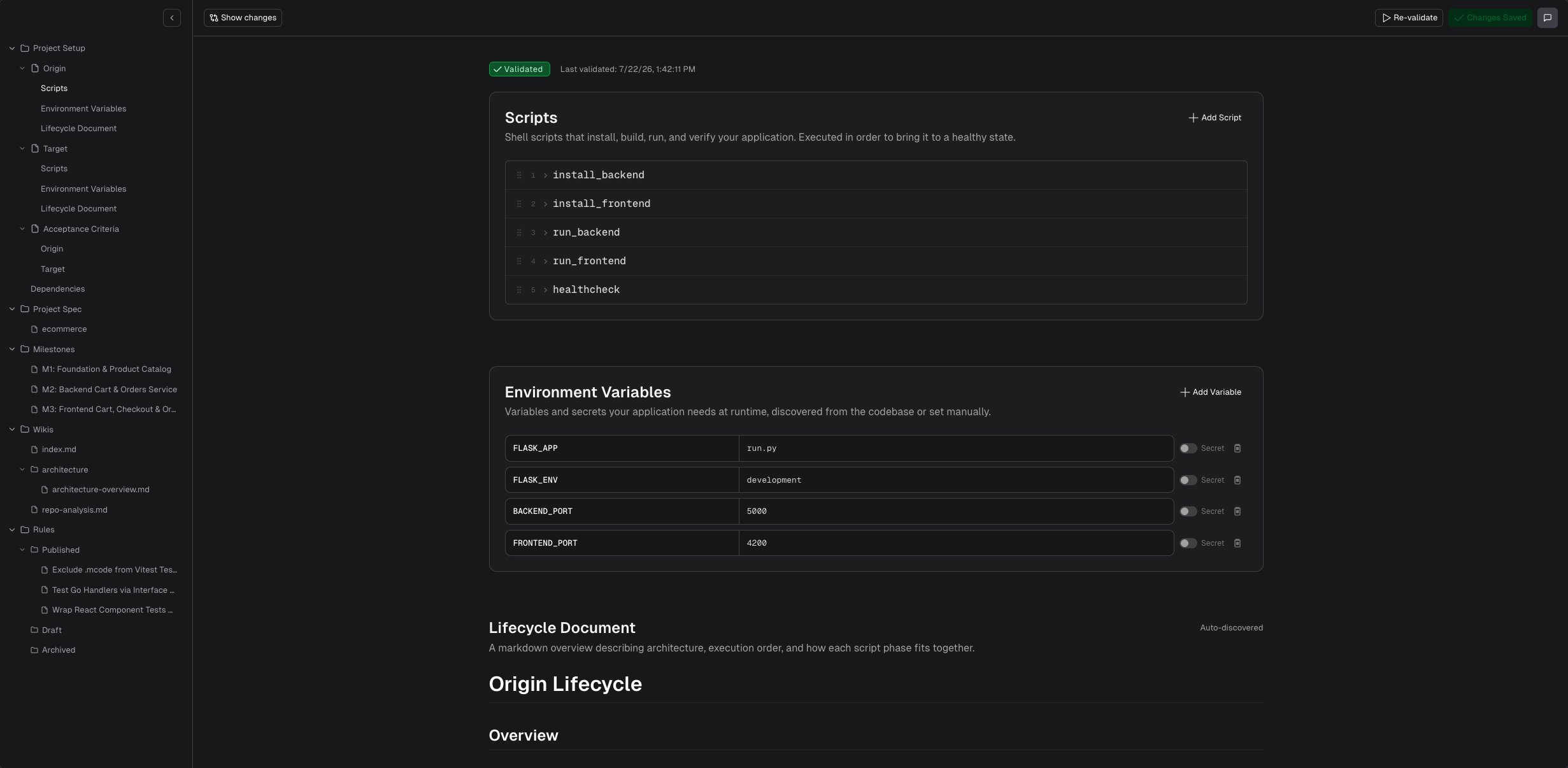
Editing the lifecycle later
Scripts and environment variables stay editable in the panel — use Add Script, Add Variable, and Save Changes. The lifecycle document, Dockerfile, and Dependencies are displayed read-only; the last two carry the hint “Read-only — ask the chat to update this.” Change any of them by asking the chat. Running validation always goes through the chat. Re-validate in the toolbar hands the run to the agent, so you can watch it work and answer questions mid-run. Ask Knowledge chat whenever you’d rather have the agent work the change out itself. Typical asks:Knowledge Chat
Knowledge chat is the chat panel on the right side of the Project Knowledge drawer. It is your primary way to interact with when working with project knowledge — onboarding, Project Spec review, lifecycle changes, wiki and rule management all happen here.Sessions
Knowledge chat supports multiple sessions. Use the session picker at the top of the chat panel to switch between existing conversations or start a New chat. Each session keeps its own history, so you can have separate threads for different topics (lifecycle tuning, architecture decisions, rule changes) without losing context. Sessions may show which daemon they are running on (displayed as ”· on <daemon>” next to the session name).Preparing and warmup
When you open Knowledge chat, may need a moment to prepare a sandbox on the daemon — allocating a workspace, cloning the repository, installing dependencies, and indexing the codebase. This warmup happens automatically and you can see its progress in the chat panel. After the first warmup, subsequent opens are faster because the environment is already cached.Session locking
Only one user can actively control a Knowledge chat session at a time. If a teammate already has an active session, you see a message naming the user who holds the lock. The session unlocks when that user finishes or their session times out after inactivity. This prevents the agent from receiving conflicting instructions from multiple users at the same time. If you need to work in Knowledge chat while a teammate holds the lock, coordinate with them directly.Exclusive access and moving workers
Sometimes a Knowledge chat session needs exclusive access to the application process on the daemon (for example, to run lifecycle commands). If another job is already using that access on the same worker, your chat is parked — it waits for the other job to finish. If the pool has another available daemon, offers a Move to a free worker option so your chat can continue on a different daemon without waiting.Pool capacity
Knowledge chat is exempt from the daemon pool execution capacity gate. You can start a Knowledge chat session even when all workers in the pool are busy with milestone or ad-hoc executions.Adding Your Own Knowledge
You can add context at any time. This is useful when you have documentation, design decisions, or standards that should know about from the start.When you add content, it isn’t stored as a single blob. breaks it down into structured wiki pages and rules, optimized for how agents consume it. A long design doc becomes focused, referenceable entries agents can query efficiently.
Using the Chat
Use the Knowledge chat panel to talk to and create, update, or reorganize knowledge. To add documentation:- Open Project Knowledge from the Roadmap (Modernization → Project Knowledge)
- Open the chat panel if it is hidden
- Describe what you want to add
Dragging in Files
You can drag text files directly onto the chat panel to import existing documentation. reads the file, extracts the relevant knowledge, and creates wiki pages and rules from the imported content. Supported formats include.md, .mdx, .txt, .yaml, .json, .py, .ts, .js, and other common text-based formats (up to 1 MB per file).
Example use cases:
- Drag your team’s
CONTRIBUTING.mdto import coding standards - Drop an architecture decision record (ADR) to capture design choices
- Import a
styleguide.mdto encode formatting preferences
From a URL or Repo Path
In the chat, you can also reference external sources:Editing Wiki Pages
Wiki pages capture architecture, patterns, and project-specific context. Update them through the chat. Right-click any item in the tree (wiki, rule, milestone, Project Spec, etc.) and select Add to context to attach it to the chat. You can also select text in the content panel and use the same Add to context action. Then describe the change you want:When to Add Wiki Pages
Add wiki pages when you have knowledge that applies broadly but isn’t a hard rule:- Architecture decisions — “We chose event sourcing for the order service because…”
- Integration notes — “The payment gateway expects ISO 8601 dates with timezone”
- Migration context — “The legacy
UserManagerclass maps to three separate services in the new architecture” - Patterns — “All API responses follow the envelope pattern:
{ data, meta, errors }”
Editing Rules
Rules are hard constraints that agents follow in every milestone. Unlike wiki pages (which provide context), rules are treated as requirements. Create and update rules through chat:Rules vs. Wiki Pages
Use rules when you want to enforce something. Use wiki pages when you want to inform agents.
Editing Milestones
You can review milestone descriptions in Project Knowledge. To adjust scope, add requirements, or change descriptions, use Editing Milestones from the milestone review flow. You can also ask to restructure milestones through chat. For example, to merge two milestones:Locked Milestones
Milestone plans in Project Knowledge are view-only once execution has started. A milestone is locked when its status is anything other than Not Started — including in progress, pending review, failed, blocked, or merged. If you need to adjust a milestone that’s already executing, wait for the current execution to complete (or merge it), then make your changes before re-running.Updating the Project Spec
The Project Spec is the top-level document that defines your migration’s goals, scope, and approach. Ask in chat to refine the migration direction; substantial changes may also go through your Project Spec approval flow (see Reviewing the Project Spec). Changes to the Project Spec can affect how agents approach future milestones, so be deliberate about what you request.Viewing Changes
When modifies knowledge during an agent execution (for example, an agent discovers a pattern and writes a wiki page), you can see exactly what changed. Click Show changes (the diff icon) in the Project Knowledge toolbar to toggle an inline diff view:- Green highlights show added content
- Red highlights with strikethrough show removed content
- A summary shows the total lines added and removed
- Modified items are marked with a status dot in the tree navigation
How Knowledge Stays in Sync
Project knowledge stays aligned with running work as agents read and write it, and as you add or update context through the chat. When you ask for changes while an agent is running, incorporates them so agents can pick up new rules and wiki context in subsequent steps.Examples
Setting Up a New Project’s Knowledge
When you start a migration, front-load project knowledge with what you know:Correcting Agent Behavior
After reviewing a PR, you notice agents are usingconsole.log for debugging:
Importing Team Standards
Your team has adocs/coding-standards.md in the repo:
- Drag the file onto the Knowledge chat panel
- reads it and creates wiki pages and draft rules from the content
- Review the created entries in the tree navigation
- Publish rules you want enforced, and ask the chat to adjust any entries that need refinement
Chat History and Retention
Chat conversations are saved by default so you can come back to a session and see what was discussed and decided. If your organization would rather they were not retained on our servers, an administrator can turn this off under Project Settings → Chat History by clearing Save chat history. There is also a purge action that permanently deletes all saved chat history for the project. Two things to weigh before turning it off:- Conversations cannot be recovered if the workspace is lost.
- Workspaces are recycled after 7 days of inactivity, so without persistence, history from an idle project goes with it.
Adding Context Mid-Migration
At Milestone 4, you realize agents don’t know about a critical integration:Best Practices
Let the Chat Do the Structuring
Don’t worry about formatting your input perfectly. Describe what you want in natural language and structures it into the right wiki pages and rules. A rough paragraph of context works better than trying to manually create the “right” wiki page.Review Agent-Created Knowledge
After each milestone, open Project Knowledge and check for new wiki entries and draft rules. Agents write back what they learned. If something is inaccurate, ask the chat to correct or remove it before the next milestone picks it up.Use Rules for Enforcement, Wikis for Context
If you find yourself writing a wiki page that says “always do X” — that’s a rule. Move it there so agents treat it as a hard requirement, not optional context.Related Docs
Lifecycle Setup
Reference for lifecycle scripts, env vars, validation status, and re-validation
Validation Level
How High vs Low/Medium affects Project Setup onboarding
Organizational Knowledge
Import organizational knowledge from existing projects
Reviewing the Project Spec
Approve the Project Spec using Project Knowledge and chat
Creating Rules
Deep dive into writing effective rules with examples
Editing Milestones
How to adjust milestone scope and descriptions
Core Concepts
Morph terminology and mental model