

If your project builds with publicly available dependencies, use Modelcode Hosted instead. There is nothing to install, and the Morph Platform still works out your lifecycle with you in chat.
Designed for Real Environments
The ModelDaemon runs inside the environment your application already lives in — the same machine, the same network, the same credentials. There is no environment to recreate, nothing to containerize, and no infrastructure to replicate somewhere else. That is the whole point. Enterprise applications depend on internal services, private registries, and configuration that is rarely documented well enough to reproduce faithfully. Rather than asking you to rebuild all of that in the cloud, the Morph Platform comes to where it already works. It does this without turning your machine into part of the project’s runtime. Each job gets its own isolated workspace with its own dependencies, so the Morph Platform does not install project runtimes onto your host or leave anything behind.Why This Approach Works
Recreating an enterprise application environment from scratch is harder than it looks. Internal services have specific versions, configurations, and network paths that are rarely fully documented. Private registries need credentials that may be tied to particular machines or users. Runtime behavior often depends on system configuration that was never committed to source control. The daemon sidesteps all of it. The commands it runs are the commands your developers run. The network paths it uses are the paths your application uses. The credentials and config files are already in place. You get the correctness of running in your real environment, without the operational cost of treating that environment as part of the project’s stack.When to Use a Self-hosted Daemon
- Your application already builds and runs somewhere inside your network
- Its dependencies — runtimes, package managers, internal tools — are already in place
- That environment is stable and is not being decommissioned mid-project
- You want to be up and running without infrastructure changes
- You started on Modelcode Hosted and now want milestones validated against your real services. Move the project to self hosted without starting over
How It Works
The daemon is a single program you run on a machine in your network. Once started, it:- Connects to the Morph Platform and reports that it is available
- Receives work — project setup, milestone execution, code review, chat
- Runs each job in its own isolated workspace, so jobs cannot interfere with one another
- Streams results and logs back, then cleans the workspace up
- The daemon connects out; nothing connects in. You do not open inbound ports or expose the machine.
- Your source code stays on your machine. The agent reads and writes it locally. The Morph Platform coordinates the work but does not execute it, and your LLM provider keys never live on the host — that traffic is proxied through the Morph Platform.
The daemon runs commands as the user that started it. It does not inherit your host’s language runtimes, but it does inherit that user’s network access, file permissions, and credentials — SSH keys, cloud CLI tokens, and so on. Run it as a user with the access your project needs, and nothing more.
Pools: Capacity Belongs to the Team
Daemons are organized into pools — shared groups of machines that serve one or more projects. This is what stops build capacity from belonging to one person. Any member of your organization with access to a project can run work on that project’s pool, so most people never install anything. One person sets up the pool, and the team uses it.- Add a machine, add capacity. The Morph Platform routes each piece of work to an available machine on its own. You never assign jobs.
- One pool can serve several projects, so a single set of machines can back your whole modernization program.
- Each pool declares its operating system up front, so work only ever lands on a machine that can run it.
Setting Up
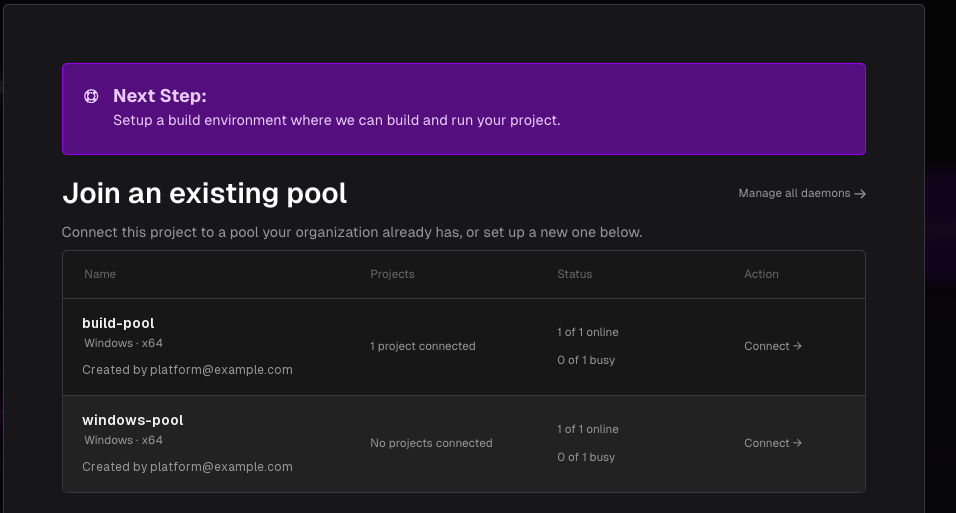
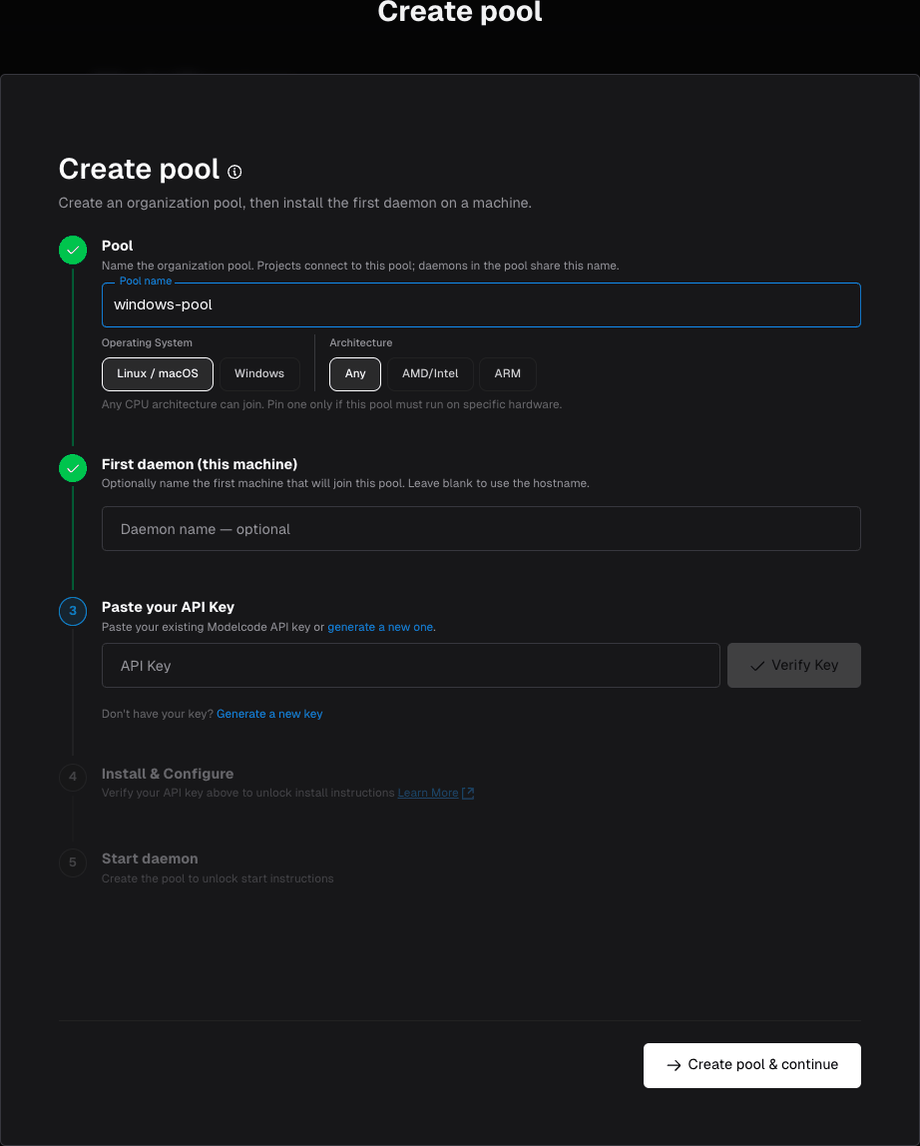
The the Morph Platform UI walks you through this — follow the on-screen steps. 1. Choose your platform and hosting. Build Environment setup asks two things: the platform your project runs on (Linux/macOS or Windows), and whether the project is self hosted or the Morph Platform hosted. The platform is permanent for the life of the project. A hosted project can move to self hosted later, but not back — see Switching Environments. 2. Join a pool, or create one. The pool list shows each pool’s platform, status, connected projects, and machine count.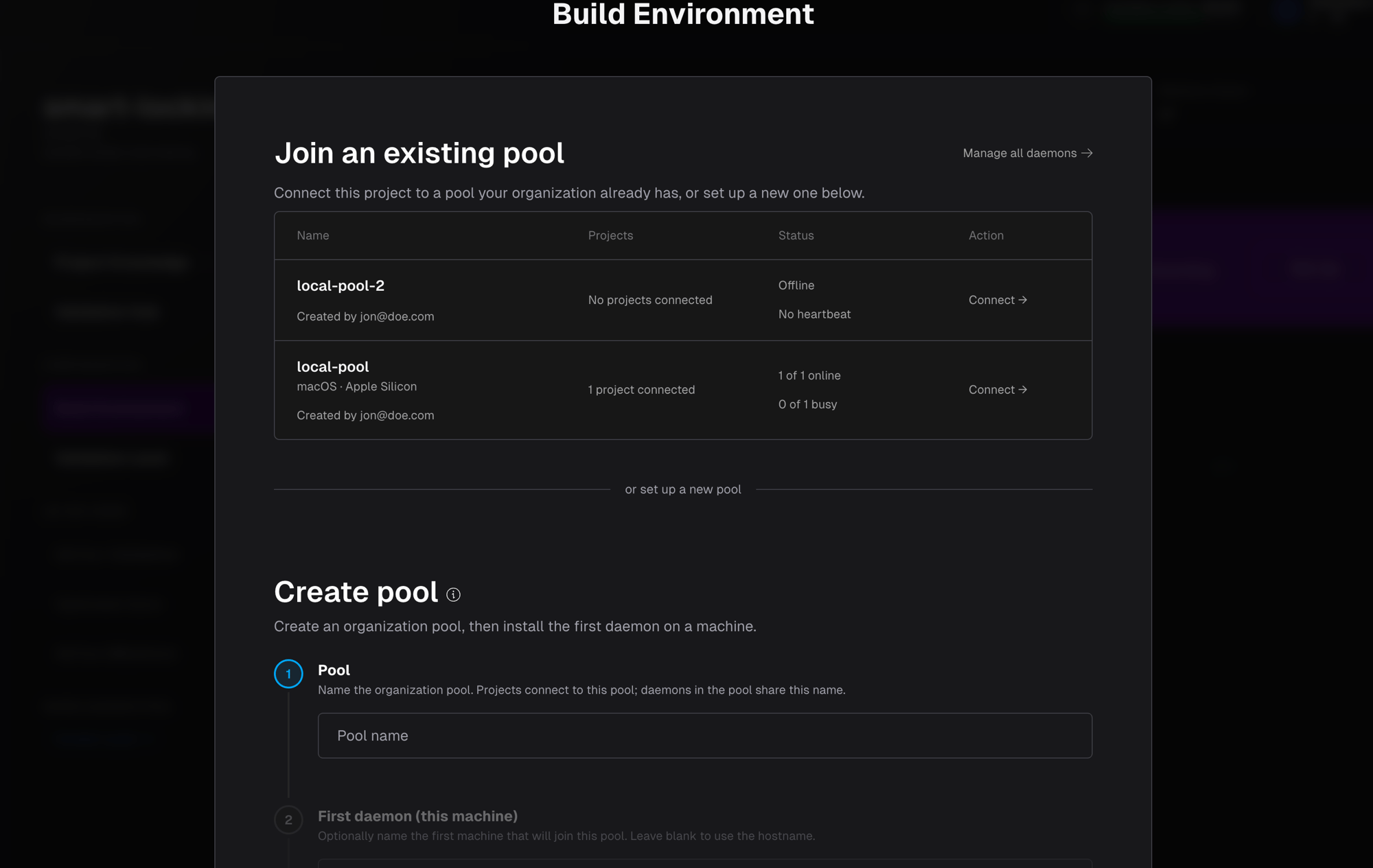
After Setup
Once the daemon is connected, the Morph Platform does the rest on its own:- Works out what your project needs by reading your codebase, and installs those dependencies in an isolated environment on the host.
- Discovers your lifecycle — how to install, build, run, health-check, and test your application — and confirms it with you in Knowledge chat during the Project Setup stage. This is the same flow used for hosted projects.
- Shows you the result, editable at any time under Project Setup in Project Knowledge.
Pool and Daemon Status
Each machine reports its status in real time. The project sidebar and Build Environment pages show the pool’s health:Pool capacity
Each machine runs several pieces of work at once, and the Morph Platform spreads work across the pool. When every machine is fully occupied, starting new milestone or ad-hoc work is refused rather than queued silently — you will see “All workers in this project’s pool are busy — try again when one frees up.” and can start it once a machine frees up. Knowledge chat and Code Review chat are exempt from this. You can always open project knowledge or review code, even when every machine is running a milestone — the work that needs your attention is never gated behind the work that does not.Pool platform and architecture
Every pool has a platform — Linux or Windows — chosen when the pool is created and shown on the pool details page. Install each machine on that platform, and connect a project to a pool matching the project’s own platform. Keeping them aligned is what lets the Morph Platform generate commands in one shell and know they will run. A machine installed on a different platform still registers and looks healthy, but no work routes to it. Check the pool’s platform first if a new machine stays idle. Architecture is left open by default. A pool takes ARM and Intel/AMD machines side by side, because dependencies are installed per host. You can set it when you create the pool, before any machine has registered, if you already know the pool must run on particular hardware. To require one afterwards — for a project with prebuilt binaries, say — pin it from the pool details page. A pin is accepted while every machine already reports that architecture, and turns away other architectures from then on. Pinning never removes a machine that is already a member.Deleting a pool
A project stays on the pool it was set up with, so a pool can only be deleted once no projects are connected to it:- Check the pool details page for the projects connected to it.
- Delete those projects, or keep the pool.
- Delete the pool once no projects are listed.
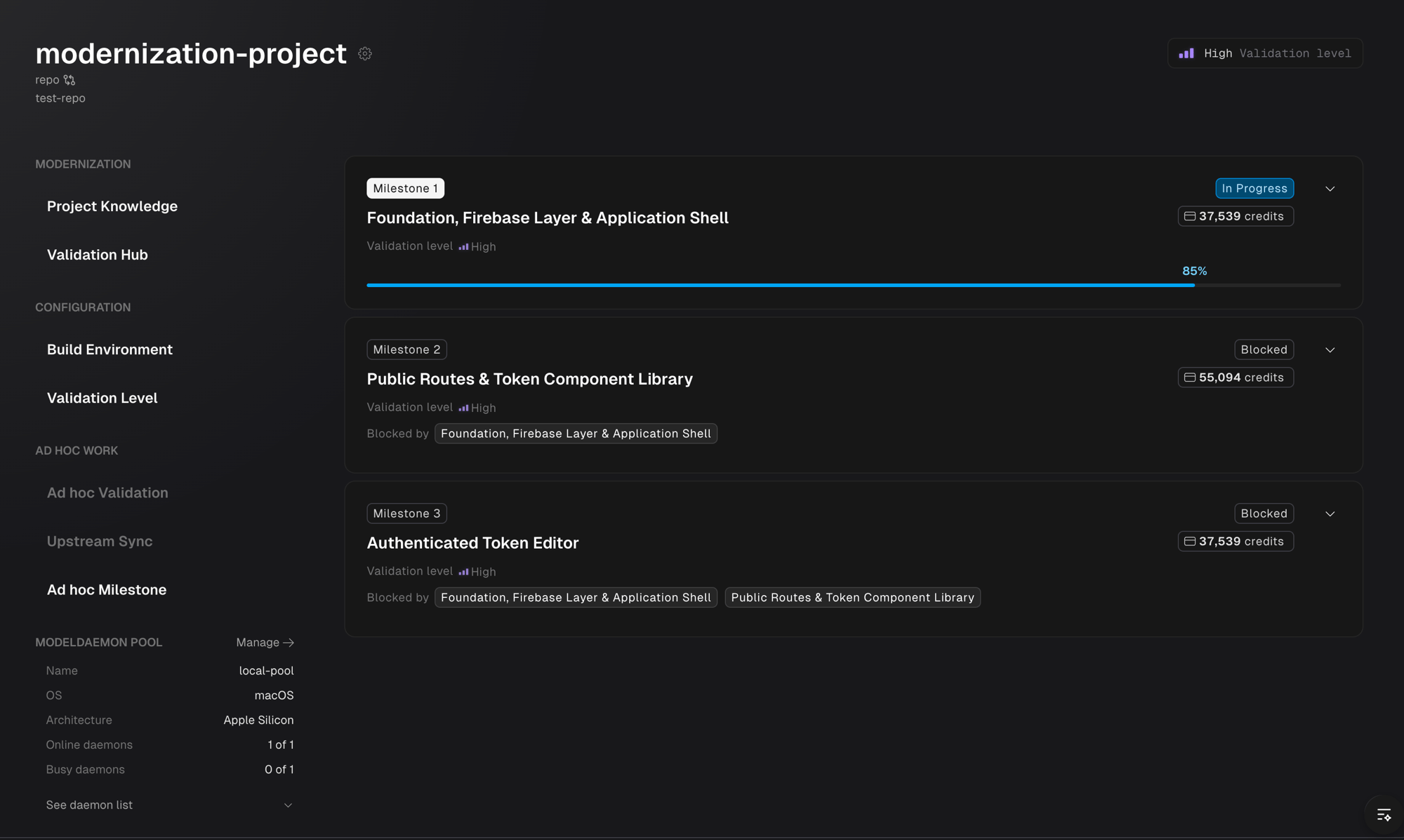
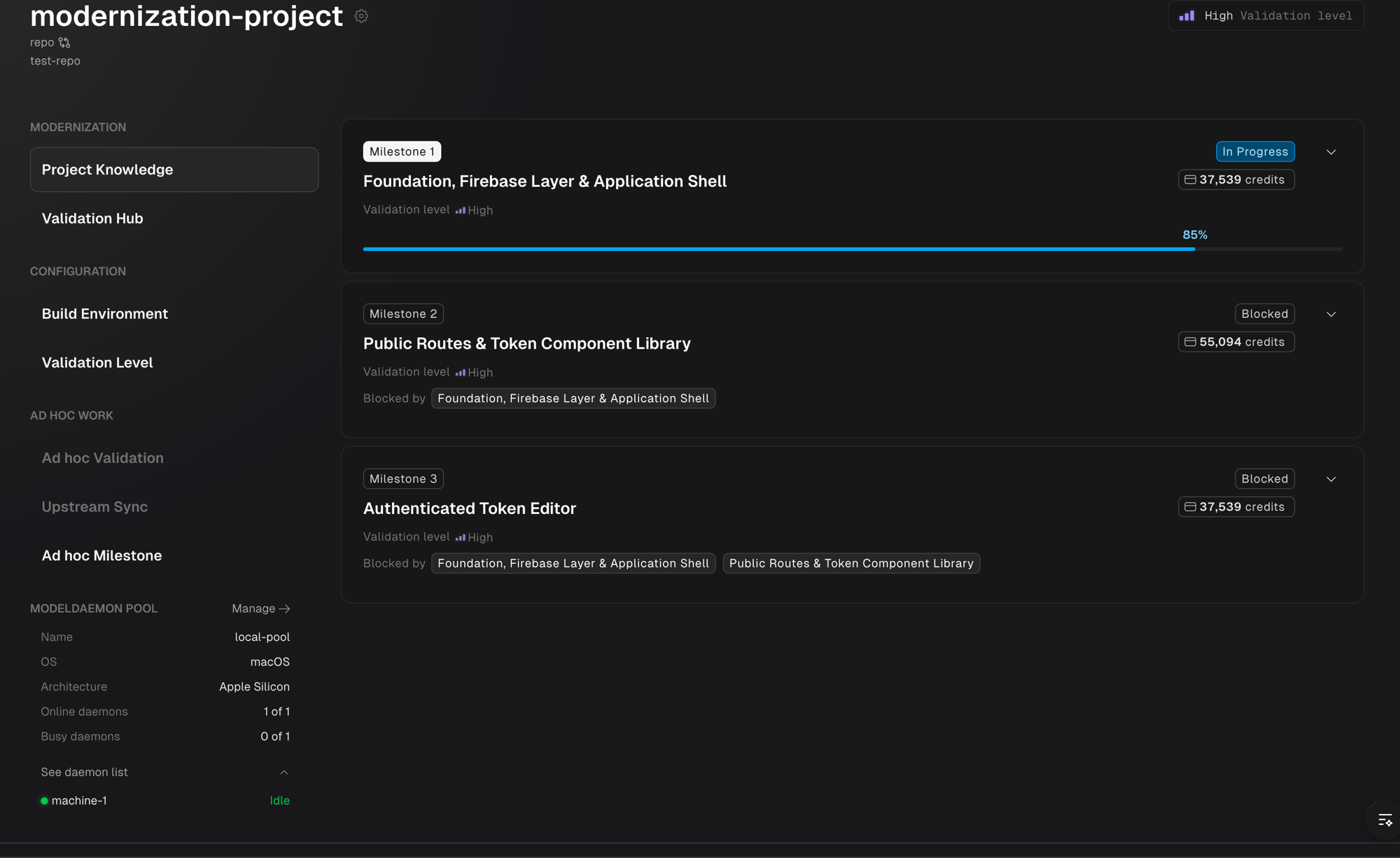
Daemon pool in the project sidebar
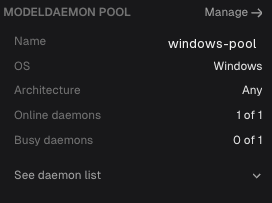
Once your project is connected, the Roadmap sidebar shows a Daemon pool section with:- How many machines are online, out of the total registered
- Active work — what is running right now
- The pool’s name, OS and architecture, and a Manage link
Environment Stability
The daemon is designed to run on a stable host. That environment should:- Stay accessible for the duration of the project
- Behave consistently across sessions
- Not be decommissioned, re-imaged, or significantly reconfigured mid-project
What a Typical Deployment Looks Like
- The daemon is installed on the server or VM where the application already runs
- It is pointed at the Morph Platform with an API key
- The agent discovers lifecycle commands from the codebase and confirms them with the team in chat
- No infrastructure changes: no new VMs, no containers, no network changes
- The Morph Platform starts building and testing immediately, using the environment as it is
FAQ
Does the ModelDaemon support Windows?
Yes, on Intel/AMD hardware — Windows 10/11 or Windows Server 2019+. Windows on ARM is not supported, and the installer stops before making any changes rather than half-installing.Do I need to install Python, Node, Java, or other runtimes on the host?
No. The Morph Platform works out what each project needs and installs it into an isolated environment of its own. Your host only needs to reach the same network locations your application reaches.Where does the AI agent actually run?
On your machine, in a fresh isolated workspace per job, which is cleaned up afterwards. The Morph Platform coordinates the work but does not execute it.Do you store my code or my LLM provider keys?
Your source code is read on your machine and is not copied off it as part of normal job execution. LLM calls are proxied through the Morph Platform using your daemon’s API key, so no provider keys (Anthropic, OpenAI, and so on) live on the host.Can I run multiple daemons on the same machine?
No — a second install replaces the first. To add capacity to a pool, install each daemon on a separate machine.Do I still need to write lifecycle commands by hand?
No. The agent works your lifecycle out with you in chat during Project Setup, then leaves it editable under Project Setup in Project Knowledge.Do I need to upload an encryption key?
No. The daemon manages its own encryption keys.Next Steps
Daemon Administration
Install, network access, certificates, registries, upgrades, troubleshooting
Lifecycle Setup
How the Morph Platform learns to build, run, and test your application