

When to Use Adhoc Tasks
- During PR review. You notice a missing edge case, an additional file that needs adjustment, or a regression introduced by the milestone.
- After a milestone completes. Something was missed that should be part of this milestone before you merge.
- One-off fixes. Small, targeted changes that don’t warrant editing the milestone spec and re-running planning.
You can’t add adhoc tasks to a Merged milestone. Once the milestone PR is merged, the milestone is closed; create a new task in a later milestone or open a new milestone instead.
Creating an Adhoc Task
- Open the milestone on the Roadmap and switch to the Tasks tab.
- Click + Add Task in the top-right of the tab (visible once the milestone has tasks).
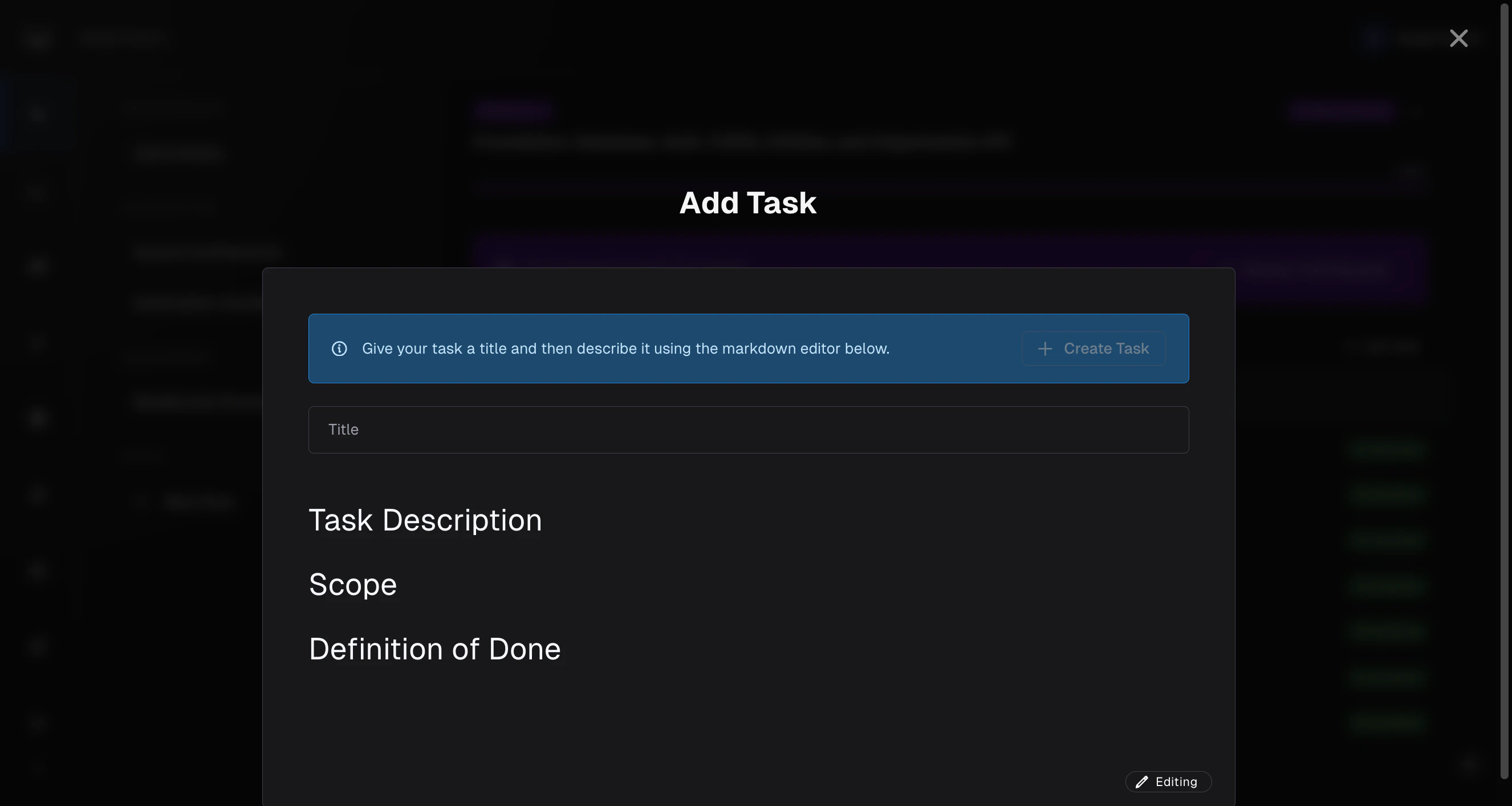
- A drawer opens with two fields:
- Title — A short name for the task (required).
- Description — A markdown editor pre-populated with a template:
Reviewing Before Execution
After you create the task, runs a quick review pass to check it against the existing milestone plan, project spec, and any constraints already in play. This catches contradictions before the agent spends time on the wrong work.- Click Review. compares your task to the milestone context.
- If there are recommendations, they appear inline in the editor as suggestions you can:
- Accept individually (or Accept all) — inserts the suggested text into the description.
- Reject individually (or Reject all) — leaves the description unchanged.
- Cancel out to address them one by one in the editor.
- Use Previous recommendation / Next recommendation to walk through them.
- After resolving recommendations (or if there are none), click Execute Task.
What Happens After Execute Task
Once you click Execute Task, the adhoc task is added to the milestone’s task list and the agent picks it up like any other task — respecting dependencies, committing code when it finishes, and rolling its output into the milestone’s pull request. You can watch its status (Ready → In Progress → Completed / Failed) on the Tasks tab alongside the agent-planned tasks. If it fails, retry it the same way you’d retry any task — open the task drawer and click Retry Execute.Tips for Effective Adhoc Tasks
- Give file paths, not vibes. “Edit
src/users/service.tsto add input validation oncreateUser” beats “fix the user service.” - Define done. State what success looks like: tests pass, endpoint returns the right status code, the screenshot matches.
- Keep scope small. One concern per adhoc task. If you’re tempted to write a multi-page description, that’s two or three adhoc tasks (or a milestone edit).
- Let the review catch contradictions. If your task contradicts the milestone spec, the review will flag it. You can then either adjust the task or update the milestone spec.
Related Docs
Milestones
The full milestone lifecycle and task dependencies
Code Review Chat
Triage milestone review issues with chat
Editing Milestones
When to edit the milestone spec instead of adding a task
Creating Rules
Encode recurring preferences across milestones
Reviewing Pull Requests
Inspect adhoc-task output in the milestone PR