You can leave comments directly on text in Project Knowledge to flag questions, suggest changes, or discuss decisions with your team. Comments are anchored to the text you select, highlighted inline, and visible to everyone on the project.

Leaving a Comment

  1. Open Project Knowledge from the Roadmap
  2. Select any text in a document (Project Spec, milestone, wiki, or rule)
  3. A context menu appears with Add to context and Comment. Click Comment
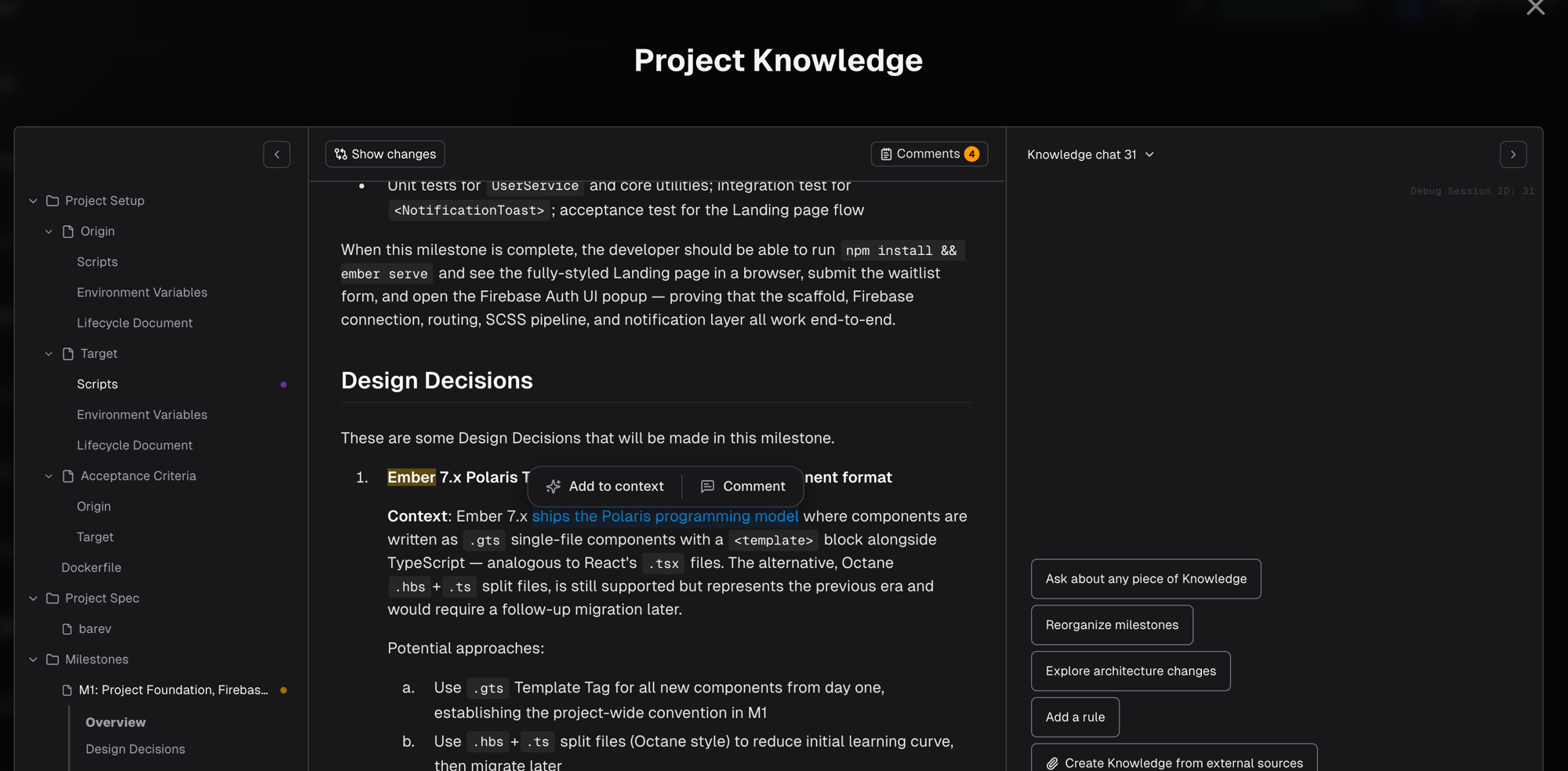
Select text and click Comment in the context menu
  1. A popover form appears with the selected text quoted. Write your comment and submit with the Comment button or Cmd+Enter (Mac) or Ctrl+Enter (Windows/Linux)
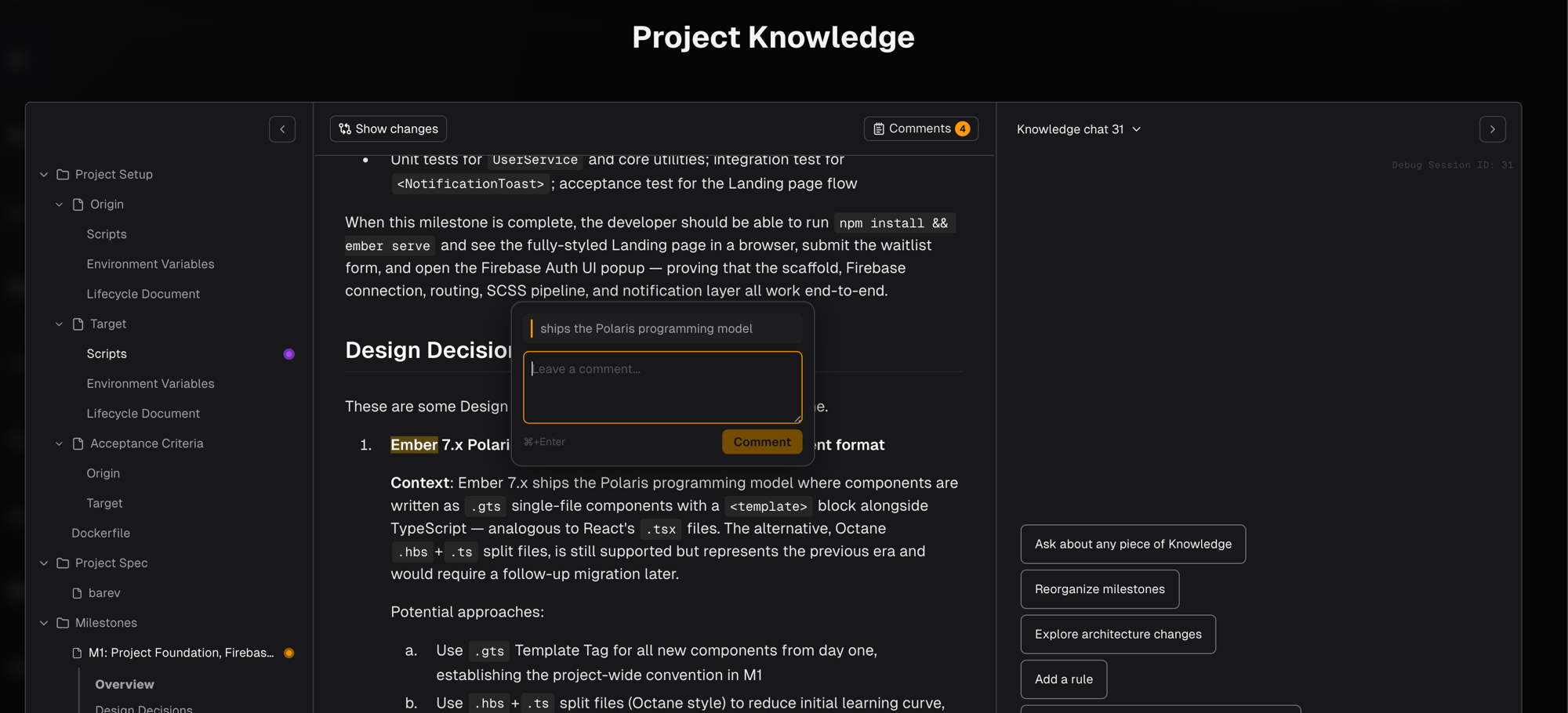
Comment form with quoted text and submit button The selected text is highlighted in amber. Your comment appears in the Comments panel.

The Comments Panel

Click the Comments button in the toolbar to open the panel. It shows a badge with the number of open comments. The panel has two sections:
  • Open — comments that still need attention
  • Resolved / Dismissed — comments that have been addressed
Each comment card shows the author, timestamp, the quoted text it references, and any replies. Click an open comment to scroll the document to the highlighted text.

Actions on Comments

Every team member can take the following actions on an open comment:

@Mentions

Type @ in the comment or reply textarea to mention a team member. An autocomplete dropdown shows team members filtered by name. Selecting a user inserts their name and sends them an email notification with the comment text and a link to the document.

Outdated Comments

When the document content changes, comments whose selected text no longer exists in the document are marked Outdated. The highlight disappears and the comment card shows an outdated badge. This can happen when regenerates a spec or when someone edits a milestone. Outdated comments still appear in the panel so you can review whether the concern was addressed by the change.

Comment Indicators on the Tree

Documents that have open comments show an amber pulsing dot in the Project Knowledge tree. This makes it easy to scan which documents need attention without opening each one. The dot bubbles up to parent sections, so if any milestone has comments, the Plan section shows the dot too. If a document also has a purple dot (requires attention for another reason, like an unapproved spec), the purple dot takes priority.

Resolving via Chat

The Resolve in chat action is the fastest way to address a comment. It pastes the comment, the quoted text, and the document context into Knowledge chat. From there, can update the document, create a rule, or take whatever action is needed. Once the chat addresses it, come back and mark the comment Done.

Best Practices

Use comments for team discussion, not agent instructions. If you want to change something, use the Knowledge chat directly. Comments are for collaborating with your teammates about what should change. Be specific in your selection. Select the exact text your comment refers to, not an entire paragraph. This keeps highlights precise and makes it clear what you’re commenting on. Resolve comments as you go. Stale open comments add noise. Once a concern is addressed, mark it Done so the amber indicators clear and the panel stays useful.