How It Works
the Morph Platform automatically tags project artifacts (lifecycle scripts, dependencies, acceptance criteria, instructions, project configuration, and wikis) with their associated repositories. This makes them discoverable as organizational knowledge without any manual step. The following artifact types are tracked:Browsing Organizational Knowledge
The Organizational Knowledge page (accessible via the Knowledge tab in the sidebar, visible to administrators) is the central hub for all knowledge across your organization. Use it to understand what configuration exists, review how other projects are set up, and identify reusable patterns.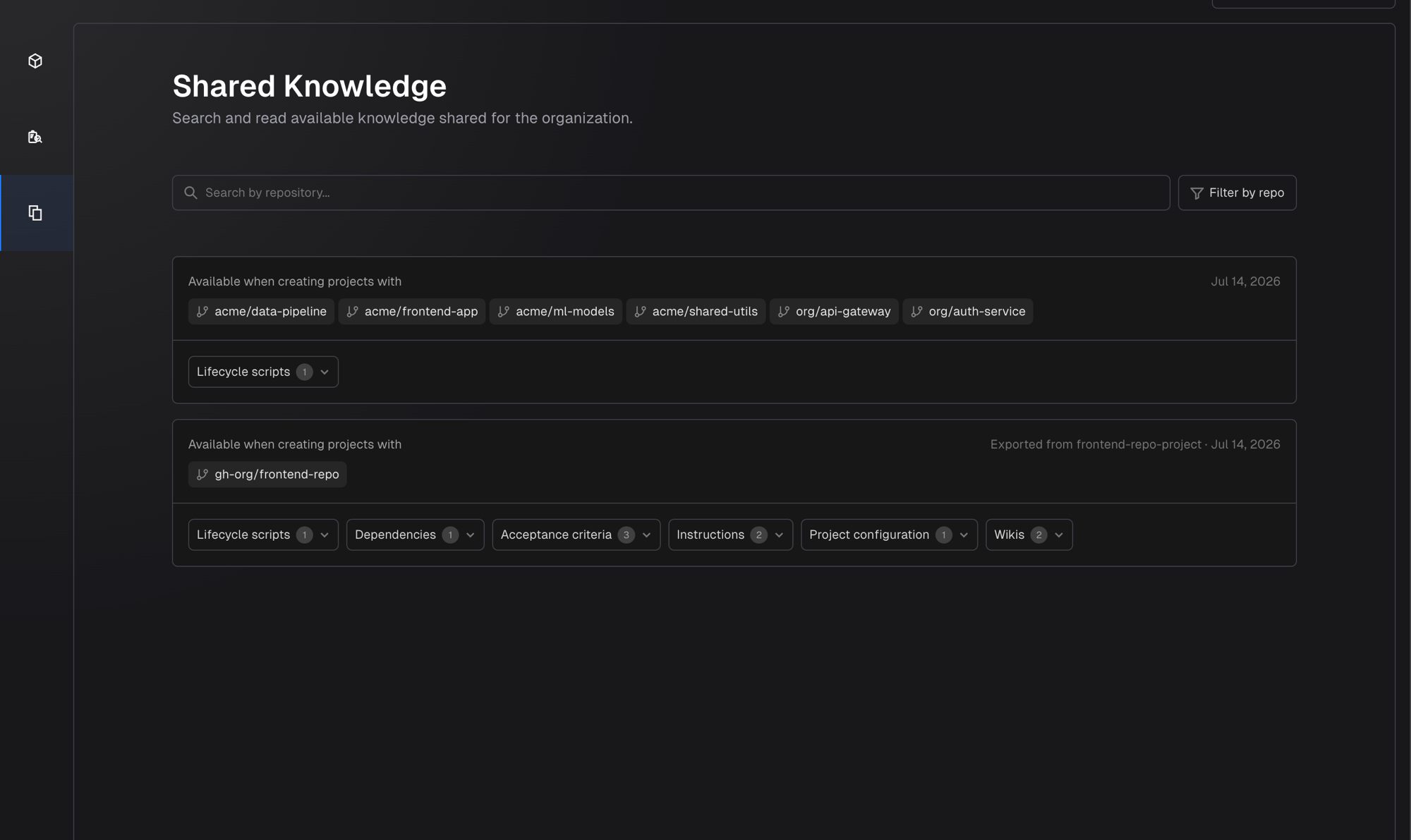
- The repository handles the knowledge applies to
- Which project it originated from
- Artifact type buttons with counts you can expand to read the full content
Reading Artifact Content
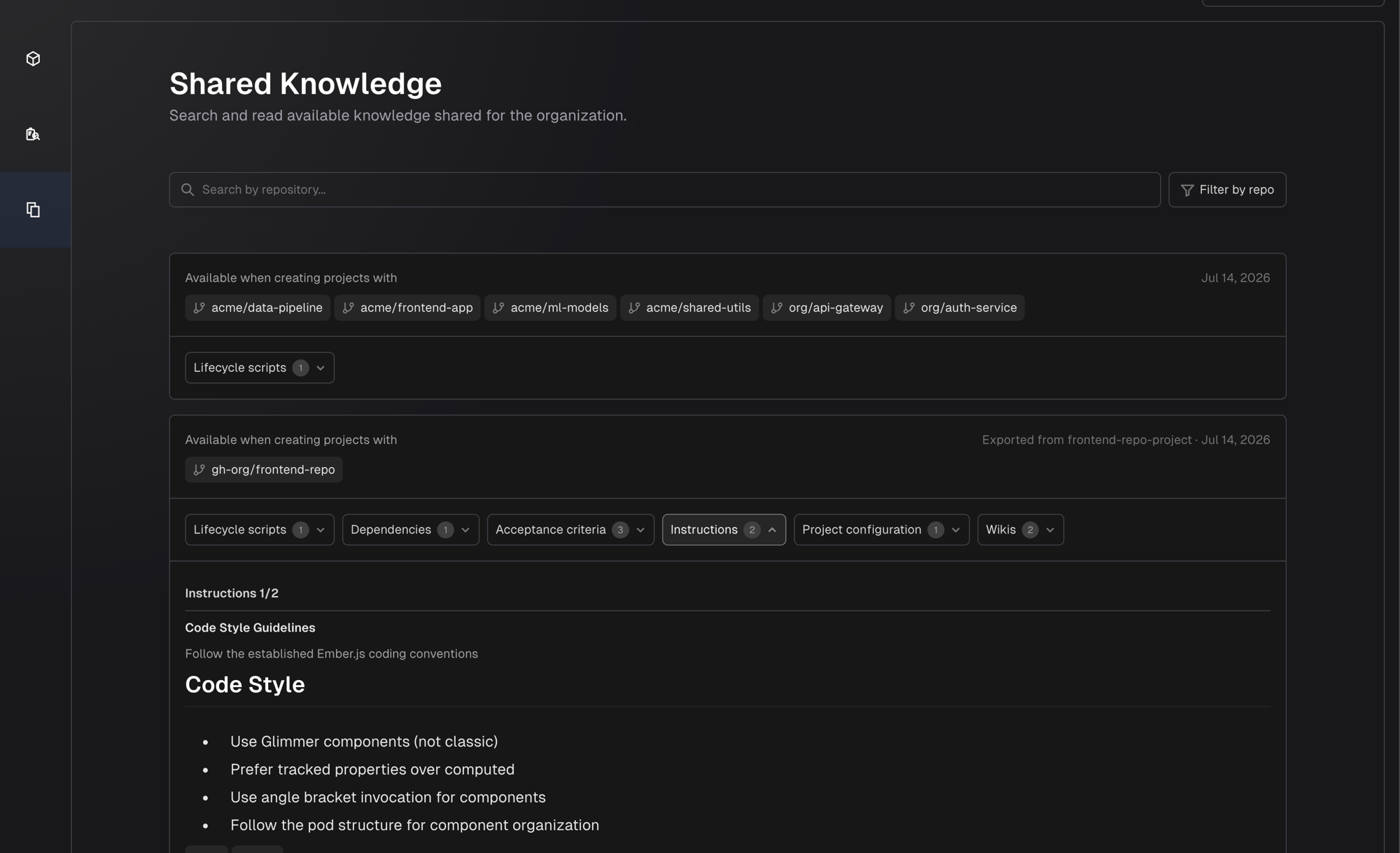
Click any artifact type button on a card to expand and read its content. The content renders in the same format used in the project’s own knowledge views.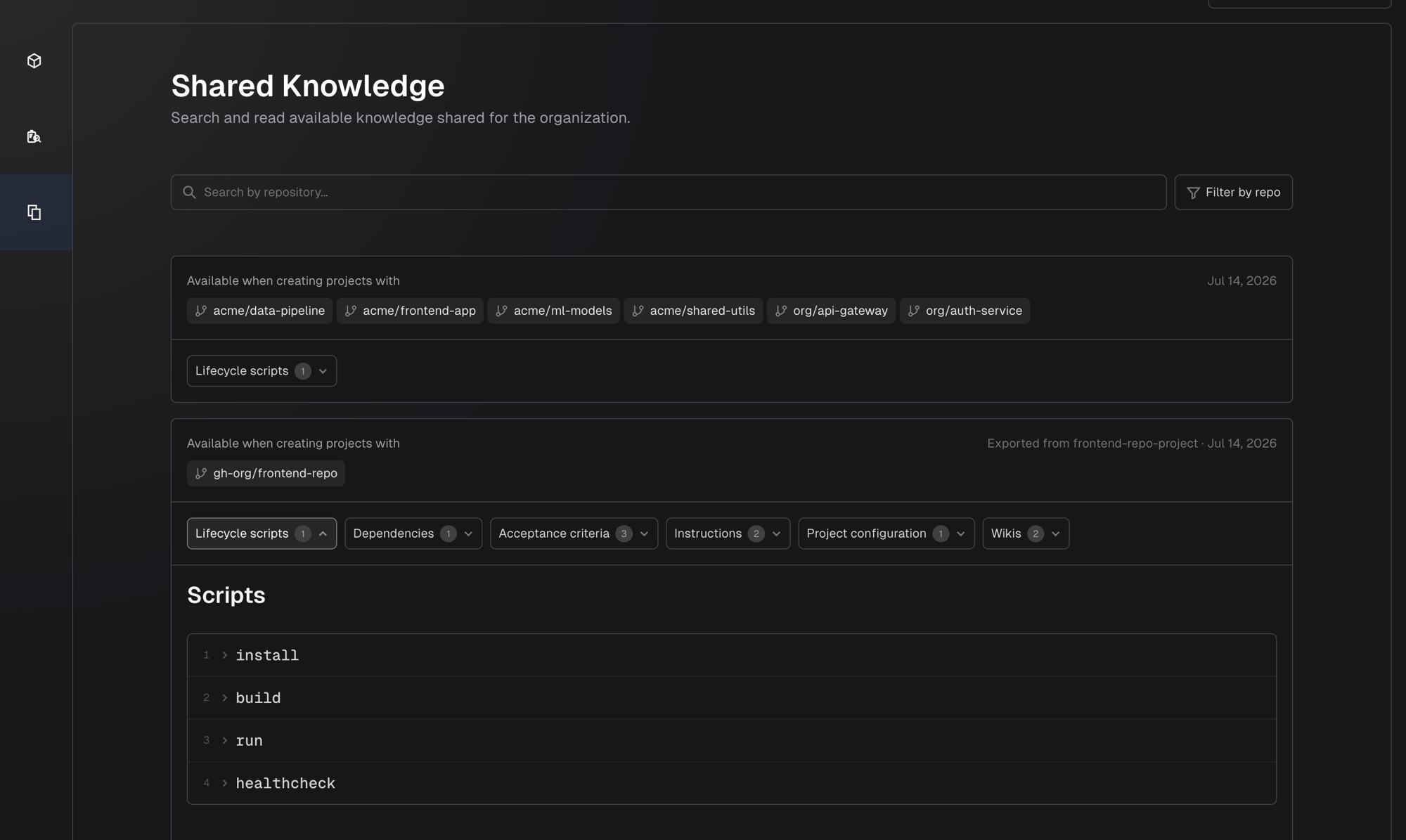
Searching and Filtering
Use the search bar to find knowledge by repository name. Matching text is highlighted in the results. Use the Filter by repo dropdown to narrow the list to cards containing specific repositories. The filter supports two modes: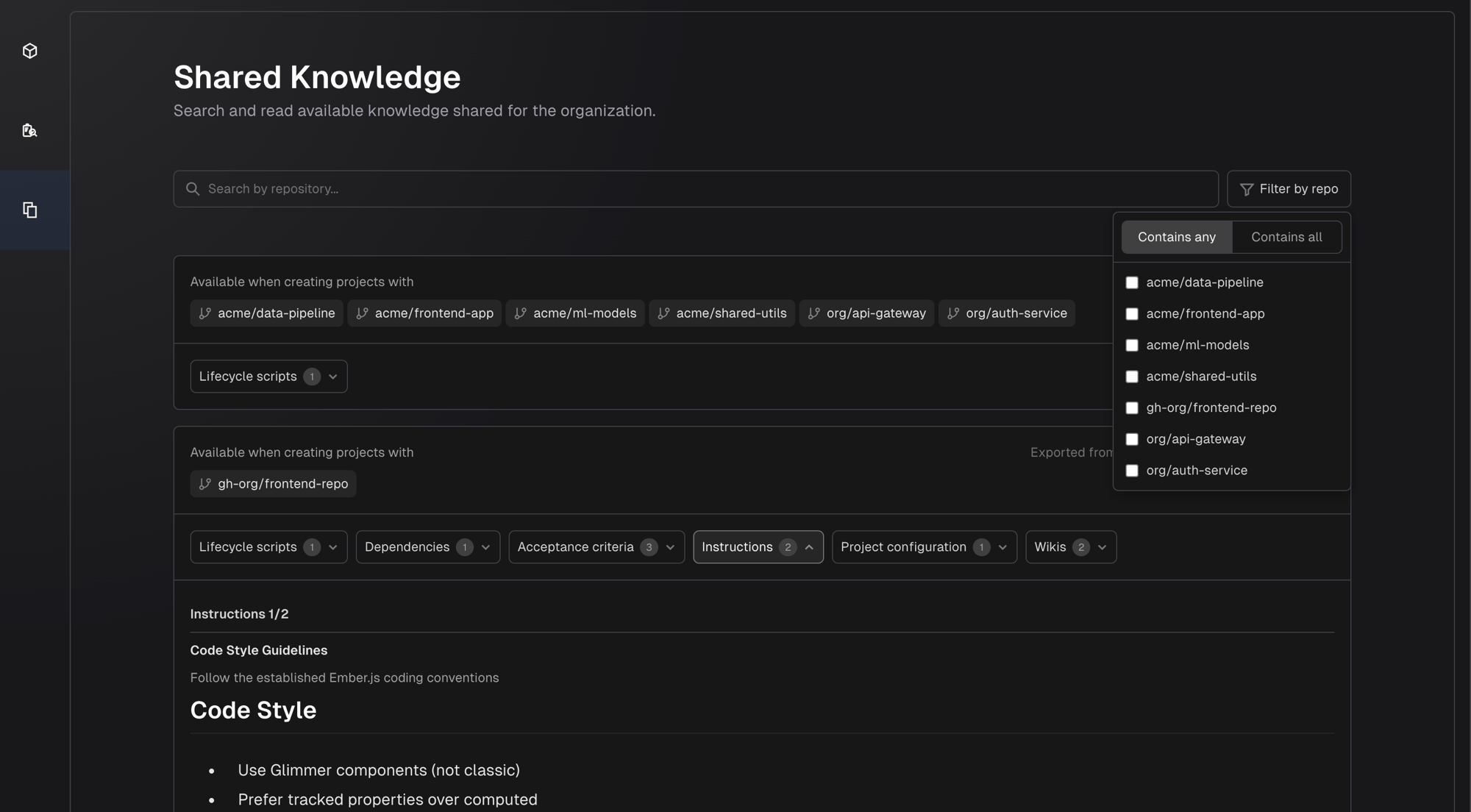
Use the Filter by project dropdown to narrow the list to knowledge originating from specific projects. Multiple projects can be selected.
Importing During Project Creation
When you create a new project and select repositories, the Morph Platform automatically checks for available organizational knowledge. You see one of two states in the Organizational Knowledge section of the create project form: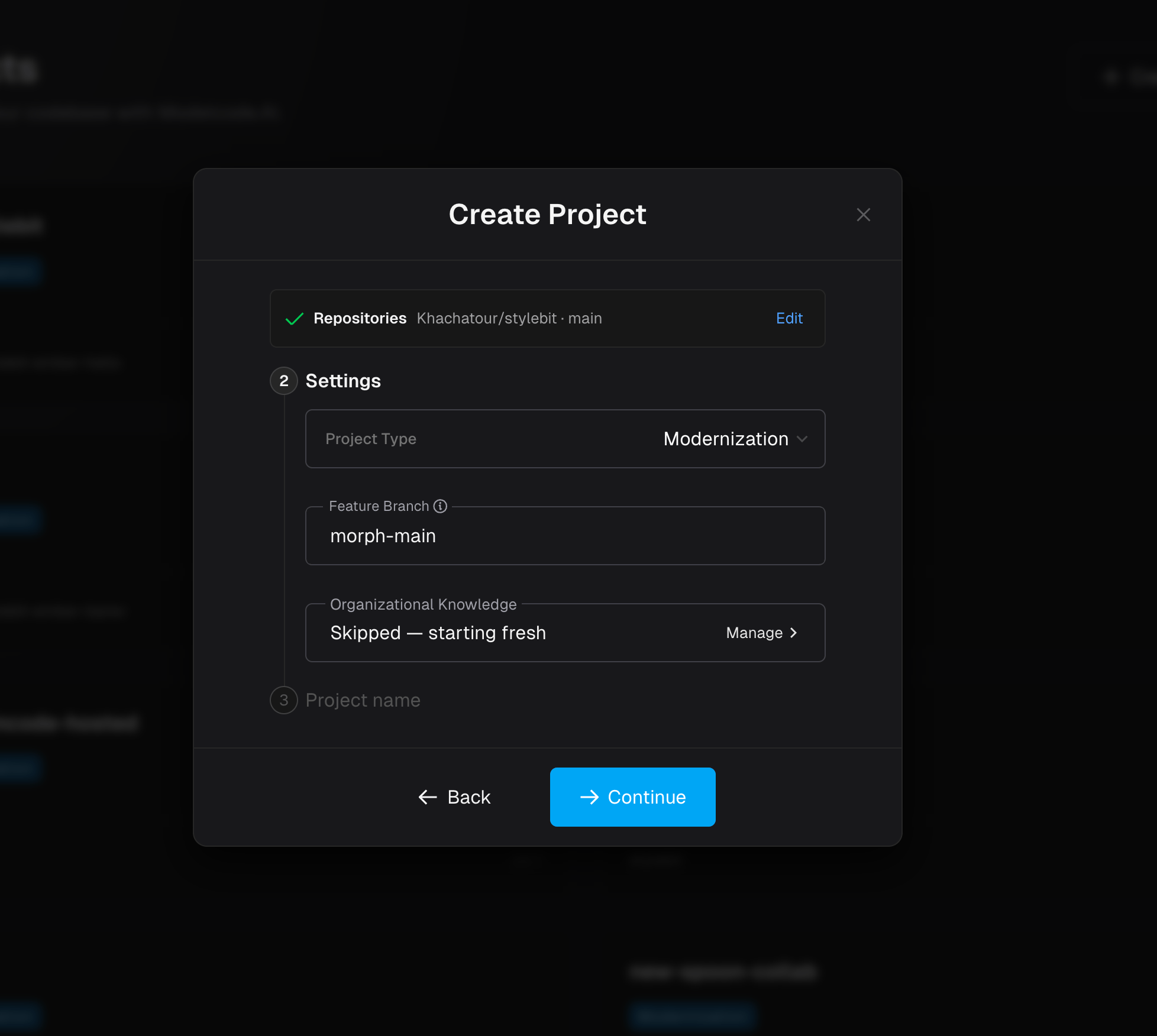
Selecting Items to Import
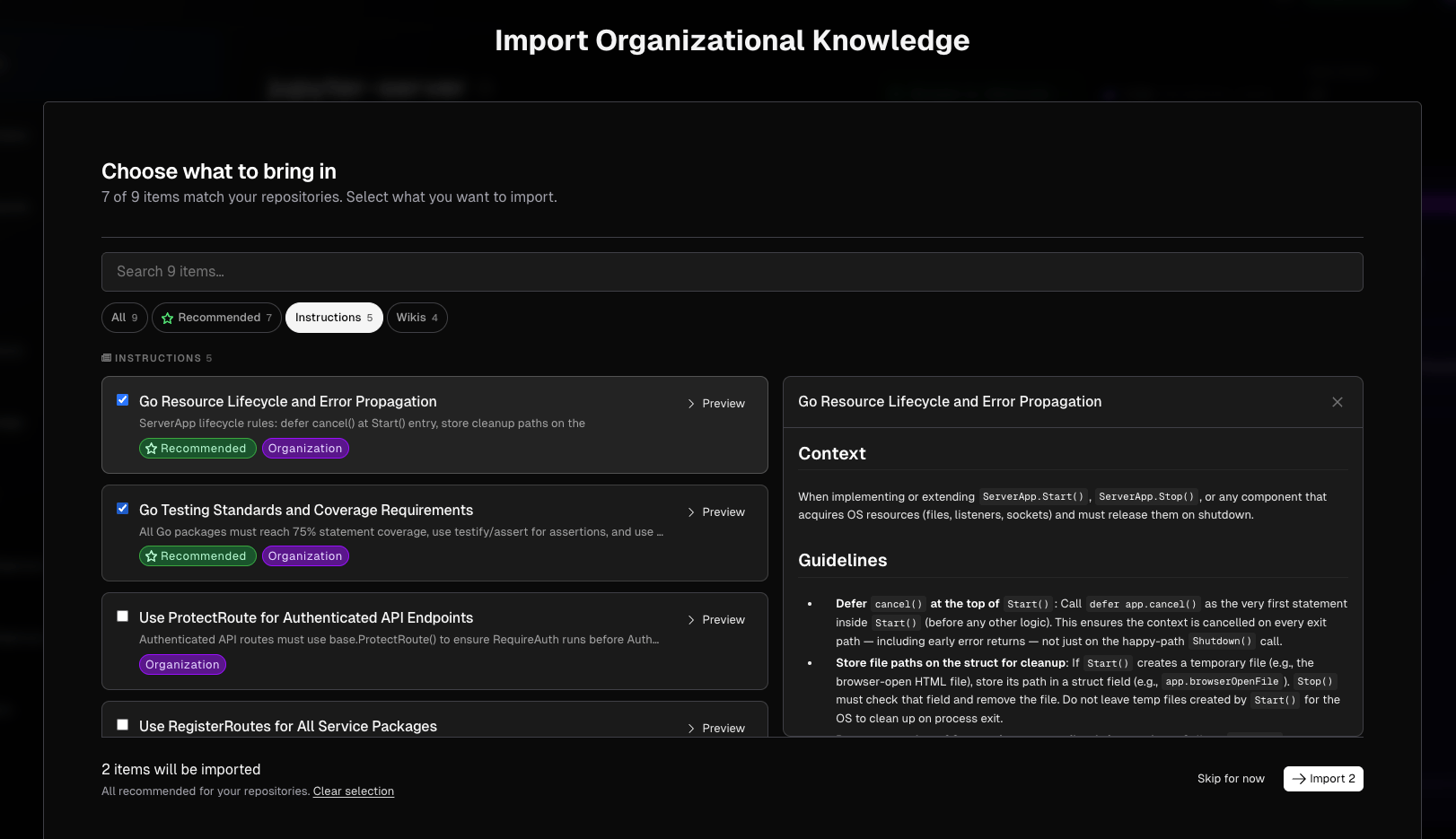
Click Manage to open the knowledge transfer drawer. It shows the instructions and wikis available across your organization — you are not limited to projects that share repositories with this one. The items most relevant to your project are marked Recommended, so the useful knowledge is easy to find without the rest being hidden from you.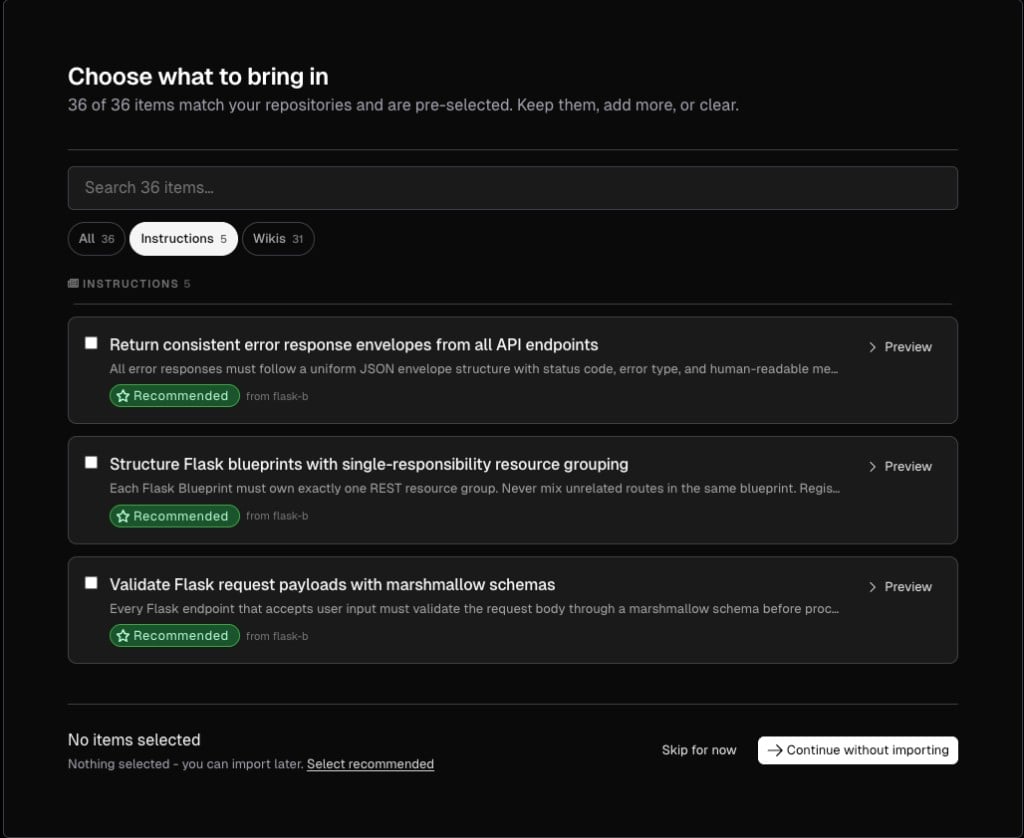
After Import
When you create the project, selected items are copied into it. Onboarding stages covered by the imported configuration are marked as complete, and you proceed directly to later stages. Project configuration is the exception. It is tracked, listed and browseable like any other artifact, but importing it writes nothing into the new project. The settings it carries — the project’s platform, and whether it runs on Modelcode Hosted or Self hosted — are chosen at the Build Environment step and are largely fixed afterwards, so they have to be a decision someone makes for that project rather than something an import brings along. Use it to see how a comparable project is set up, then make the same choice deliberately. After import, the new project owns its own copy of the configuration. Changes in the new project do not affect the source, and changes in the source project do not affect projects that already imported from it.Recommendations From Your Approved Spec
Once your Project Spec is approved, the Morph Platform reads it and looks through your organization’s knowledge for anything worth reusing on this project — going on what the migration actually intends to do, not only on which repositories match. This appears as a step in your project’s onboarding checklist. Relevant items are marked Recommended, and you can hover the tag to see why the Morph Platform thinks an item applies to your project. You choose what to bring in; nothing is imported without you.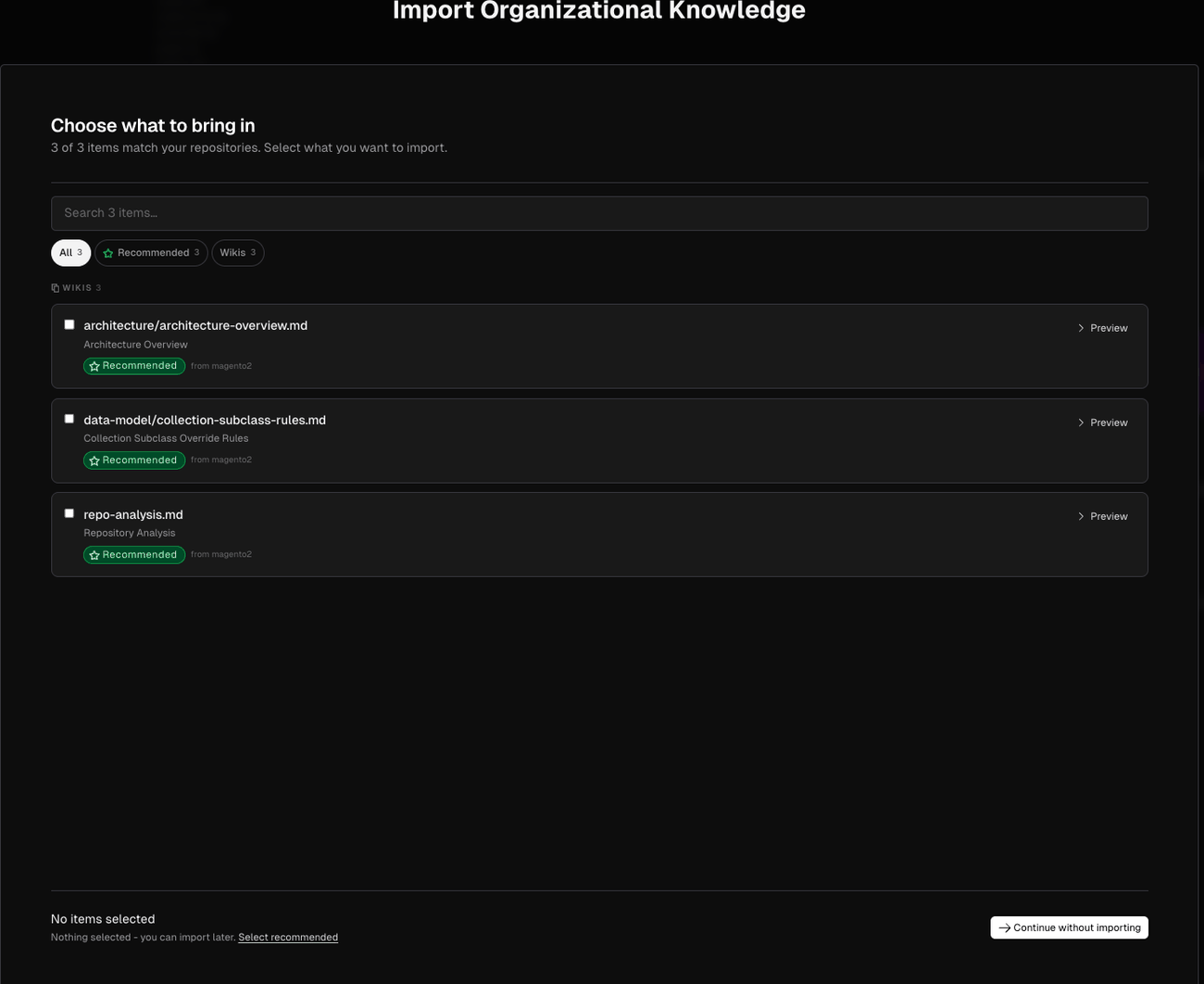
Importing During the Migration
You can also import organizational knowledge into an existing project. On the project page, click Import Knowledge in the sidebar to open the import drawer.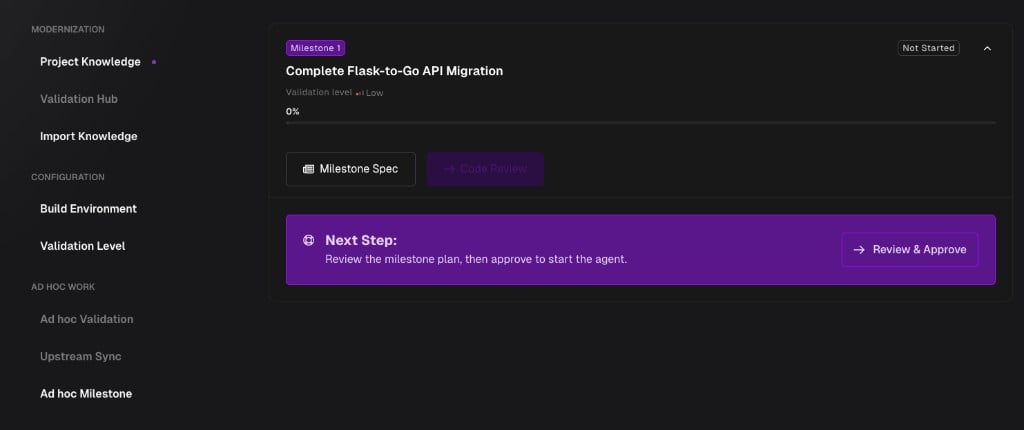
Mid-project import is available only when no execution is currently running on the project.
During mid-project import, items are marked with a green Recommended tag based on how relevant they are to the project’s approved spec. Hover the tag to see why the item is relevant. Any displayed item can be imported regardless of its recommendation status.
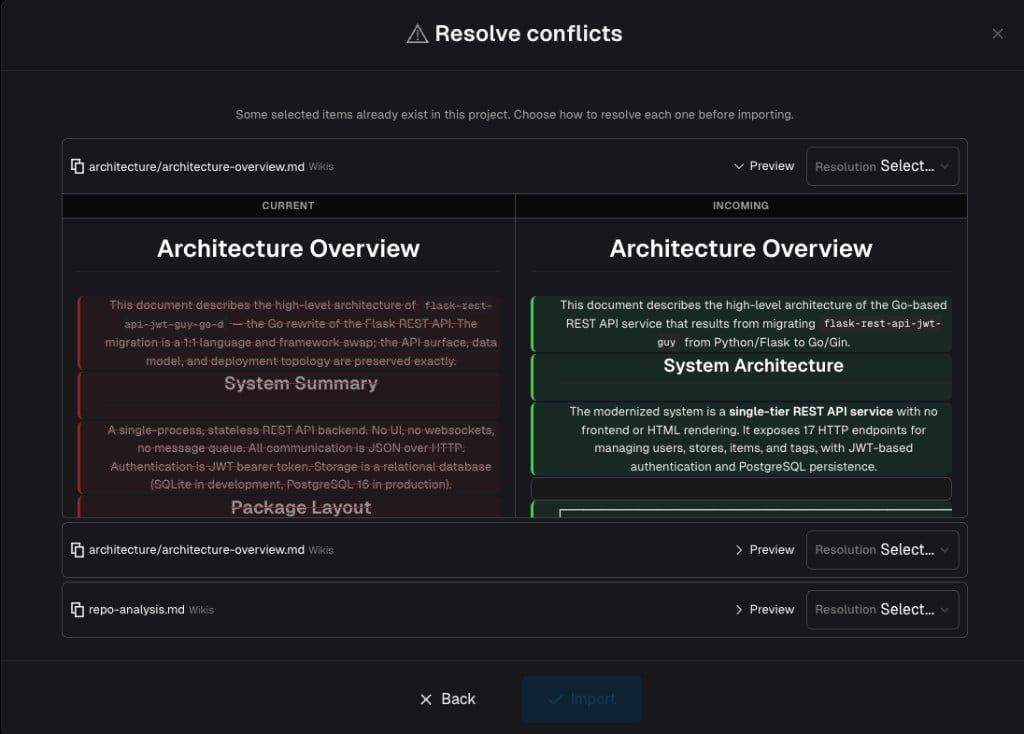
Collision handling. When importing into an existing project, items that share the same name as an existing wiki or instruction in the project are flagged as collisions. For each collision, you can choose to replace the existing item, keep both, or skip that item.