> ## Documentation Index
> Fetch the complete documentation index at: https://docs.modelcode.ai/llms.txt
> Use this file to discover all available pages before exploring further.
# Self-Managed GitLab
> Connect Modelcode to a self-hosted, self-managed, or GitLab Dedicated instance using your own OAuth application
Modelcode connects to **self-managed** (self-hosted) and **GitLab Dedicated** instances through an OAuth application that you create inside your own GitLab. You configure it once per organization on the **Integrations** page, and every user in your organization then signs in against your instance instead of GitLab.com.
This guide covers where to configure the integration in Modelcode, who in your organization needs to create the GitLab application, and the exact values you exchange between the two systems.
If your repositories are on **GitLab.com** (SaaS), no setup is required.
Modelcode ships with a pre-registered OAuth application. See [GitLab
Integration](/setup/gitlab-integration) instead.
## Prerequisites
* A Modelcode account with the **Admin** role (see [When the Integrations Page Is Visible](#when-the-integrations-page-is-visible))
* A GitLab instance reachable from Modelcode over HTTPS with a publicly valid TLS certificate
* Someone who can create an OAuth application in your GitLab, either an instance administrator or a group Owner (see [Who Can Create the Application](#who-can-create-the-application))
## How It Works
On GitLab.com, Modelcode uses its own OAuth application. On a self-managed instance that application does not exist, so **you register one in your GitLab and give Modelcode its credentials**.
| | **GitLab.com** | **Self-managed / Dedicated** |
| ----------------- | ------------------------------------------ | --------------------------------------------------------- |
| OAuth application | Pre-registered by Modelcode | You create it in your GitLab instance |
| Configuration | None | **Integrations** page: GitLab URL, Application ID, Secret |
| Who sets it up | Any user | A Modelcode admin plus a GitLab admin or group Owner |
| Sign-in | **Continue with GitLab** on the login page | **Connect GitLab** from the Integrations page |
The configuration is stored per organization. Once it is saved and connected, everyone in your Modelcode organization works against your instance.
## When the Integrations Page Is Visible
**Integrations** is where self-managed GitLab is configured. Three conditions must all be true for it to appear in the sidebar:
| Condition | Detail |
| ------------------------------------------------ | ------------------------------------------------------------------------------------------------------------------------------------------------------------------------------------------------------------------------------------------------------------------------------------------- |
| **Enabled for your organization** | Modelcode turns Integrations on per organization. If it is missing entirely, email [support@modelcode.ai](mailto:support@modelcode.ai). |
| **Your role grants integration access** | The **Admin** role can view and edit integrations. The **Member** role cannot, so members never see the sidebar item. |
| **Your organization has something to configure** | Integrations is hidden once your organization is connected to a public cloud provider (GitLab.com, GitHub.com, or Azure DevOps Services) *and* has no custom configuration saved. It stays visible if you have not connected a repository yet, or if a custom configuration already exists. |
The second and third conditions are why a brand-new organization always sees
Integrations before it links its first repository. That is the window in which
you point Modelcode at your own GitLab instance.
If you have view access but not edit access, the page renders in read-only mode: the fields are visible but dimmed and disabled.
## Setup Overview
| Step | Where | Who |
| -------------------------------------- | ---------------------------- | ----------------------------------- |
| 1. Enter your GitLab URL | Modelcode → **Integrations** | Modelcode admin |
| 2. Copy the **OAuth Redirect URI** | Modelcode → **Integrations** | Modelcode admin |
| 3. Create the OAuth application | Your GitLab instance | GitLab administrator or group Owner |
| 4. Paste the Application ID and Secret | Modelcode → **Integrations** | Modelcode admin |
| 5. Authorize the application | Your GitLab consent screen | The connecting user |
## Step 1: Enter Your GitLab URL
1. In the Modelcode sidebar, click **Integrations**
2. Find the **GitLab** section. Its description reads *"Set the URL of your self-managed or Dedicated GitLab instance. Leave blank only for gitlab.com."*
3. In **GitLab URL**, enter the base web URL of your instance, for example `https://gitlab.example.com`
If GitLab is installed under a relative URL root, include that path, for example `https://example.com/gitlab`. A trailing slash is fine; Modelcode strips it.
The **OAuth Redirect URI** field and the application setup instructions appear
only after you enter a URL that is not `gitlab.com`. Fill in **GitLab URL**
first, because the rest of the form depends on it.
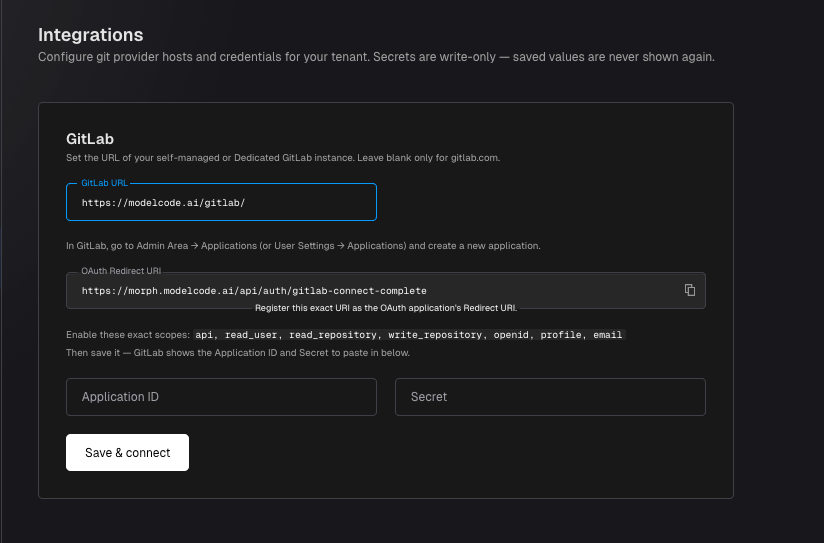
Once a custom URL is entered, the **GitLab** section expands to reveal the redirect URI, the required scopes, and the credential fields:
You do not need to configure an API URL or a clone host. Modelcode derives both
from **GitLab URL**. The API base becomes `/api/v4`.
## Step 2: Copy the OAuth Redirect URI
Once a custom GitLab URL is entered, Modelcode displays a read-only **OAuth Redirect URI** field with a copy button. Its hint reads *"Register this exact URI as the OAuth application's Redirect URI."*
The value takes this form:
```
https:///api/auth/gitlab-connect-complete
```
Copy it now. You will paste it into GitLab in the next step.
GitLab matches the redirect URI **exactly**. Do not add a trailing slash, change
the scheme, or register a shortened version. A mismatch fails the connection
with a token exchange error.
## Step 3: Create the OAuth Application in GitLab
### Who Can Create the Application
GitLab supports three kinds of OAuth application. They differ only by who owns them and who can create them.
| Application type | Created at | Required GitLab access | Use when |
| ----------------- | -------------------------------------------- | ----------------------- | ------------------------------------------------------------------------------------- |
| **Instance-wide** | **Admin** → **Applications** | Instance administrator | Recommended. One application serves every group and user on the instance. |
| **Group-owned** | Group → **Settings** → **Applications** | **Owner** of that group | You want the integration scoped to a single group and managed by that group's owners. |
| **User-owned** | Avatar → **Edit profile** → **Applications** | Any user | Trials and evaluations only. |
Avoid a **user-owned** application for production. It belongs to one person's
account. If that account is deactivated or removed, the application is deleted
and the integration stops working for your whole organization. Create the
application at the instance or group level instead.
### Create the Application
1. Sign in to your GitLab instance as an administrator (or as an Owner of the target group)
2. Go to the **Applications** page for the ownership level you chose above, then click **New application**
3. **Name**: use something recognizable to your users, such as `Modelcode`
4. **Redirect URI**: paste the **OAuth Redirect URI** you copied in Step 2
5. **Confidential**: leave this **checked**. Modelcode exchanges the authorization code server-side using the application secret.
6. **Trusted** (instance-wide applications only, optional): check this to skip the per-user consent screen for everyone on the instance
7. **Scopes**: enable exactly the scopes listed below
8. Click **Save application**
GitLab then displays the **Application ID** and **Secret**.
GitLab shows the **Secret** only once, on this confirmation screen. Copy it
before navigating away. If you lose it, rotate the secret in GitLab and paste
the new value into Modelcode.
### Required Scopes
Enable these seven scopes, and no others:
```
api read_user read_repository write_repository openid profile email
```
| Scope | Why Modelcode needs it |
| ---------------------------- | ----------------------------------------------------------------------------- |
| `api` | Read and manage projects, branches, and merge requests through the GitLab API |
| `read_user` | Identify the connecting user after authorization |
| `read_repository` | Clone and read repository contents during a migration |
| `write_repository` | Push migration branches back to your repositories |
| `openid`, `profile`, `email` | Establish the user's identity and email on sign-in |
Do not add `read_registry` or `write_registry`. Modelcode requests those against
GitLab.com only, and some self-managed versions reject them as unknown scopes.
## Step 4: Paste the Application ID and Secret
Back on the Modelcode **Integrations** page, in the **GitLab** section:
1. **Application ID**: paste the Application ID from GitLab (the field hint reads *"From GitLab → Applications."*)
2. **Secret**: paste the application secret
3. Click **Save & connect**
Modelcode saves the configuration, shows a **Saved** toast reading *"GitLab configuration saved."*, and immediately redirects you to your GitLab instance to authorize.
The **Secret** is write-only. After saving, the field shows a masked
`••••••••` placeholder and the stored value is never displayed again. Leaving it
blank on a later save keeps the existing secret; to rotate it, paste a new value
and save again.
If the button is disabled and its tooltip reads *"Enter the Application ID and Secret first."*, the credentials have not been saved yet.
## Step 5: Authorize the Application
On your GitLab instance, review the requested scopes and click **Authorize**. If an administrator marked the application as **Trusted**, this screen is skipped.
* **On success**, you land on the Modelcode **Projects** page with GitLab connected. Returning to **Integrations** shows a green **Configured** tag on the GitLab section.
* **On failure**, you return to **Integrations** with a **Connection failed** alert: *"GitLab rejected the connection (reason). Check the Application ID, Secret, and Redirect URI, then try again."*
Modelcode stores the OAuth token of the user who completes this authorization.
Repository visibility and push permissions follow **that user's** GitLab access.
Authorize with an account that has at least **Developer** access to every
repository you intend to migrate.
## Managing the Configuration
The **GitLab** section shows one of two status tags:
| Tag | Meaning |
| ------------------------------- | -------------------------------------------------------------------- |
| **Configured** (green) | Credentials are saved and the OAuth connection is live |
| **Saved, not connected** (gray) | Credentials are saved but no one has completed the authorization yet |
The primary button adapts to the current state:
| Button | When it appears |
| --------------------- | ------------------------------------------------------------------------------------ |
| **Save & connect** | You have unsaved edits |
| **Connect GitLab** | Credentials are saved but not yet connected |
| **Reconnect GitLab** | Already connected. Use this after rotating the secret or to refresh an expired token |
| **Reset to defaults** | A configuration exists |
**Reset to defaults** clears the saved GitLab URL and credentials for your whole
organization. Modelcode reverts to its GitLab.com defaults, and existing
connections to your instance stop resolving. Use it only when you are
deliberately decommissioning the integration.
## Network Requirements
The integration requires traffic in both directions.
| Direction | Endpoints | Purpose |
| --------------------------- | ------------------------------------------------------------------- | ---------------------------------------------------------------------------------------- |
| **Modelcode → your GitLab** | `https:///oauth/token`, `https:///api/v4` | Exchange and refresh OAuth tokens; read repositories; create branches and merge requests |
| **Your GitLab → Modelcode** | `https://callback.modelcode.ai/gitlab/webhook` | Deliver project webhooks back to Modelcode |
| **User's browser → both** | Your GitLab and Modelcode | Complete the OAuth authorization redirect |
Your instance must present a publicly valid TLS certificate. Modelcode does not
support custom or private certificate authorities. If your GitLab is only
reachable inside a private network, contact
[support@modelcode.ai](mailto:support@modelcode.ai) to discuss deployment
options.
## Troubleshooting
### Integrations is missing from the sidebar
Check each condition in [When the Integrations Page Is Visible](#when-the-integrations-page-is-visible): the feature must be enabled for your organization, your role must be **Admin**, and your organization must not already be connected to a public cloud provider with no custom configuration.
### The OAuth Redirect URI field never appears
The field is shown only for a custom host. Confirm **GitLab URL** is filled in and is not `gitlab.com`.
### "per-tenant OAuth client credentials are not allowed on the public/global host"
You entered an **Application ID** and **Secret** while **GitLab URL** is still `gitlab.com` (or blank). On GitLab.com, Modelcode always uses its own application. Either set your self-managed URL or clear the credentials.
### Connection failed (`not_configured`)
The Application ID was not saved. Re-enter the **Application ID** and **Secret**, then click **Save & connect**.
### Connection failed (`token_exchange_failed`)
The most common causes, in order:
1. The **Redirect URI** registered in GitLab does not exactly match the one shown in Modelcode
2. The **Secret** is wrong or was rotated in GitLab without being updated in Modelcode
3. Modelcode cannot reach `https:///oauth/token`, so check egress and TLS
### Connection failed (`invalid_state`, `expired_state`, or `session_expired`)
The authorization took longer than 10 minutes, or your Modelcode session expired mid-flow. Return to **Integrations** and click **Connect GitLab** again.
### Connection failed (`host_mismatch`)
The **GitLab URL** changed between starting and completing the authorization. Refresh **Integrations** and retry.
### Connection failed (`gitlab_user_fetch_failed`)
Modelcode authorized successfully but could not read the user profile from `https:///api/v4`. Verify the API is reachable from Modelcode and that the application includes the `read_user` scope.
### Connection failed (`provider_mismatch`)
Your organization is locked to a different git provider. Contact [support@modelcode.ai](mailto:support@modelcode.ai) to change it.
### No repositories appear after connecting
Repository access follows the GitLab account that completed the authorization. Verify that account can see the repositories in GitLab, then click **Reconnect GitLab** to refresh the token.
## Next Steps
* [GitLab Integration](/setup/gitlab-integration): Create projects, understand GitLab principals, and approve migration plans
* [Quickstart](/quickstart): Create your first migration project
* [Define Modernization Goals](/setup/modernization-goals): Write effective goals for your migration