> ## Documentation Index
> Fetch the complete documentation index at: https://docs.modelcode.ai/llms.txt
> Use this file to discover all available pages before exploring further.
# Review Issue Assignment
> Assign code review issues to team members and track your assigned reviews in one place
export const ProductName = "The Morph Platform";
export const productName = "the Morph Platform";
## Assigning Review Issues
When a milestone completes its automated code review, {productName} surfaces review issues - bugs, warnings, and improvement suggestions found in the code. You can assign these issues to specific team members so everyone knows who is responsible for triaging each finding.
 ### How to Assign
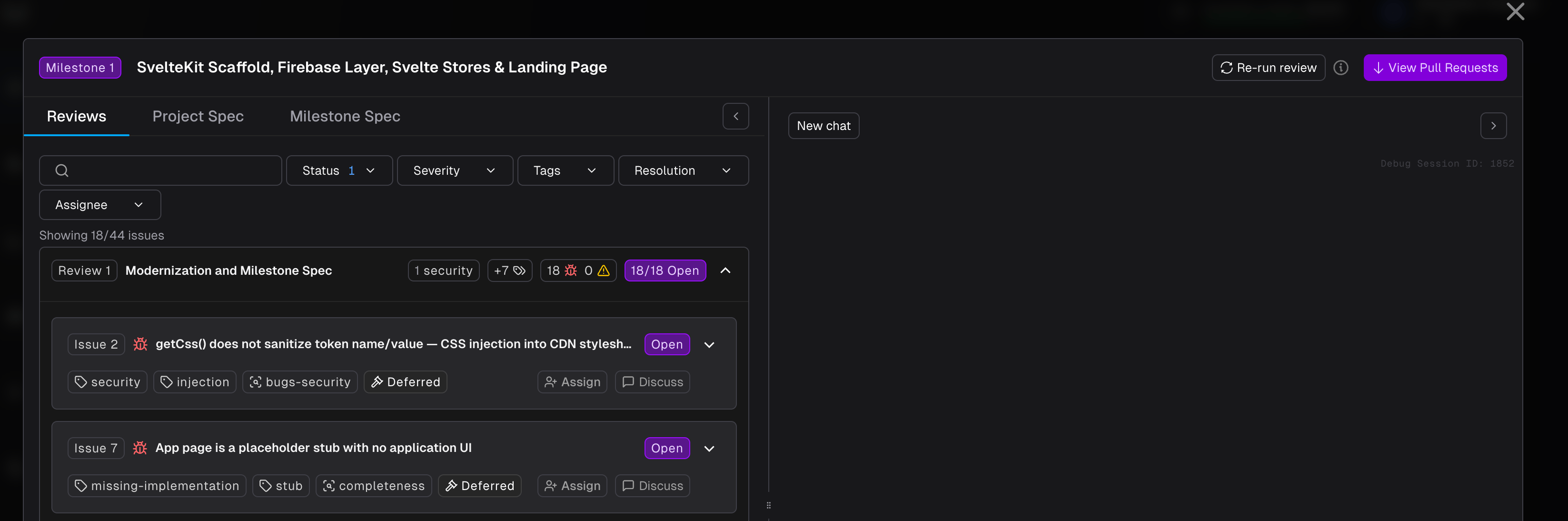
1. Open the **Code Review** drawer for a completed milestone.
2. On any open issue card, click **Assign** in the bottom-right corner.
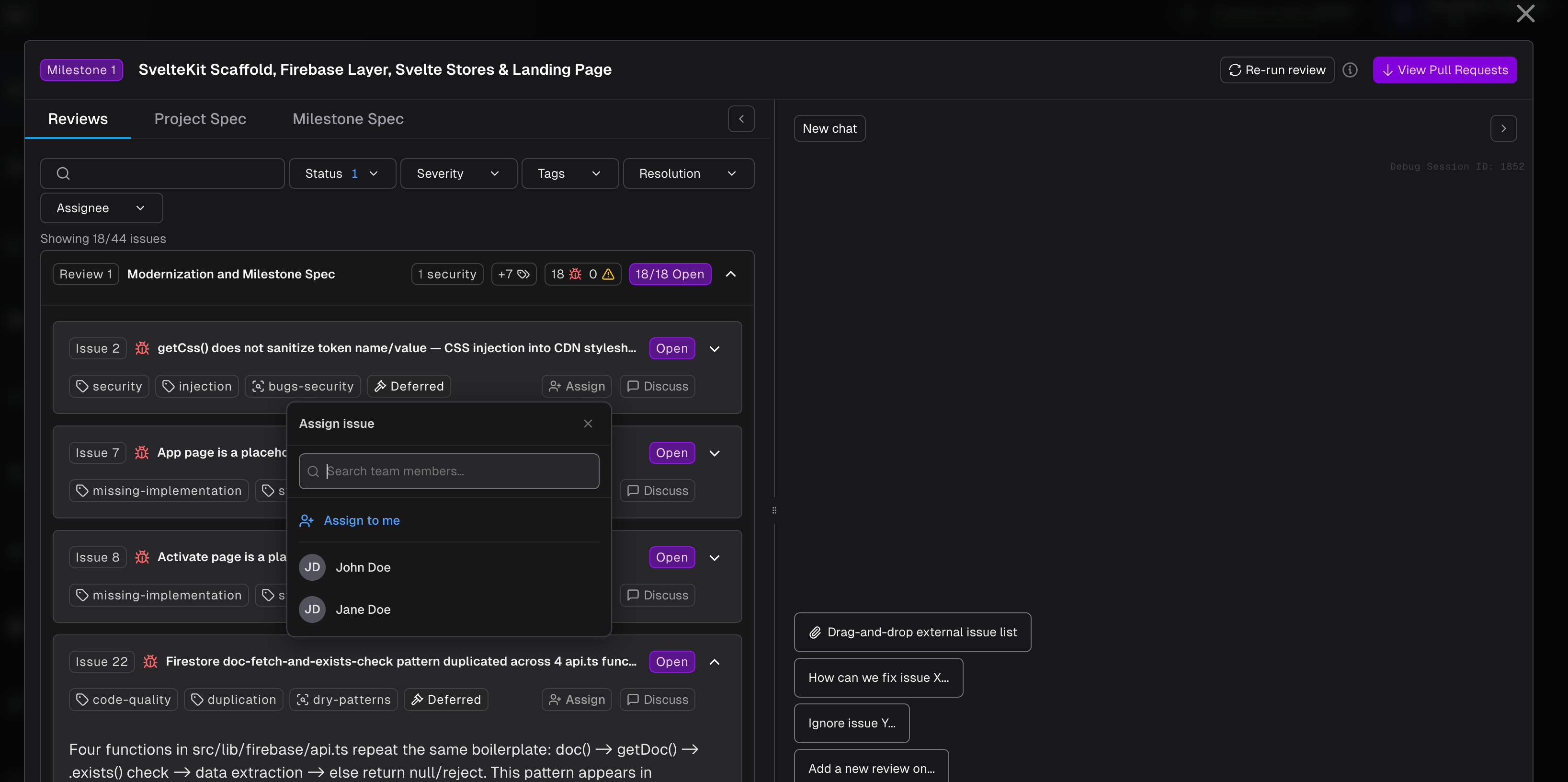
3. A dropdown appears with your team members. Click **Assign to me** to take it yourself, or select another team member.
### How to Assign
1. Open the **Code Review** drawer for a completed milestone.
2. On any open issue card, click **Assign** in the bottom-right corner.
3. A dropdown appears with your team members. Click **Assign to me** to take it yourself, or select another team member.
 4. The assignee's name appears on the issue card immediately.
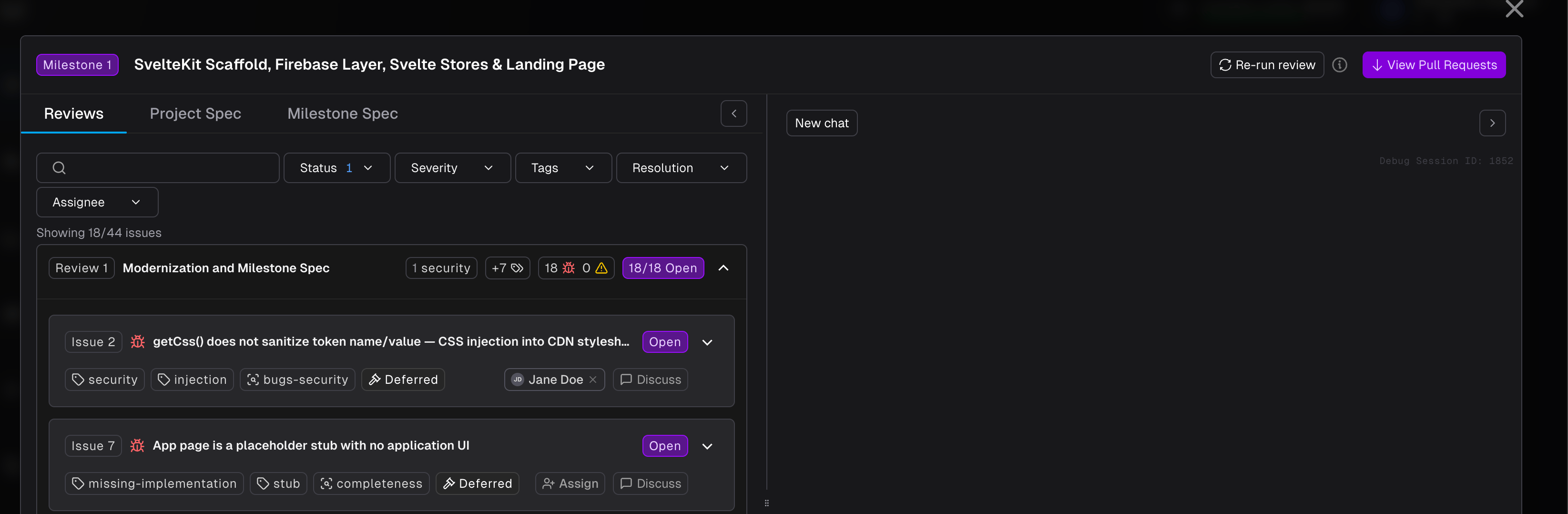 To reassign, click the assignee name and select a different person. To unassign, click the **x** next to the assignee name.
### Email Notifications
When you assign an issue to another team member, they receive an email notification with:
* The issue title and type
* The project and milestone it belongs to
* A direct link to the review drawer
Self-assignment does not send a notification. When an assigned issue is resolved (by the agent or another reviewer), the assignee receives a resolution notification.
### Filtering by Assignee
The Code Review toolbar includes an **Assignee** filter. Select one or more team members to narrow the issue list to only their assigned issues - useful when a team is dividing review work across members.
***
## My Reviews
**My Reviews** gives you a single view of every review issue assigned to you across all projects. Access it from the sidebar.
To reassign, click the assignee name and select a different person. To unassign, click the **x** next to the assignee name.
### Email Notifications
When you assign an issue to another team member, they receive an email notification with:
* The issue title and type
* The project and milestone it belongs to
* A direct link to the review drawer
Self-assignment does not send a notification. When an assigned issue is resolved (by the agent or another reviewer), the assignee receives a resolution notification.
### Filtering by Assignee
The Code Review toolbar includes an **Assignee** filter. Select one or more team members to narrow the issue list to only their assigned issues - useful when a team is dividing review work across members.
***
## My Reviews
**My Reviews** gives you a single view of every review issue assigned to you across all projects. Access it from the sidebar.
 ### What You See
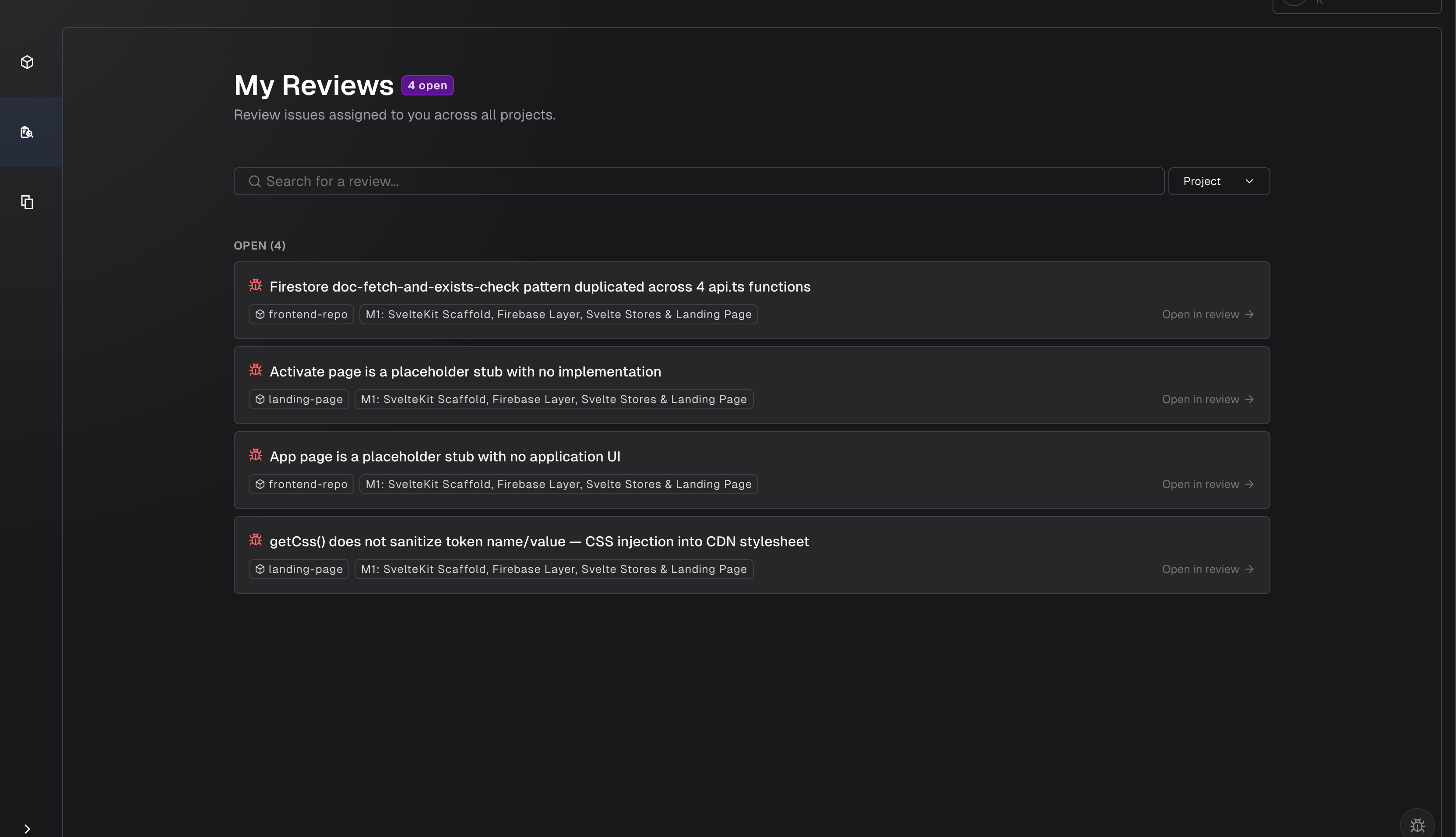
* **Open issues** appear at the top, grouped under an "Open" heading with a count.
* **Resolved issues** appear below in a "Resolved" section, dimmed to indicate they are complete.
* Each card shows the issue title, the project name, and the milestone it belongs to.
### Search and Filter
Use the **search bar** at the top to find issues by title, project name, or milestone name. Matching text is highlighted in the results.
Use the **Project** filter dropdown to narrow the list to issues from a specific project.
### Navigating to an Issue
Click any issue card to navigate directly to that issue in the Code Review drawer. The drawer opens with the clicked issue expanded and scrolled into view, while other issues remain collapsed.
### What You See
* **Open issues** appear at the top, grouped under an "Open" heading with a count.
* **Resolved issues** appear below in a "Resolved" section, dimmed to indicate they are complete.
* Each card shows the issue title, the project name, and the milestone it belongs to.
### Search and Filter
Use the **search bar** at the top to find issues by title, project name, or milestone name. Matching text is highlighted in the results.
Use the **Project** filter dropdown to narrow the list to issues from a specific project.
### Navigating to an Issue
Click any issue card to navigate directly to that issue in the Code Review drawer. The drawer opens with the clicked issue expanded and scrolled into view, while other issues remain collapsed.