> ## Documentation Index
> Fetch the complete documentation index at: https://docs.modelcode.ai/llms.txt
> Use this file to discover all available pages before exploring further.
# Milestones
> How milestones are reviewed, executed, automatically reviewed, shipped, and learned from
export const ProductName = "The Morph Platform";
export const productName = "the Morph Platform";
Milestones are the heart of your migration. Each one delivers a working increment that you review before proceeding, so changes stay small, reviewable, and safe. Within each milestone, the agent breaks the work into **tasks** and handles them automatically. After tasks finish, {productName} runs an **automated milestone review** and surfaces functional test results before you merge. Once you merge, {productName} **learns from your changes** and updates project knowledge so the next milestone doesn't repeat the same mistakes.
For a high-level overview of the roadmap, see the [Roadmap](/migration/roadmap) page.
***
## The Milestone Lifecycle
Each milestone moves through these phases:
1. **Review the Milestone Spec** in Project Knowledge.
2. **Approve & Start** — the agent plans and executes tasks.
3. **Automated Review & Tests** — milestone review and functional testing run automatically and surface in dedicated tabs.
4. **Triage the Review and Merge the Milestone** — open the Review page to triage issues with chat, then jump to the pull request(s) and merge.
5. **Milestone Learning** — after merge, {productName} learns from the PR review and your edits and updates project wikis and rules so future milestones avoid the same issues.
The expanded milestone card on the Roadmap exposes these as up to three tabs — **Tasks**, **Review**, and **Tests** — that appear as each phase becomes relevant.
***
### Step 1: Review the Milestone Spec
Before any code is generated, understand what the milestone will accomplish. Click a milestone on the Roadmap to expand it, then click **Review & Approve** (or **Milestone Plan**) on the milestone action row.
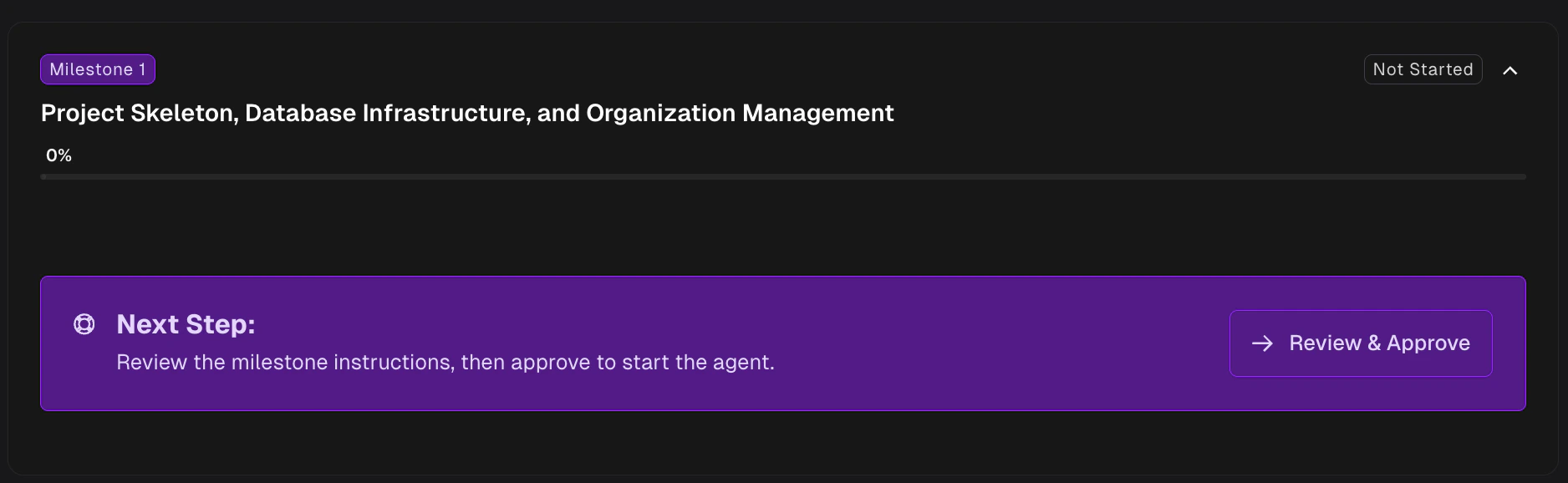 Both buttons open the **Project Knowledge** drawer with the **Milestone Spec** selected in the tree — this is where milestone review now lives, alongside the rest of your project's knowledge (project spec, rules, wikis, lifecycle setup).
In the drawer you can:
* **Read the full Milestone Spec** — scope, relevant files, design decisions, and risks the agent will follow.
* **Refine via Knowledge chat** — ask {productName} to clarify, expand, or adjust the spec. The agent updates the Milestone Spec in place.
* **Approve** — when you're satisfied, approve the milestone from the drawer to unlock **Approve & Start** on the Roadmap.
For deeper guidance on editing the Milestone Spec — including `Validate following milestones` to make sure your edits don't break later milestones — see [Editing Milestones](/customization/editing-milestones). For the drawer itself, see [Project Knowledge](/customization/project-knowledge).
You don't have to change anything. If the plan looks good, just approve. But if something looks off, this is the cheapest place to fix it — much cheaper than fixing generated code later.
How to adjust the Milestone Spec before approving
The drawer where milestone specs, rules, and wikis live
***
### Step 2: Approve and Start
Once you're happy with the spec, click **Approve & Start** on the milestone. {ProductName} prepares a sandbox and the agent begins working autonomously: it plans tasks, works through them one by one, and commits code after each task.
Both buttons open the **Project Knowledge** drawer with the **Milestone Spec** selected in the tree — this is where milestone review now lives, alongside the rest of your project's knowledge (project spec, rules, wikis, lifecycle setup).
In the drawer you can:
* **Read the full Milestone Spec** — scope, relevant files, design decisions, and risks the agent will follow.
* **Refine via Knowledge chat** — ask {productName} to clarify, expand, or adjust the spec. The agent updates the Milestone Spec in place.
* **Approve** — when you're satisfied, approve the milestone from the drawer to unlock **Approve & Start** on the Roadmap.
For deeper guidance on editing the Milestone Spec — including `Validate following milestones` to make sure your edits don't break later milestones — see [Editing Milestones](/customization/editing-milestones). For the drawer itself, see [Project Knowledge](/customization/project-knowledge).
You don't have to change anything. If the plan looks good, just approve. But if something looks off, this is the cheapest place to fix it — much cheaper than fixing generated code later.
How to adjust the Milestone Spec before approving
The drawer where milestone specs, rules, and wikis live
***
### Step 2: Approve and Start
Once you're happy with the spec, click **Approve & Start** on the milestone. {ProductName} prepares a sandbox and the agent begins working autonomously: it plans tasks, works through them one by one, and commits code after each task.
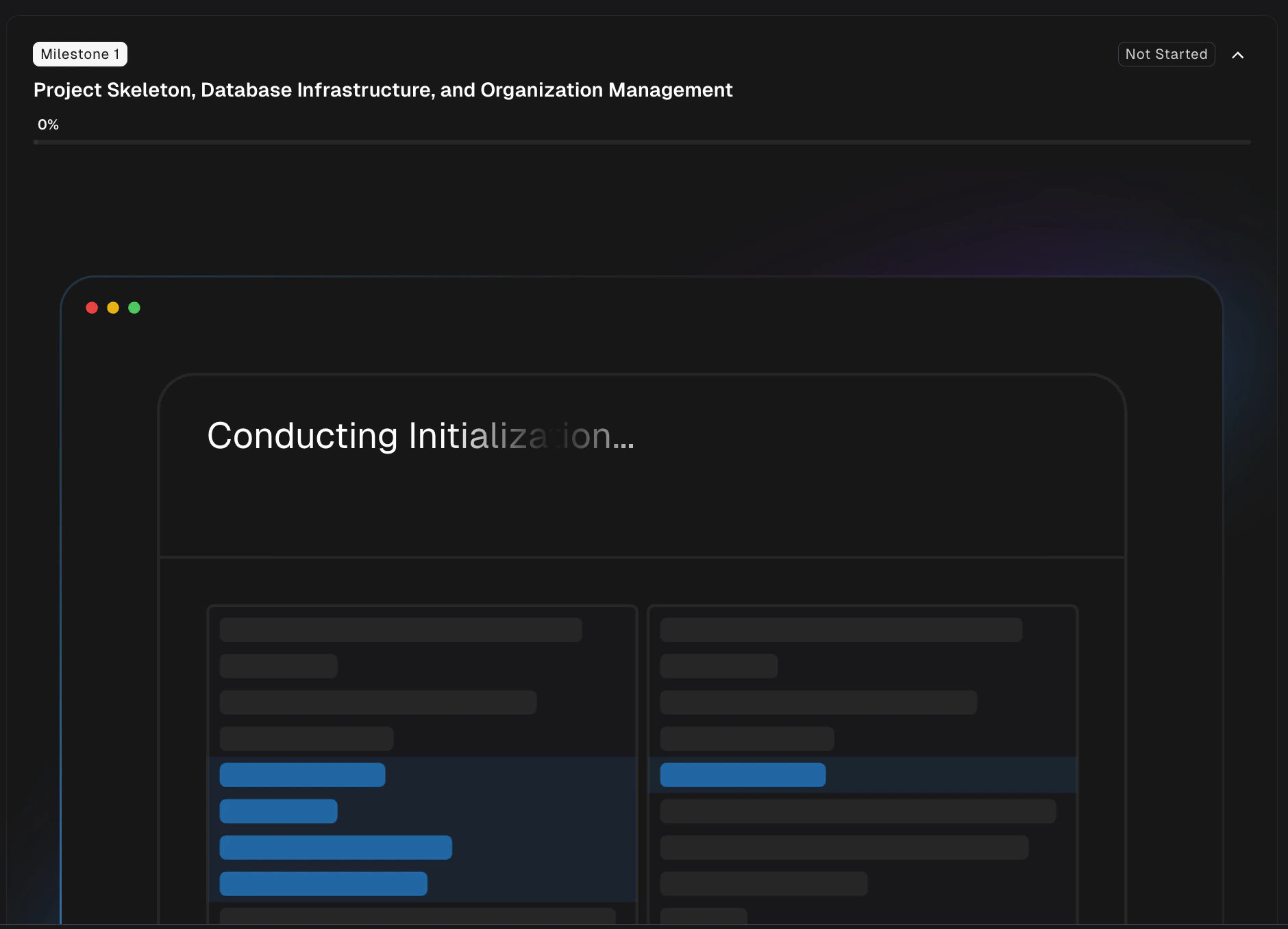 A **Tasks** tab appears on the expanded milestone where you can watch progress in real time. Each task shows its ID (e.g., `M1-TA002`), title, and status badge.
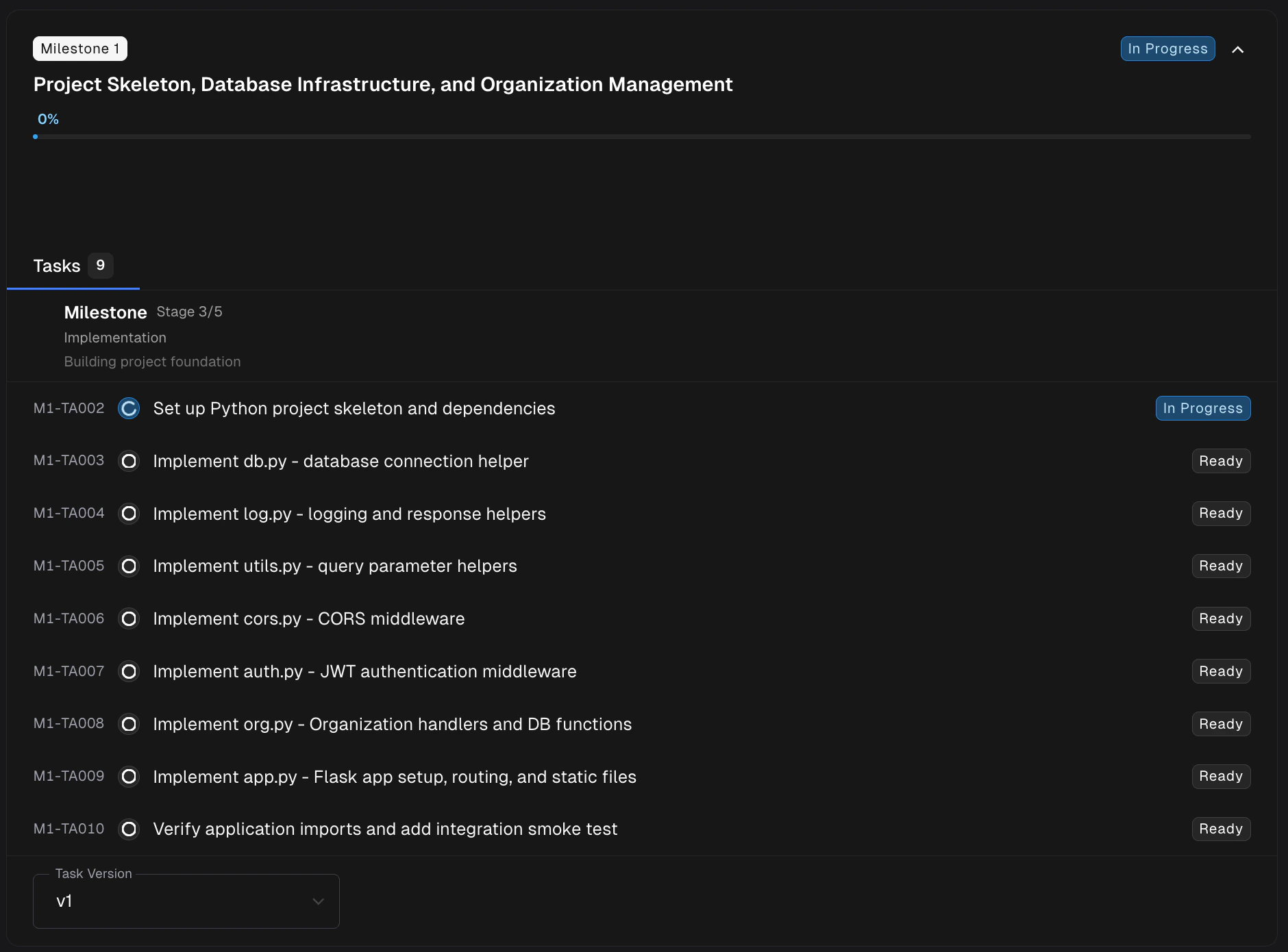 You don't need to babysit execution — the agent runs autonomously and progress is persisted. Open the milestone whenever you want to check on it; the **Tasks** tab keeps updating in the background.
***
### Step 3: Automated Review & Tests
After the agent finishes implementation, {productName} runs **two automated passes** before the milestone is ready to merge — and both surface as dedicated tabs on the expanded milestone card. The depth of these checks depends on your project's [validation level](/setup/validation-level).
| Tab | When it appears | What it shows |
| ---------- | --------------------------------------------- | --------------------------------------------------------------------------------------------------------------------------------------------------------------------- |
| **Tasks** | As soon as planning produces tasks | The execution tasks the agent is working through (and any [adhoc tasks](/migration/adhoc-tasks) you've added) |
| **Review** | Once the milestone review starts | The review tasks (the automated review pipeline) and a count of issues raised |
| **Tests** | Once functional tests start producing results | A summary of backend (API/CLI) and frontend (visual) functional test results for the milestone, with passed/total counts and origin-comparison counts where available |
#### The Review tab
The **Review** tab tracks the milestone's automated review tasks — the pipeline that inspects the agent's output and raises issues against the migrated code. Once review tasks finish, the milestone exposes a **Code Review** button on its action row that opens the dedicated Review page (see Step 4). Failed functional tests [also raise issues here automatically](/migration/functional-testing#failed-tests-create-review-issues), linked back to the failing test for easy back-and-forth.
#### The Tests tab
The **Tests** tab shows the functional testing summary for the milestone — passed/total counts for backend (API/CLI) and frontend (visual) test runs, with comparison indicators when origin output is available for reference. From here you can jump into the full breakdown:
Verify behavior with auto-generated tests; the Tests tab is your milestone-scoped entry point
***
### Step 4: Triage the Review and Merge the Milestone
Once the automated review finishes and the pull request(s) are generated, the milestone moves to **Pending Review**:
You don't need to babysit execution — the agent runs autonomously and progress is persisted. Open the milestone whenever you want to check on it; the **Tasks** tab keeps updating in the background.
***
### Step 3: Automated Review & Tests
After the agent finishes implementation, {productName} runs **two automated passes** before the milestone is ready to merge — and both surface as dedicated tabs on the expanded milestone card. The depth of these checks depends on your project's [validation level](/setup/validation-level).
| Tab | When it appears | What it shows |
| ---------- | --------------------------------------------- | --------------------------------------------------------------------------------------------------------------------------------------------------------------------- |
| **Tasks** | As soon as planning produces tasks | The execution tasks the agent is working through (and any [adhoc tasks](/migration/adhoc-tasks) you've added) |
| **Review** | Once the milestone review starts | The review tasks (the automated review pipeline) and a count of issues raised |
| **Tests** | Once functional tests start producing results | A summary of backend (API/CLI) and frontend (visual) functional test results for the milestone, with passed/total counts and origin-comparison counts where available |
#### The Review tab
The **Review** tab tracks the milestone's automated review tasks — the pipeline that inspects the agent's output and raises issues against the migrated code. Once review tasks finish, the milestone exposes a **Code Review** button on its action row that opens the dedicated Review page (see Step 4). Failed functional tests [also raise issues here automatically](/migration/functional-testing#failed-tests-create-review-issues), linked back to the failing test for easy back-and-forth.
#### The Tests tab
The **Tests** tab shows the functional testing summary for the milestone — passed/total counts for backend (API/CLI) and frontend (visual) test runs, with comparison indicators when origin output is available for reference. From here you can jump into the full breakdown:
Verify behavior with auto-generated tests; the Tests tab is your milestone-scoped entry point
***
### Step 4: Triage the Review and Merge the Milestone
Once the automated review finishes and the pull request(s) are generated, the milestone moves to **Pending Review**:
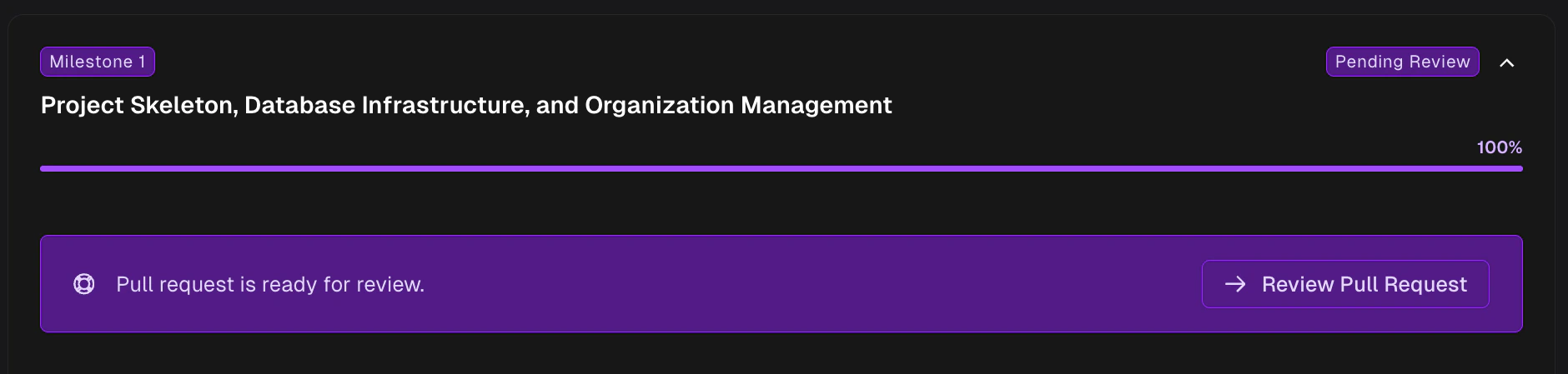 Everything from here happens through the **Review** drawer. Click **Code Review** on the milestone action row to open it — this is the single entry point for both triaging review issues and reaching the underlying pull requests (there's no separate "open PR" button on the milestone).
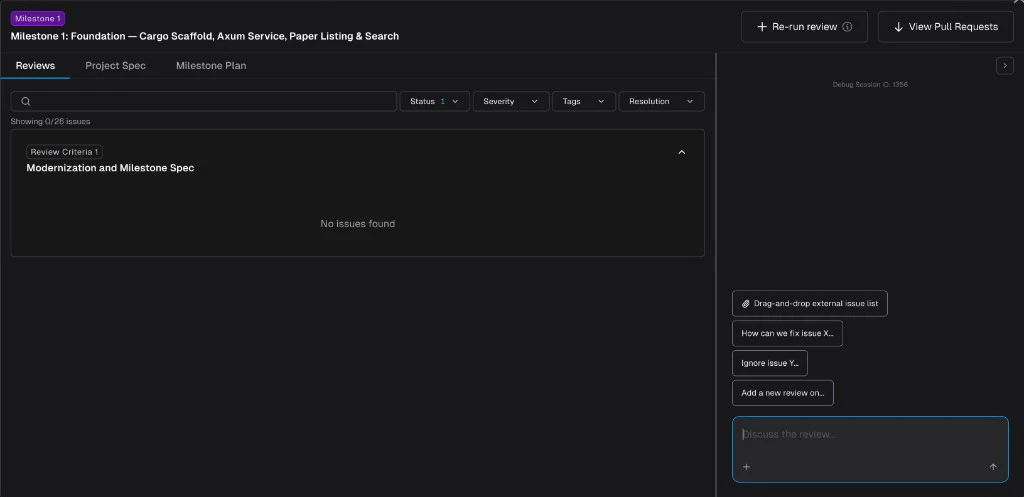 **Triage the review.** The Review drawer is an interactive hub for every issue raised on the milestone, with a chat panel for working through them. On this page you can:
* **Browse review issues** across every repository in the milestone, filtered by status, severity, tags, and resolution.
* **Chat with {productName}** to resolve issues, create new ones, add review criteria, or re-run the review against your latest changes.
* **Inspect the Milestone Spec and Project Spec** in side tabs without leaving the page.
Full walkthrough: filters, chat actions, importing external issues, and re-running the review
**Merge the milestone.** When the review looks good and tests pass, jump to the PRs from the same drawer:
1. Click **View Pull Requests** in the Review drawer header. A popover lists every PR in the milestone, each linking out to GitHub.
2. Open each PR, review the code as you would any PR — leave comments, request changes, push fixups, or open [adhoc tasks](/migration/adhoc-tasks) for anything you'd rather have the agent handle.
3. Merge when satisfied.
After every PR in the milestone is merged, the milestone is complete and any dependent milestones are unlocked.
When a milestone PR is merged while sibling milestones are still in progress, {productName} automatically detects whether those sibling branches need to incorporate the newly merged code. If so, the affected milestones are flagged as **Rebase Required** — see [Milestones — Rebase Required](/migration/milestones-and-tasks#rebase-required) for how to resolve it.
**Triage the review.** The Review drawer is an interactive hub for every issue raised on the milestone, with a chat panel for working through them. On this page you can:
* **Browse review issues** across every repository in the milestone, filtered by status, severity, tags, and resolution.
* **Chat with {productName}** to resolve issues, create new ones, add review criteria, or re-run the review against your latest changes.
* **Inspect the Milestone Spec and Project Spec** in side tabs without leaving the page.
Full walkthrough: filters, chat actions, importing external issues, and re-running the review
**Merge the milestone.** When the review looks good and tests pass, jump to the PRs from the same drawer:
1. Click **View Pull Requests** in the Review drawer header. A popover lists every PR in the milestone, each linking out to GitHub.
2. Open each PR, review the code as you would any PR — leave comments, request changes, push fixups, or open [adhoc tasks](/migration/adhoc-tasks) for anything you'd rather have the agent handle.
3. Merge when satisfied.
After every PR in the milestone is merged, the milestone is complete and any dependent milestones are unlocked.
When a milestone PR is merged while sibling milestones are still in progress, {productName} automatically detects whether those sibling branches need to incorporate the newly merged code. If so, the affected milestones are flagged as **Rebase Required** — see [Milestones — Rebase Required](/migration/milestones-and-tasks#rebase-required) for how to resolve it.
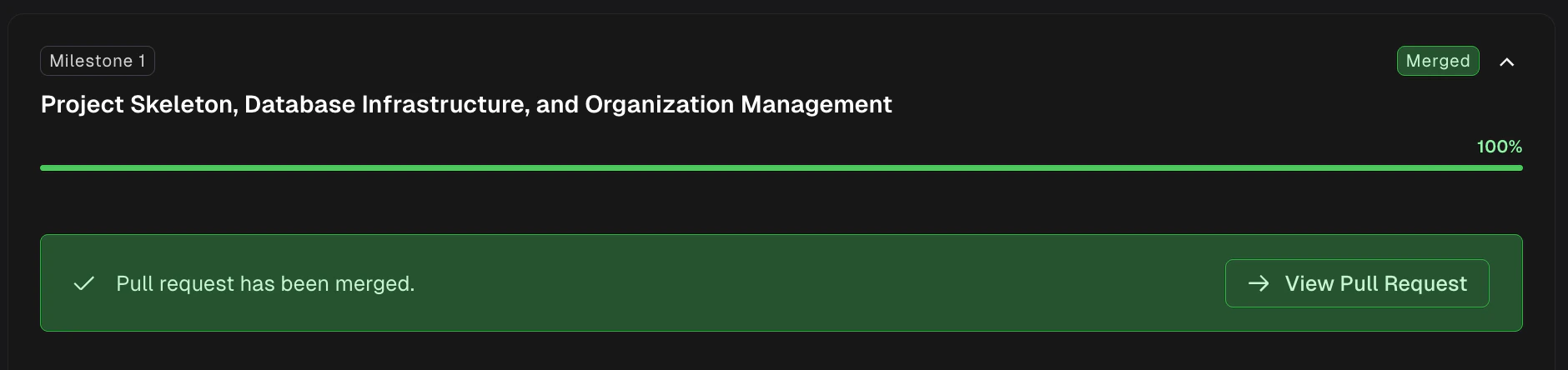 Best practices for reviewing migration PRs
***
### Step 5: Milestone Learning
Merging the PR is the signal that the final state of the milestone is what you wanted — including every change *you* applied on top of the agent's output (review comments accepted, fixups you pushed, criteria you added, manual edits). {ProductName} treats that signal as a teaching moment.
As soon as a milestone PR is merged, a background **Milestone Learning** task runs automatically. An agent opens a sandbox with full access to the merged PR (review comments, inline feedback, the final diff, your follow-up commits) and looks for patterns worth keeping — corrections, conventions, architectural constraints, or anti-patterns that future milestones should respect.
Anything it finds gets written back to your project as updates to:
* **Wikis** — when the PR reveals new context about the codebase or how a subsystem actually works.
* **Rules** — when the PR enforces a convention, constraint, or fix-up pattern that should apply to future work.
Both update [Project Knowledge](/customization/project-knowledge) directly, so the next milestone's agent loads them automatically — no copy-pasting feedback, no repeating the same correction across milestones.
Milestone Learning runs **asynchronously and non-blocking**. You can start the next milestone right away — learning will keep running in the background and the updated wikis/rules will be in place by the time the next agent needs them.
You don't have to do anything to trigger this — merging the PR is enough. If you want to see what was learned, open [Project Knowledge](/customization/project-knowledge) after the next milestone starts and check **Rules** and **Wikis** for recent updates.
Where learned rules and wiki updates live
Conventions and constraints applied to every future milestone
***
## The Foundation Milestone
**Milestone 1** (the foundation milestone) includes an extra automated step: **lifecycle discovery** for the target repository. Before the agent starts writing migration code, {productName} analyzes the target repo to determine how it should be installed, built, run, and tested. The discovered configuration is saved as a [Lifecycle Setup](/setup/build-environment/lifecycle-setup) that you can review and edit through the [Project Knowledge](/customization/project-knowledge) drawer.
If discovery cannot get the target application healthy automatically, the configuration is saved as **Draft** and a warning appears so you can fix it before proceeding.
***
## Milestone Statuses
As a milestone moves through its lifecycle, its status badge updates on the Roadmap. Here's what each one means:
| Status | Meaning |
| ---------------------------- | ----------------------------------------------------------------------------------------------- |
| **Locked** | Waiting for prerequisite milestones to merge. Cannot be started. |
| **Not Started** | All prerequisites satisfied. Hasn't been approved yet. No work has begun. |
| **In Progress** | The agent is actively working on tasks. |
| **Pending Review (Success)** | All tasks completed. A pull request is ready for your review. |
| **Pending Review (Fail)** | The agent finished, but not all tasks completed. A PR is still created with whatever succeeded. |
| **Rebase Required** | A sibling milestone was merged and this branch needs to incorporate those changes. |
| **Merged** | You've merged the PR. Milestone complete. |
| **Failed** | The agent crashed. All progress halted. |
| **PR Generation Failed** | Tasks finished, but the pull request couldn't be created. |
***
## Tasks
You don't need to interact with individual tasks. They execute automatically as part of the milestone. But here's how they work under the hood.
### Task Statuses
| Status | Meaning |
| --------------- | ----------------------------------------------------------- |
| **Ready** | Waiting to be picked up. This is the default for new tasks. |
| **In Progress** | The agent is working on it. |
| **Completed** | Done. |
| **Failed** | The task ran into an error. |
### Task Dependencies
Tasks can depend on other tasks. For example, "Implement authentication middleware" might need "Create project scaffolding" to finish first.
{ProductName} handles execution order automatically:
* A task stays in **Ready** until all of its dependencies have completed.
* Once a dependency finishes, tasks waiting on it become eligible to run.
* If a dependency fails, all tasks waiting on it are **skipped**. This prevents the agent from building on top of work that didn't succeed.
* Tasks with no dependencies can run in parallel.
* If dependencies form a loop (Task A needs Task B, which needs Task A), {productName} catches this and stops with an error.
***
## Milestone Dependencies and Parallel Execution
Milestones can declare **dependencies** on other milestones. A milestone that depends on another will not unlock until the prerequisite is merged. When milestones are independent — no shared file or logical dependencies — they can execute in parallel.
### How it works
* {ProductName} analyzes file dependencies and logical ordering when generating the roadmap, and sets up a dependency graph automatically.
* **Independent milestones** (no shared dependencies) can be approved, started, and reviewed simultaneously. Each runs in its own isolated branch.
* **Dependent milestones** remain in a **Locked** state until all their prerequisites are merged.
* When a milestone is merged, any milestones that were waiting on it are automatically unlocked and become ready to start.
### Milestone states related to dependencies
| Status | Meaning |
| ------------------- | ---------------------------------------------------------------------------------------------------------------------- |
| **Locked** | Waiting for one or more prerequisite milestones to merge. Cannot be started yet. |
| **Ready** | All prerequisites are satisfied. Can be approved and started. |
| **Rebase Required** | A sibling milestone was merged and this milestone's branch needs to incorporate those changes before it can be merged. |
### Rebase Required
When you have multiple milestones in progress and one of them merges, the remaining in-progress milestones may need to incorporate the newly merged code. {ProductName} detects this automatically and flags the affected milestones as **Rebase Required**.
To resolve it, click the rebase action on the milestone card. The agent will incorporate the upstream changes into the milestone branch so that the PR stays mergeable — you do not need to resolve conflicts manually.
***
## Tips
* **Review before approving.** It's much cheaper to fix the plan in the Milestone Spec than to fix generated code. Use Knowledge chat to refine if anything looks off.
* **Use the Review tab before the PR.** The automated review surfaces issues *before* you spend time in GitHub. Triage them on the Review page, then read the diff in the PR.
* **Don't rush merges.** Review carefully. It's easier to catch issues now than after several milestones have built on top.
* **Let Milestone Learning do the bookkeeping.** Corrections, fixups, and accepted review comments on a merged PR are automatically distilled into wiki and rule updates — you don't need to write rules by hand for every recurring issue. For conventions you want enforced *now* (before the next merge), you can still add a [Rule](/customization/rules) manually.
* **Work independent milestones in parallel.** If two milestones have no dependency relationship, you can approve and start both. This shortens overall delivery time without sacrificing review quality.
* **Watch for "Rebase Required."** When a sibling milestone merges and your in-progress milestone shares dependencies, {productName} may flag it as needing a rebase. Trigger the rebase from the milestone card — the agent incorporates the upstream changes so your PR stays mergeable.
***
## Related Docs
High-level view of your migration
Add custom work to any milestone
Triage milestone review issues with chat
Verify behavior with auto-generated tests
Best practices for PR review
Adjust plans before approving
Control how deeply each milestone is validated
Common issues and how to fix them
Best practices for reviewing migration PRs
***
### Step 5: Milestone Learning
Merging the PR is the signal that the final state of the milestone is what you wanted — including every change *you* applied on top of the agent's output (review comments accepted, fixups you pushed, criteria you added, manual edits). {ProductName} treats that signal as a teaching moment.
As soon as a milestone PR is merged, a background **Milestone Learning** task runs automatically. An agent opens a sandbox with full access to the merged PR (review comments, inline feedback, the final diff, your follow-up commits) and looks for patterns worth keeping — corrections, conventions, architectural constraints, or anti-patterns that future milestones should respect.
Anything it finds gets written back to your project as updates to:
* **Wikis** — when the PR reveals new context about the codebase or how a subsystem actually works.
* **Rules** — when the PR enforces a convention, constraint, or fix-up pattern that should apply to future work.
Both update [Project Knowledge](/customization/project-knowledge) directly, so the next milestone's agent loads them automatically — no copy-pasting feedback, no repeating the same correction across milestones.
Milestone Learning runs **asynchronously and non-blocking**. You can start the next milestone right away — learning will keep running in the background and the updated wikis/rules will be in place by the time the next agent needs them.
You don't have to do anything to trigger this — merging the PR is enough. If you want to see what was learned, open [Project Knowledge](/customization/project-knowledge) after the next milestone starts and check **Rules** and **Wikis** for recent updates.
Where learned rules and wiki updates live
Conventions and constraints applied to every future milestone
***
## The Foundation Milestone
**Milestone 1** (the foundation milestone) includes an extra automated step: **lifecycle discovery** for the target repository. Before the agent starts writing migration code, {productName} analyzes the target repo to determine how it should be installed, built, run, and tested. The discovered configuration is saved as a [Lifecycle Setup](/setup/build-environment/lifecycle-setup) that you can review and edit through the [Project Knowledge](/customization/project-knowledge) drawer.
If discovery cannot get the target application healthy automatically, the configuration is saved as **Draft** and a warning appears so you can fix it before proceeding.
***
## Milestone Statuses
As a milestone moves through its lifecycle, its status badge updates on the Roadmap. Here's what each one means:
| Status | Meaning |
| ---------------------------- | ----------------------------------------------------------------------------------------------- |
| **Locked** | Waiting for prerequisite milestones to merge. Cannot be started. |
| **Not Started** | All prerequisites satisfied. Hasn't been approved yet. No work has begun. |
| **In Progress** | The agent is actively working on tasks. |
| **Pending Review (Success)** | All tasks completed. A pull request is ready for your review. |
| **Pending Review (Fail)** | The agent finished, but not all tasks completed. A PR is still created with whatever succeeded. |
| **Rebase Required** | A sibling milestone was merged and this branch needs to incorporate those changes. |
| **Merged** | You've merged the PR. Milestone complete. |
| **Failed** | The agent crashed. All progress halted. |
| **PR Generation Failed** | Tasks finished, but the pull request couldn't be created. |
***
## Tasks
You don't need to interact with individual tasks. They execute automatically as part of the milestone. But here's how they work under the hood.
### Task Statuses
| Status | Meaning |
| --------------- | ----------------------------------------------------------- |
| **Ready** | Waiting to be picked up. This is the default for new tasks. |
| **In Progress** | The agent is working on it. |
| **Completed** | Done. |
| **Failed** | The task ran into an error. |
### Task Dependencies
Tasks can depend on other tasks. For example, "Implement authentication middleware" might need "Create project scaffolding" to finish first.
{ProductName} handles execution order automatically:
* A task stays in **Ready** until all of its dependencies have completed.
* Once a dependency finishes, tasks waiting on it become eligible to run.
* If a dependency fails, all tasks waiting on it are **skipped**. This prevents the agent from building on top of work that didn't succeed.
* Tasks with no dependencies can run in parallel.
* If dependencies form a loop (Task A needs Task B, which needs Task A), {productName} catches this and stops with an error.
***
## Milestone Dependencies and Parallel Execution
Milestones can declare **dependencies** on other milestones. A milestone that depends on another will not unlock until the prerequisite is merged. When milestones are independent — no shared file or logical dependencies — they can execute in parallel.
### How it works
* {ProductName} analyzes file dependencies and logical ordering when generating the roadmap, and sets up a dependency graph automatically.
* **Independent milestones** (no shared dependencies) can be approved, started, and reviewed simultaneously. Each runs in its own isolated branch.
* **Dependent milestones** remain in a **Locked** state until all their prerequisites are merged.
* When a milestone is merged, any milestones that were waiting on it are automatically unlocked and become ready to start.
### Milestone states related to dependencies
| Status | Meaning |
| ------------------- | ---------------------------------------------------------------------------------------------------------------------- |
| **Locked** | Waiting for one or more prerequisite milestones to merge. Cannot be started yet. |
| **Ready** | All prerequisites are satisfied. Can be approved and started. |
| **Rebase Required** | A sibling milestone was merged and this milestone's branch needs to incorporate those changes before it can be merged. |
### Rebase Required
When you have multiple milestones in progress and one of them merges, the remaining in-progress milestones may need to incorporate the newly merged code. {ProductName} detects this automatically and flags the affected milestones as **Rebase Required**.
To resolve it, click the rebase action on the milestone card. The agent will incorporate the upstream changes into the milestone branch so that the PR stays mergeable — you do not need to resolve conflicts manually.
***
## Tips
* **Review before approving.** It's much cheaper to fix the plan in the Milestone Spec than to fix generated code. Use Knowledge chat to refine if anything looks off.
* **Use the Review tab before the PR.** The automated review surfaces issues *before* you spend time in GitHub. Triage them on the Review page, then read the diff in the PR.
* **Don't rush merges.** Review carefully. It's easier to catch issues now than after several milestones have built on top.
* **Let Milestone Learning do the bookkeeping.** Corrections, fixups, and accepted review comments on a merged PR are automatically distilled into wiki and rule updates — you don't need to write rules by hand for every recurring issue. For conventions you want enforced *now* (before the next merge), you can still add a [Rule](/customization/rules) manually.
* **Work independent milestones in parallel.** If two milestones have no dependency relationship, you can approve and start both. This shortens overall delivery time without sacrificing review quality.
* **Watch for "Rebase Required."** When a sibling milestone merges and your in-progress milestone shares dependencies, {productName} may flag it as needing a rebase. Trigger the rebase from the milestone card — the agent incorporates the upstream changes so your PR stays mergeable.
***
## Related Docs
High-level view of your migration
Add custom work to any milestone
Triage milestone review issues with chat
Verify behavior with auto-generated tests
Best practices for PR review
Adjust plans before approving
Control how deeply each milestone is validated
Common issues and how to fix them