> ## Documentation Index
> Fetch the complete documentation index at: https://docs.modelcode.ai/llms.txt
> Use this file to discover all available pages before exploring further.
# Validation Hub
> Verify that migrated code behaves identically to the original with built-in functional tests and lifecycle validation
export const ProductName = "The Morph Platform";
export const productName = "the Morph Platform";
In large-scale migrations, syntactically correct code is not enough — static code analysis alone cannot verify that a migrated application behaves identically to the original. An API endpoint that returns a different status code, a CLI command that produces different output, or a UI that renders incorrectly can break downstream systems. Proving functional equivalence requires **runtime information**: actually executing both the origin and target applications and comparing their real outputs.
{ProductName} addresses this with **built-in functional testing**. As part of the migration process, Morph agents automatically generate, run, and verify functional tests that exercise both applications at runtime and compare their behavior side by side. No manual test authoring required. Results — together with the outcome of each build/run **lifecycle** script — are surfaced project-wide in the **Validation Hub**.
Functional testing works with **multi-repo projects** — each repository's tests are tracked and reported independently.
***
## How It Works
Functional tests are woven into the migration lifecycle — they are not a separate step you run after the fact. Here is how they fit in:
The [roadmap](/migration/roadmap) is established, defining the ordered set of [milestones](/migration/milestones-and-tasks) for your migration.
Morph dispatches testing agents for each milestone. **Backend testing agents** explore the source code, run the application, and record expected behavior for APIs and CLIs. **Frontend testing agents** generate Playwright scripts that exercise specific user flows with deterministic assertions. **User simulation agents** freely browse the application and document key moments as screenshots and videos. This ensures tests capture production-realistic details — bootstrap sequences, authentication, headers, visual layout, and more.
During [milestone execution](/migration/milestones-and-tasks#the-three-step-milestone-process), Morph agents run your migrated code and actively verify that functional tests pass as part of the implementation loop. Results appear in each milestone's test summary and in the project-level **Validation Hub**.
After execution completes, all tests are run against the PR branch. Results are reported in the UI so you can verify behavioral equivalence before merging.
### What Makes These Tests Different
| Aspect | Traditional test suites | Morph functional tests |
| -------------- | -------------------------------------- | --------------------------------------------------- |
| **Authoring** | Written manually by engineers | Auto-generated by agents exploring source code |
| **Basis** | Specification or developer assumptions | Observed *real* behavior of the running application |
| **Scope** | Varies by team discipline | Systematically covers every discovered entry point |
| **Comparison** | Pass/fail against assertions | Side-by-side origin vs. target response comparison |
| **Visual** | Not covered | Playwright tests + agentic browsing sessions |
### Supported Application Types
Morph functional testing covers four categories, grouped in the Validation Hub as **API/CLI** and **UI Testing** (itself split into **Test** and **Comprehensive**):
| Type | Entry point | Input | Output compared |
| ------------------------------ | ---------------------------------------- | --------------------------------------------- | --------------------------------------------------- |
| **API** | Endpoint (e.g., `/add`, `/health`) | HTTP method, headers, request body | Status code + response body |
| **CLI** | Command or subcommand (e.g., `calc add`) | Arguments, flags, stdin | Exit code + stdout/stderr |
| **UI Testing — Test** | Page or user flow | Scripted browser interactions (clicks, input) | Pass/fail status, screenshots, video on failure |
| **UI Testing — Comprehensive** | Full application session | Agent-driven exploration | Screenshots and video of key moments (no pass/fail) |
***
## The Validation Hub
The Validation Hub is the project-level dashboard accessible from the sidebar. It organizes all test and lifecycle results across three tabs: **API/CLI** for backend tests, **UI Testing** for frontend tests (scripted and agent-driven), and **Lifecycle** for the install/build/run/test scripts executed to stand up each application. Only tabs with results are shown.
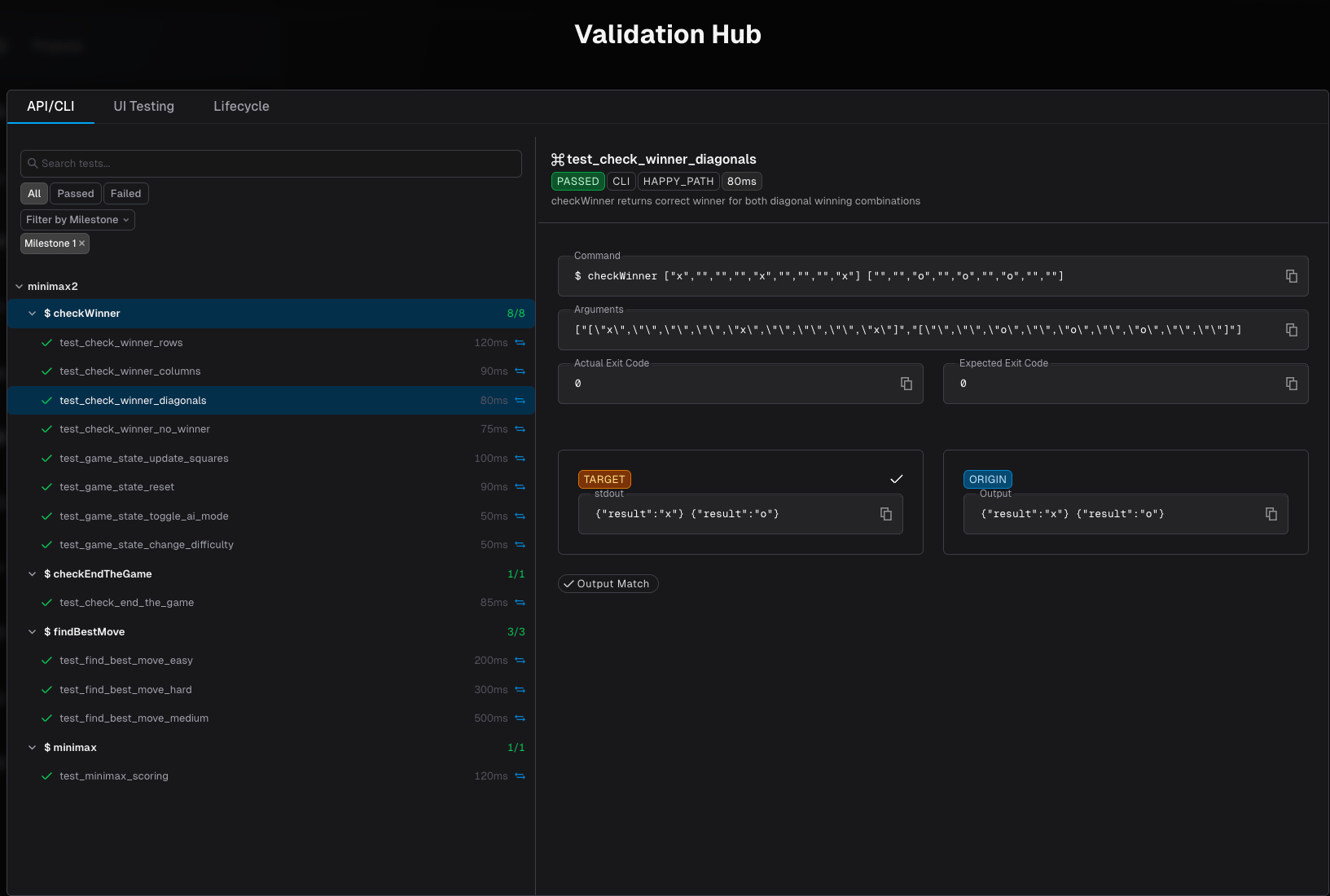 ### API/CLI Tab
The API/CLI tab shows backend functional test results — API endpoint responses and CLI command outputs compared between origin and target.
#### Sidebar Tree
The left sidebar organizes tests in a hierarchy:
1. **Repository** — Each repo in the project is a collapsible group
2. **Entity** — Within each repo, tests are grouped by entry point, with a **passed/total** count (e.g., `8/8`):
* For APIs: `GET /health`, `POST /add`, etc.
* For CLIs: `$ checkWinner`, `$ findBestMove`, etc.
3. **Individual tests** — Each test case under its entity, showing pass/fail status, duration, a comparison icon if origin data is available, and — for failed tests — an external-link icon that jumps to the [linked review issue](#failed-tests-create-review-issues)
Use the **search bar** to filter tests by name, the **status filter** (All / Passed / Failed) to focus on what matters, and **filter by milestone** to see results from a specific execution.
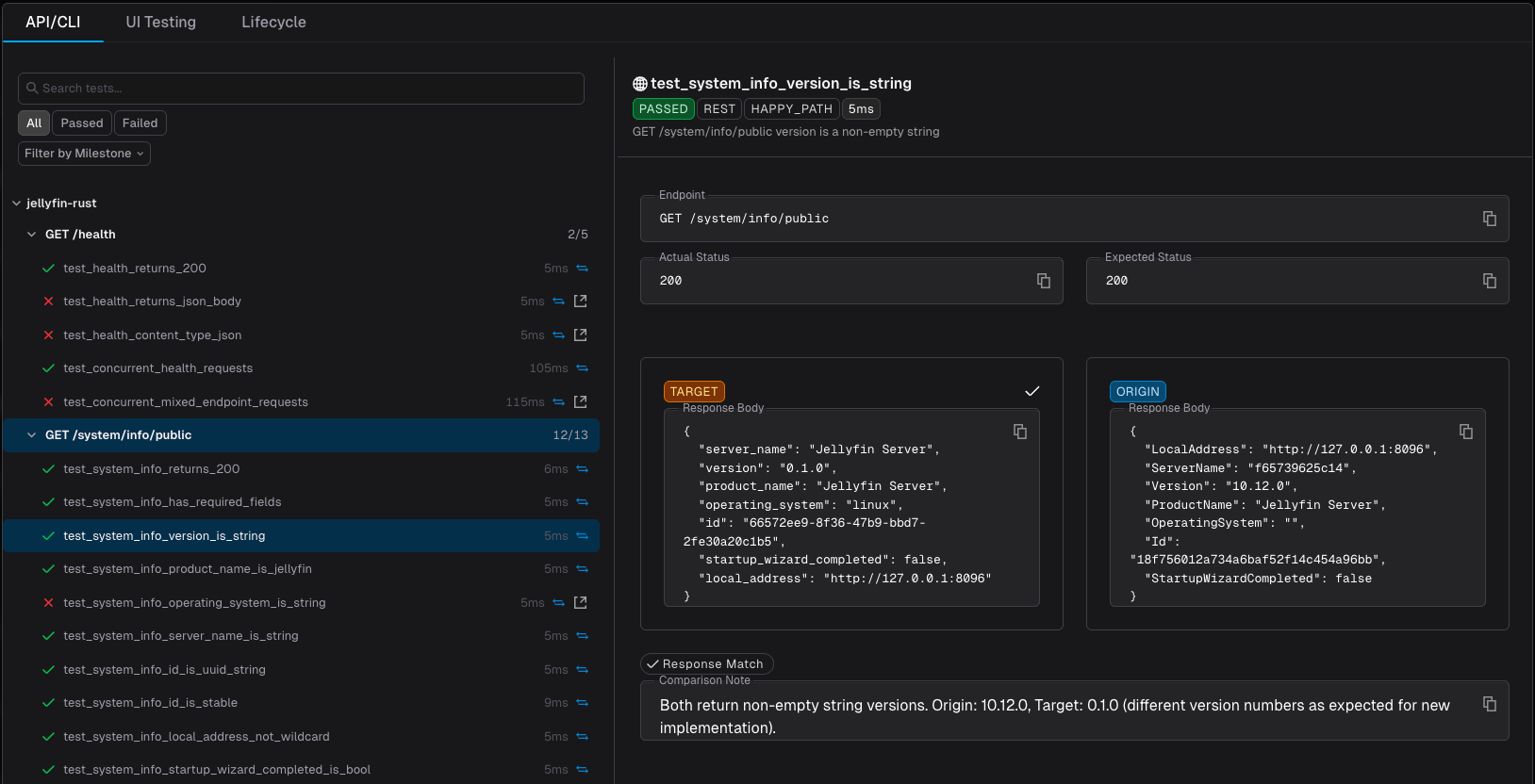
#### Detail Panel
Selecting a test opens the detail panel on the right. The content adapts to the protocol type:
**For API tests:**
* **Endpoint** — HTTP method and path (e.g., `GET /system/info/public`)
* **Expected vs Actual Status** — Status codes with mismatch highlighting
* **Request Body** — The payload sent to both origin and target
* **Target Response** — Status code and response body from the migrated application
* **Origin Response** — Response body from the original application (when comparison data is available)
* **Match indicators** — Response Match / Response Mismatch tags with an optional diff view
* **Comparison Note** — An agent-written note explaining the comparison result — useful when origin and target differ for an expected reason (e.g., a version bump) rather than a real regression
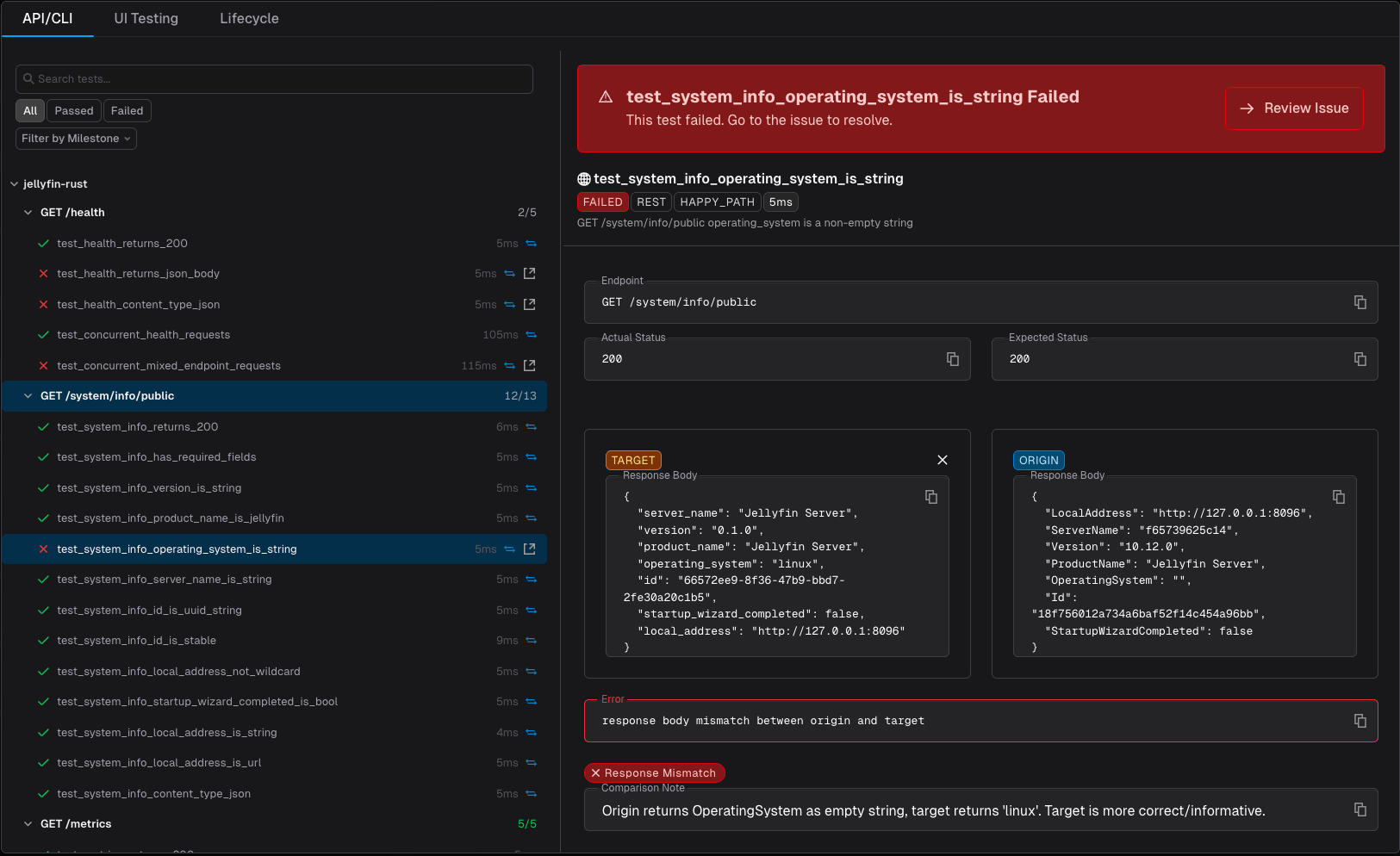
* **Error** — On a failed test, the specific mismatch that was detected (e.g., `response body mismatch between origin and target`)
* **Failed test banner** — On a failed test, a banner across the top of the panel with a **Review Issue** button that jumps straight to the [auto-created review issue](#failed-tests-create-review-issues)
### API/CLI Tab
The API/CLI tab shows backend functional test results — API endpoint responses and CLI command outputs compared between origin and target.
#### Sidebar Tree
The left sidebar organizes tests in a hierarchy:
1. **Repository** — Each repo in the project is a collapsible group
2. **Entity** — Within each repo, tests are grouped by entry point, with a **passed/total** count (e.g., `8/8`):
* For APIs: `GET /health`, `POST /add`, etc.
* For CLIs: `$ checkWinner`, `$ findBestMove`, etc.
3. **Individual tests** — Each test case under its entity, showing pass/fail status, duration, a comparison icon if origin data is available, and — for failed tests — an external-link icon that jumps to the [linked review issue](#failed-tests-create-review-issues)
Use the **search bar** to filter tests by name, the **status filter** (All / Passed / Failed) to focus on what matters, and **filter by milestone** to see results from a specific execution.
#### Detail Panel
Selecting a test opens the detail panel on the right. The content adapts to the protocol type:
**For API tests:**
* **Endpoint** — HTTP method and path (e.g., `GET /system/info/public`)
* **Expected vs Actual Status** — Status codes with mismatch highlighting
* **Request Body** — The payload sent to both origin and target
* **Target Response** — Status code and response body from the migrated application
* **Origin Response** — Response body from the original application (when comparison data is available)
* **Match indicators** — Response Match / Response Mismatch tags with an optional diff view
* **Comparison Note** — An agent-written note explaining the comparison result — useful when origin and target differ for an expected reason (e.g., a version bump) rather than a real regression
* **Error** — On a failed test, the specific mismatch that was detected (e.g., `response body mismatch between origin and target`)
* **Failed test banner** — On a failed test, a banner across the top of the panel with a **Review Issue** button that jumps straight to the [auto-created review issue](#failed-tests-create-review-issues)
 **For CLI tests:**
* **Command** — The full command invocation (e.g., `$ checkWinner [...]`)
* **Arguments** — The exact argument list passed to both origin and target
* **Expected vs Actual Exit Code** — With mismatch highlighting
* **Target stdout/stderr** — Output from the migrated application
* **Origin output** — Output from the original application (when comparison data is available)
* **Match indicators** — Output Match / Output Mismatch tags with diff view
See the Validation Hub screenshot above for an example CLI test detail panel (`checkWinner`). CLI tests share the same detail panel component as API tests, so a Comparison Note and failed-test banner appear there too when applicable.
### UI Testing Tab
The UI Testing tab groups both kinds of frontend testing under a pair of sub-tabs:
* **Test** — scripted Playwright runs with deterministic pass/fail outcomes
* **Comprehensive** — agentic browsing sessions with no concept of pass/fail
#### Test
The **Test** sub-tab shows Playwright test results — scripted browser tests with deterministic pass/fail outcomes and precise runtime information. These are traditional end-to-end tests that exercise specific user flows and assert expected behavior.
**For CLI tests:**
* **Command** — The full command invocation (e.g., `$ checkWinner [...]`)
* **Arguments** — The exact argument list passed to both origin and target
* **Expected vs Actual Exit Code** — With mismatch highlighting
* **Target stdout/stderr** — Output from the migrated application
* **Origin output** — Output from the original application (when comparison data is available)
* **Match indicators** — Output Match / Output Mismatch tags with diff view
See the Validation Hub screenshot above for an example CLI test detail panel (`checkWinner`). CLI tests share the same detail panel component as API tests, so a Comparison Note and failed-test banner appear there too when applicable.
### UI Testing Tab
The UI Testing tab groups both kinds of frontend testing under a pair of sub-tabs:
* **Test** — scripted Playwright runs with deterministic pass/fail outcomes
* **Comprehensive** — agentic browsing sessions with no concept of pass/fail
#### Test
The **Test** sub-tab shows Playwright test results — scripted browser tests with deterministic pass/fail outcomes and precise runtime information. These are traditional end-to-end tests that exercise specific user flows and assert expected behavior.
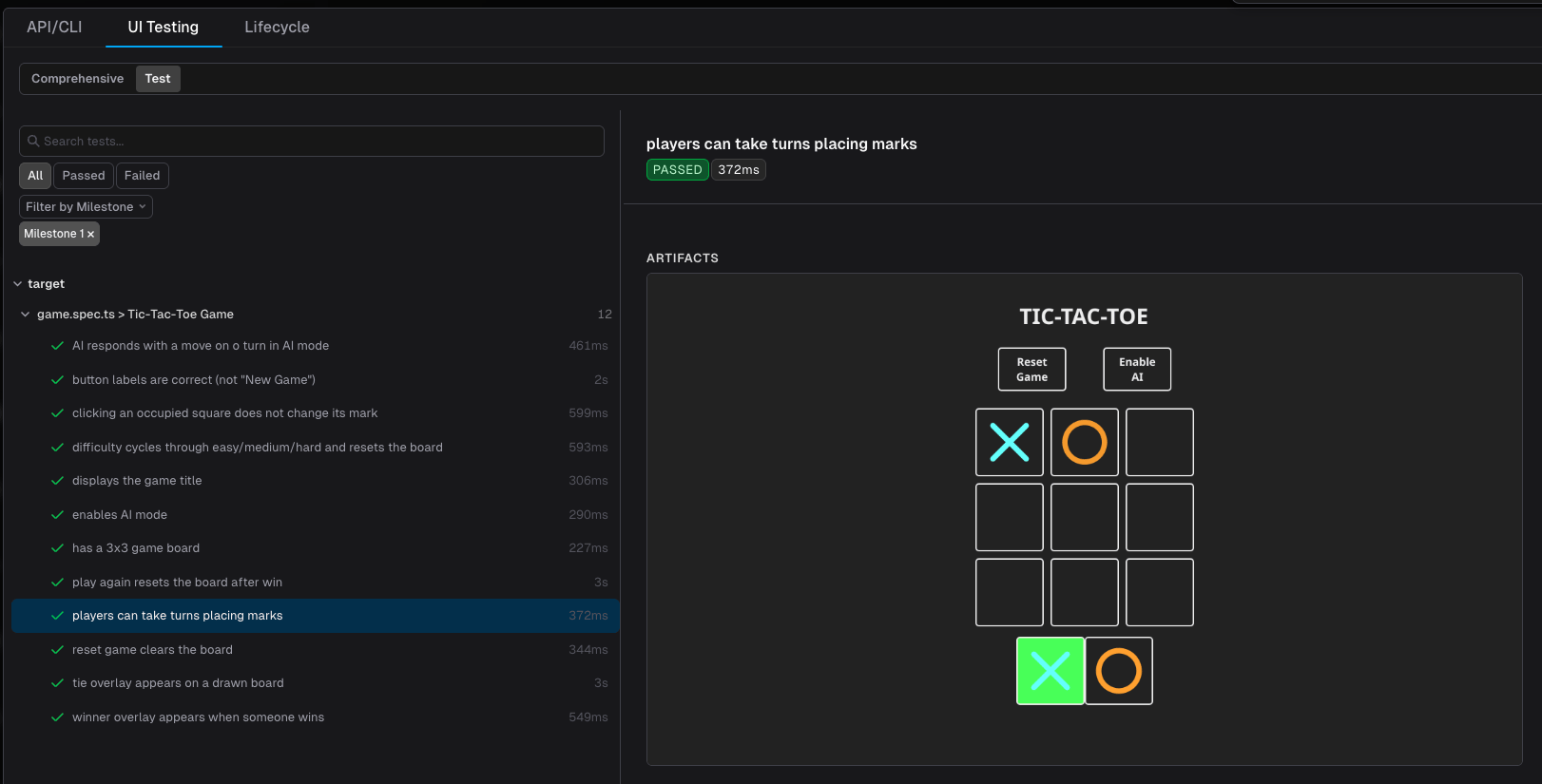 **Sidebar Tree** — Tests are organized by repository, then by spec file and describe block (e.g., `game.spec.ts > Tic-Tac-Toe Game`), then by individual test case, with a passed/total count on each group. Each test entry shows:
* **Pass/fail status** — Green checkmark for passing tests, red indicator for failures
* **Runtime** — How long each test took to execute (e.g., `290ms`, `2s`)
Use the **search bar** to filter tests by name, the **status filter** (All / Passed / Failed) to focus on what matters, and **filter by milestone** to see results from a specific execution.
**Detail Panel** — Selecting a test opens the detail panel on the right:
* **Test name and status** — The full test description with a pass/fail badge and duration
* **Artifacts** — Passing tests show a single screenshot of the final state
* **Video recording** — Failing tests additionally include a video recording of the full test run for debugging context
#### Comprehensive
The **Comprehensive** sub-tab shows agentic browsing sessions — an AI agent freely navigates the application and documents key moments as screenshots and videos. Unlike the Test sub-tab, these sessions are exploratory and semantically meaningful, with no concept of pass or fail.
Comprehensive sessions are typically used to increase trust and visibility into what the migration agent actually implemented and validated. They provide a human-reviewable walkthrough of the application's behavior.
**Sidebar Tree** — Tests are organized by repository, then by spec file and describe block (e.g., `game.spec.ts > Tic-Tac-Toe Game`), then by individual test case, with a passed/total count on each group. Each test entry shows:
* **Pass/fail status** — Green checkmark for passing tests, red indicator for failures
* **Runtime** — How long each test took to execute (e.g., `290ms`, `2s`)
Use the **search bar** to filter tests by name, the **status filter** (All / Passed / Failed) to focus on what matters, and **filter by milestone** to see results from a specific execution.
**Detail Panel** — Selecting a test opens the detail panel on the right:
* **Test name and status** — The full test description with a pass/fail badge and duration
* **Artifacts** — Passing tests show a single screenshot of the final state
* **Video recording** — Failing tests additionally include a video recording of the full test run for debugging context
#### Comprehensive
The **Comprehensive** sub-tab shows agentic browsing sessions — an AI agent freely navigates the application and documents key moments as screenshots and videos. Unlike the Test sub-tab, these sessions are exploratory and semantically meaningful, with no concept of pass or fail.
Comprehensive sessions are typically used to increase trust and visibility into what the migration agent actually implemented and validated. They provide a human-reviewable walkthrough of the application's behavior.
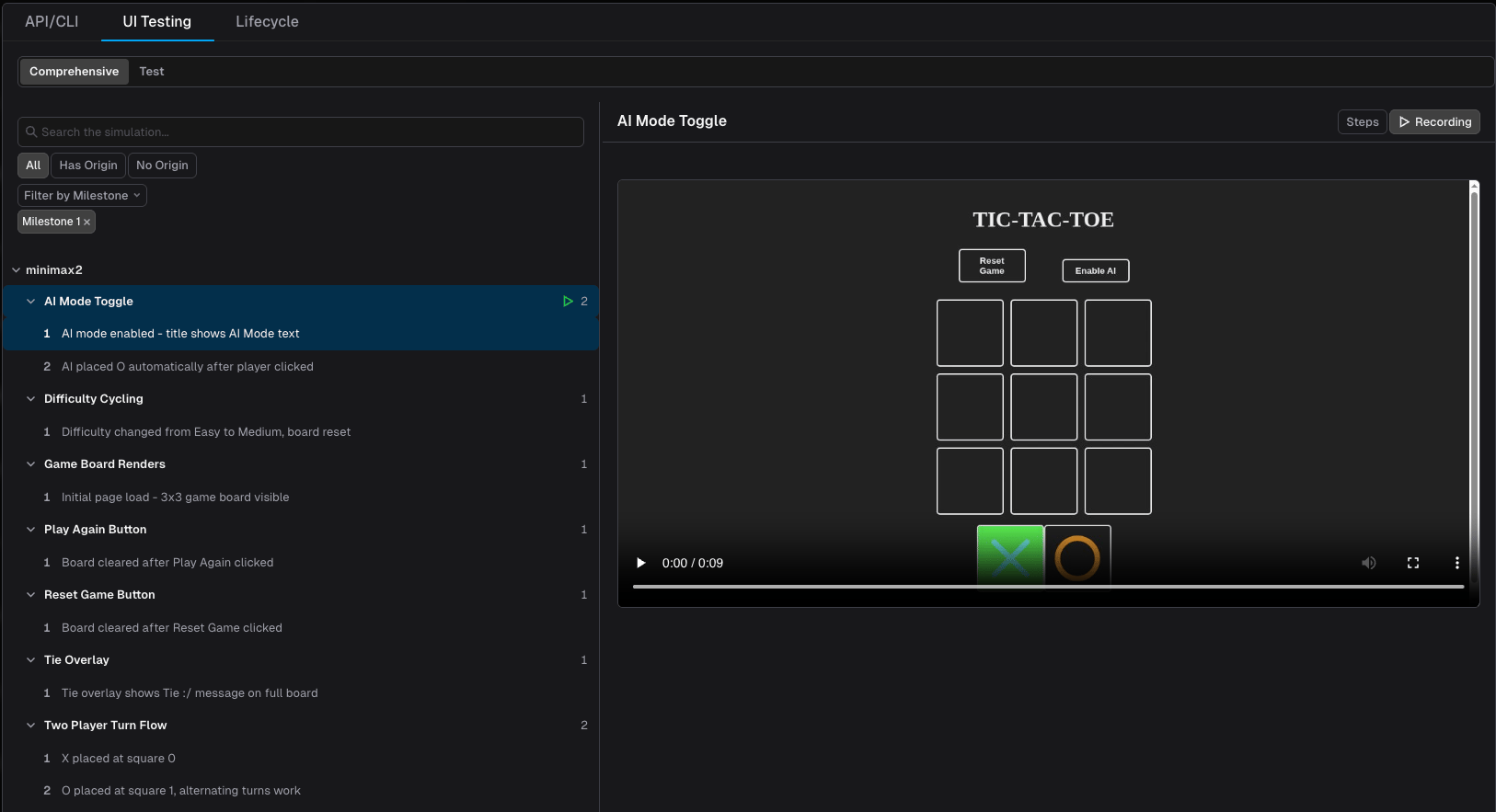 **Sidebar Tree** — Sessions are organized by flow name (e.g., "AI Mode Toggle", "Two Player Turn Flow", "Tie Overlay"). Each flow entry shows:
* **Step count** — Number of documented moments in the session
**Step Viewer** — Selecting a flow opens the step viewer on the right:
* **Step navigation** — Arrow buttons or keyboard arrows to move between steps
* **Step label** — Description of what the agent observed at each moment (e.g., "AI mode enabled - title shows AI Mode text")
* **Screenshot** — A full-page screenshot captured at each documented moment
* **Video** — When available, a video recording of the agent's browsing session
### Lifecycle Tab
The Lifecycle tab shows the results of the [lifecycle scripts](/setup/build-environment/lifecycle-setup) — install, build, run, and test — that Morph executes to stand up each application. Use it to confirm the target app actually builds and runs before digging into functional test results; a lifecycle failure here explains a wave of downstream API/CLI or UI test failures.
**Sidebar Tree** — Sessions are organized by flow name (e.g., "AI Mode Toggle", "Two Player Turn Flow", "Tie Overlay"). Each flow entry shows:
* **Step count** — Number of documented moments in the session
**Step Viewer** — Selecting a flow opens the step viewer on the right:
* **Step navigation** — Arrow buttons or keyboard arrows to move between steps
* **Step label** — Description of what the agent observed at each moment (e.g., "AI mode enabled - title shows AI Mode text")
* **Screenshot** — A full-page screenshot captured at each documented moment
* **Video** — When available, a video recording of the agent's browsing session
### Lifecycle Tab
The Lifecycle tab shows the results of the [lifecycle scripts](/setup/build-environment/lifecycle-setup) — install, build, run, and test — that Morph executes to stand up each application. Use it to confirm the target app actually builds and runs before digging into functional test results; a lifecycle failure here explains a wave of downstream API/CLI or UI test failures.
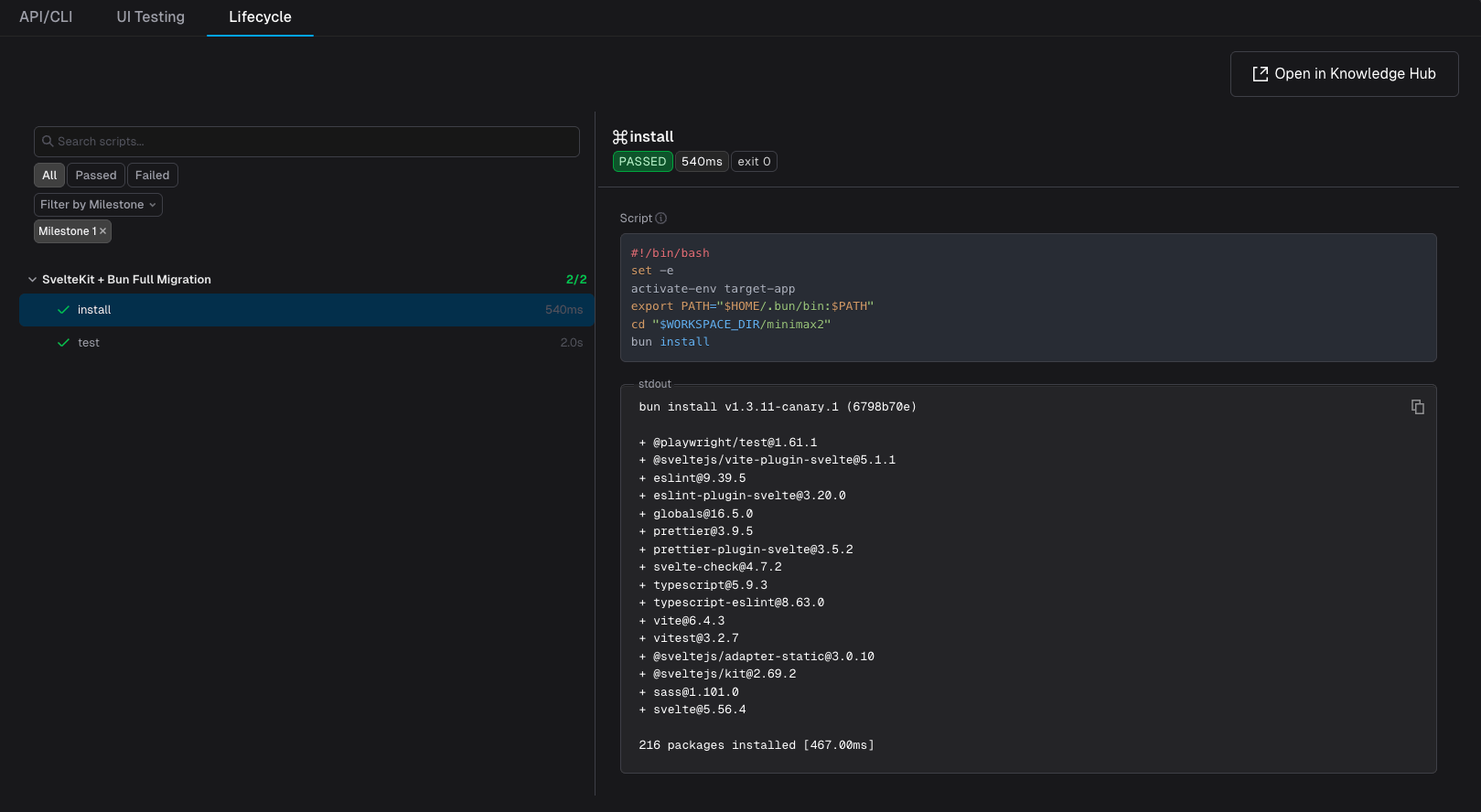 #### Sidebar Tree
Scripts are grouped by milestone (e.g., "SvelteKit + Bun Full Migration"). Each script entry — `install`, `build`, `run`, `test` — shows:
* **Pass/fail status** — Green checkmark for a successful run, red indicator for failure
* **Duration** — How long the script took to run
Use the **status filter** (All / Passed / Failed) and **filter by milestone** to narrow the list.
#### Detail Panel
Selecting a script opens the detail panel on the right:
* **Status, duration, and exit code** — At-a-glance pass/fail summary
* **Script** — The exact shell commands that were run
* **stdout** — Full output captured from the run
* **Open in Knowledge Hub** — Jumps to the underlying lifecycle document for that repo in [Project Knowledge](/customization/project-knowledge)
***
## Failed Tests Create Review Issues
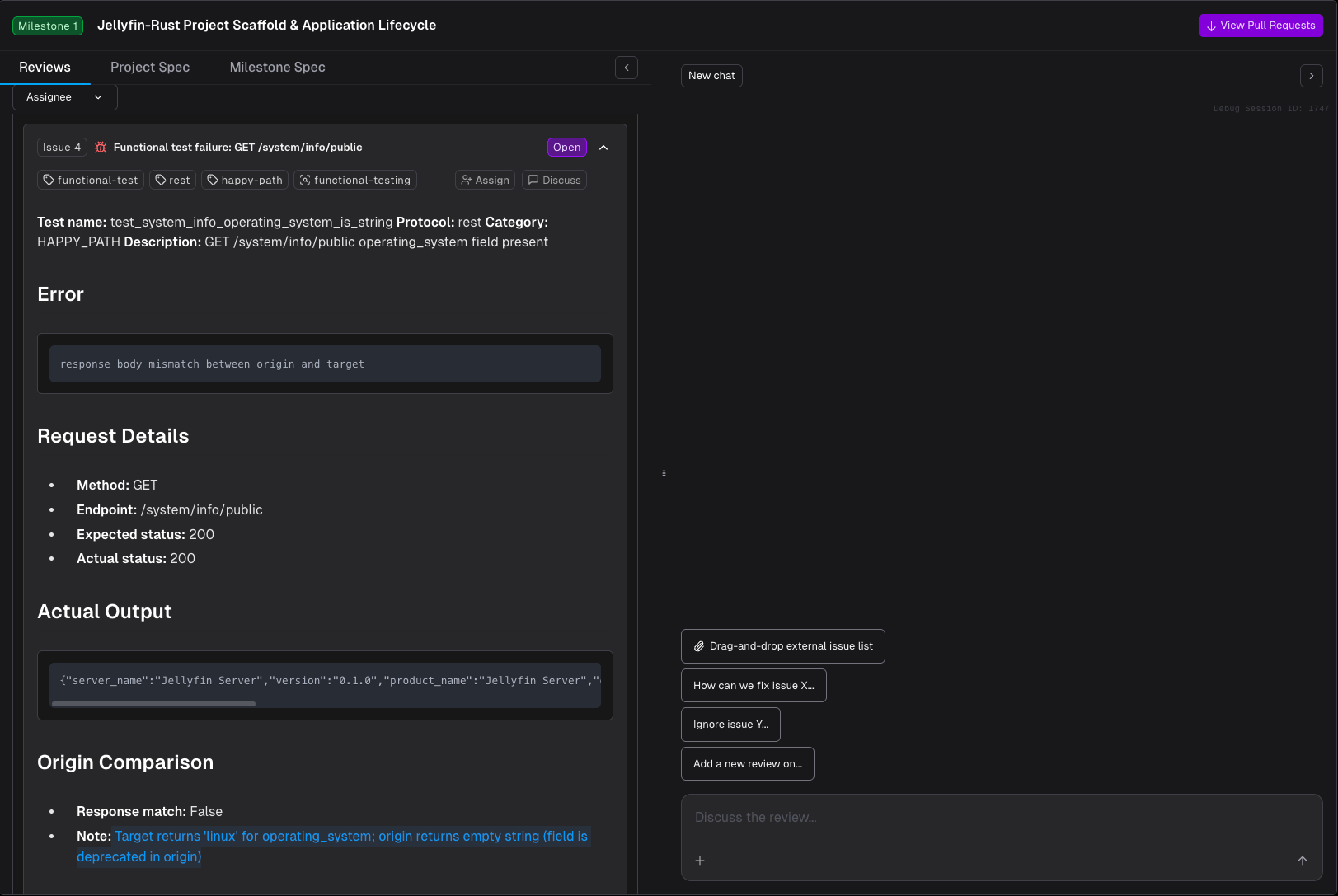
Any functional test that fails automatically opens a review issue on the milestone's [Code Review](/migration/code-review-chat) drawer — tagged with `functional-test`, its protocol (e.g. `rest`), its category (e.g. `happy-path`), and `functional-testing` — so failures surface for triage without you having to go looking for them.
The failed test and its review issue are linked in both directions:
* **From the Validation Hub** — the failed test's detail panel shows a banner with a **Review Issue** button that jumps straight to the issue. In the sidebar tree, failed tests show an external-link icon as the same shortcut.
* **From the review issue** — the issue mirrors the test's data (request details, actual output, origin comparison) and can be discussed like any other review issue: open [Code Review Chat](/migration/code-review-chat) and ask Morph to fix it, or resolve it manually.
#### Sidebar Tree
Scripts are grouped by milestone (e.g., "SvelteKit + Bun Full Migration"). Each script entry — `install`, `build`, `run`, `test` — shows:
* **Pass/fail status** — Green checkmark for a successful run, red indicator for failure
* **Duration** — How long the script took to run
Use the **status filter** (All / Passed / Failed) and **filter by milestone** to narrow the list.
#### Detail Panel
Selecting a script opens the detail panel on the right:
* **Status, duration, and exit code** — At-a-glance pass/fail summary
* **Script** — The exact shell commands that were run
* **stdout** — Full output captured from the run
* **Open in Knowledge Hub** — Jumps to the underlying lifecycle document for that repo in [Project Knowledge](/customization/project-knowledge)
***
## Failed Tests Create Review Issues
Any functional test that fails automatically opens a review issue on the milestone's [Code Review](/migration/code-review-chat) drawer — tagged with `functional-test`, its protocol (e.g. `rest`), its category (e.g. `happy-path`), and `functional-testing` — so failures surface for triage without you having to go looking for them.
The failed test and its review issue are linked in both directions:
* **From the Validation Hub** — the failed test's detail panel shows a banner with a **Review Issue** button that jumps straight to the issue. In the sidebar tree, failed tests show an external-link icon as the same shortcut.
* **From the review issue** — the issue mirrors the test's data (request details, actual output, origin comparison) and can be discussed like any other review issue: open [Code Review Chat](/migration/code-review-chat) and ask Morph to fix it, or resolve it manually.
 ***
## Milestone Test Summary
Each milestone card on the [roadmap](/migration/roadmap) displays a test summary after execution completes. The summary shows per-repo results:
* **Backend tests** — Repository name with passed/total count and a comparison indicator
* **UI tests** — Repository name with passed/total count
* **Comprehensive sessions** — Repository name with session count and step totals
This gives you a quick signal of migration health without navigating to the full Validation Hub.
***
## Milestone Test Summary
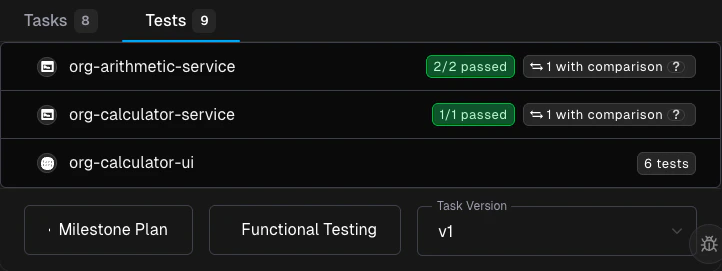
Each milestone card on the [roadmap](/migration/roadmap) displays a test summary after execution completes. The summary shows per-repo results:
* **Backend tests** — Repository name with passed/total count and a comparison indicator
* **UI tests** — Repository name with passed/total count
* **Comprehensive sessions** — Repository name with session count and step totals
This gives you a quick signal of migration health without navigating to the full Validation Hub.
 ***
## Tips
* **Review tests early.** As soon as tests are generated, skim them in the milestone test summary. If an entry point is missing, it may indicate the agent couldn't reach it — check your [lifecycle setup](/setup/build-environment/lifecycle-setup) configuration.
* **Check Lifecycle before API/CLI or UI Testing.** If a milestone shows widespread test failures, check the Lifecycle tab first — a broken install/build/run step will fail everything downstream.
* **Use the Validation Hub for stakeholder updates.** The passed/total ratio and origin comparison counts are intuitive, non-technical measures of migration completeness.
* **Combine with rules.** If tests reveal a recurring pattern (e.g., missing headers, wrong status codes), create a [Rule](/customization/rules) so Morph handles it in future milestones.
* **Filter to failures.** On the API/CLI and UI Testing tabs, use the **Failed** filter to focus your review on the tests that need attention.
* **Triage failures from the test itself.** A failed test's **Review Issue** button (or the sidebar's external-link icon) jumps straight into [Code Review](/migration/code-review-chat) with the failure details pre-loaded — no need to re-describe what broke.
***
## Related Docs
The milestone lifecycle, statuses, and task dependencies
High-level view of your migration plan
Best practices for reviewing milestone PRs
Triage review issues — including auto-created failed-test issues — with chat
Configure how your project builds and runs
***
## Tips
* **Review tests early.** As soon as tests are generated, skim them in the milestone test summary. If an entry point is missing, it may indicate the agent couldn't reach it — check your [lifecycle setup](/setup/build-environment/lifecycle-setup) configuration.
* **Check Lifecycle before API/CLI or UI Testing.** If a milestone shows widespread test failures, check the Lifecycle tab first — a broken install/build/run step will fail everything downstream.
* **Use the Validation Hub for stakeholder updates.** The passed/total ratio and origin comparison counts are intuitive, non-technical measures of migration completeness.
* **Combine with rules.** If tests reveal a recurring pattern (e.g., missing headers, wrong status codes), create a [Rule](/customization/rules) so Morph handles it in future milestones.
* **Filter to failures.** On the API/CLI and UI Testing tabs, use the **Failed** filter to focus your review on the tests that need attention.
* **Triage failures from the test itself.** A failed test's **Review Issue** button (or the sidebar's external-link icon) jumps straight into [Code Review](/migration/code-review-chat) with the failure details pre-loaded — no need to re-describe what broke.
***
## Related Docs
The milestone lifecycle, statuses, and task dependencies
High-level view of your migration plan
Best practices for reviewing milestone PRs
Triage review issues — including auto-created failed-test issues — with chat
Configure how your project builds and runs