> ## Documentation Index
> Fetch the complete documentation index at: https://docs.modelcode.ai/llms.txt
> Use this file to discover all available pages before exploring further.
# Shared Knowledge
> Export project configuration to the organization level so new projects with the same repositories can skip onboarding
export const ProductName = "The Morph Platform";
export const productName = "the Morph Platform";
When you finish setting up a project - lifecycle scripts, dependencies, acceptance criteria, instructions - that configuration is valuable beyond the single project. **Shared Knowledge** lets you export it to the organization level so the next project using the same repositories can import it and skip onboarding entirely.
## How It Works
Shared knowledge is tagged by repository set. When you export from a project that uses repositories A and B, the exported configuration is stored under the exact set `[A, B]`. Later, when someone creates a new project with the same two repositories, {productName} detects the match and offers to import.
The export is a one-time snapshot. After import, the new project owns its own copy of the configuration. Changes in the new project do not affect the exported knowledge, and re-exporting from the source project does not update projects that already imported.
## Exporting Knowledge
To share a project's configuration with your organization:
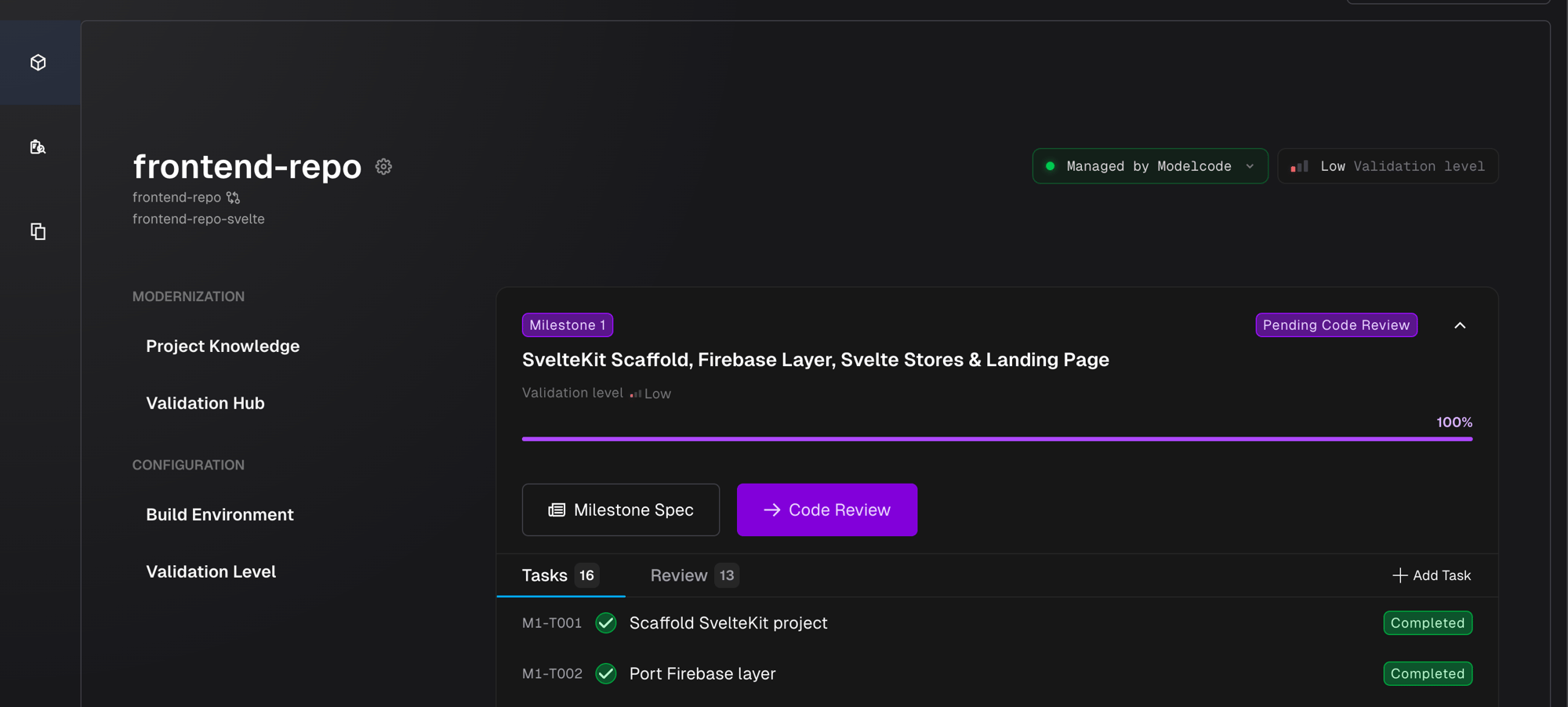
1. Open the project's **Roadmap**
2. Click the **settings icon** next to the project name
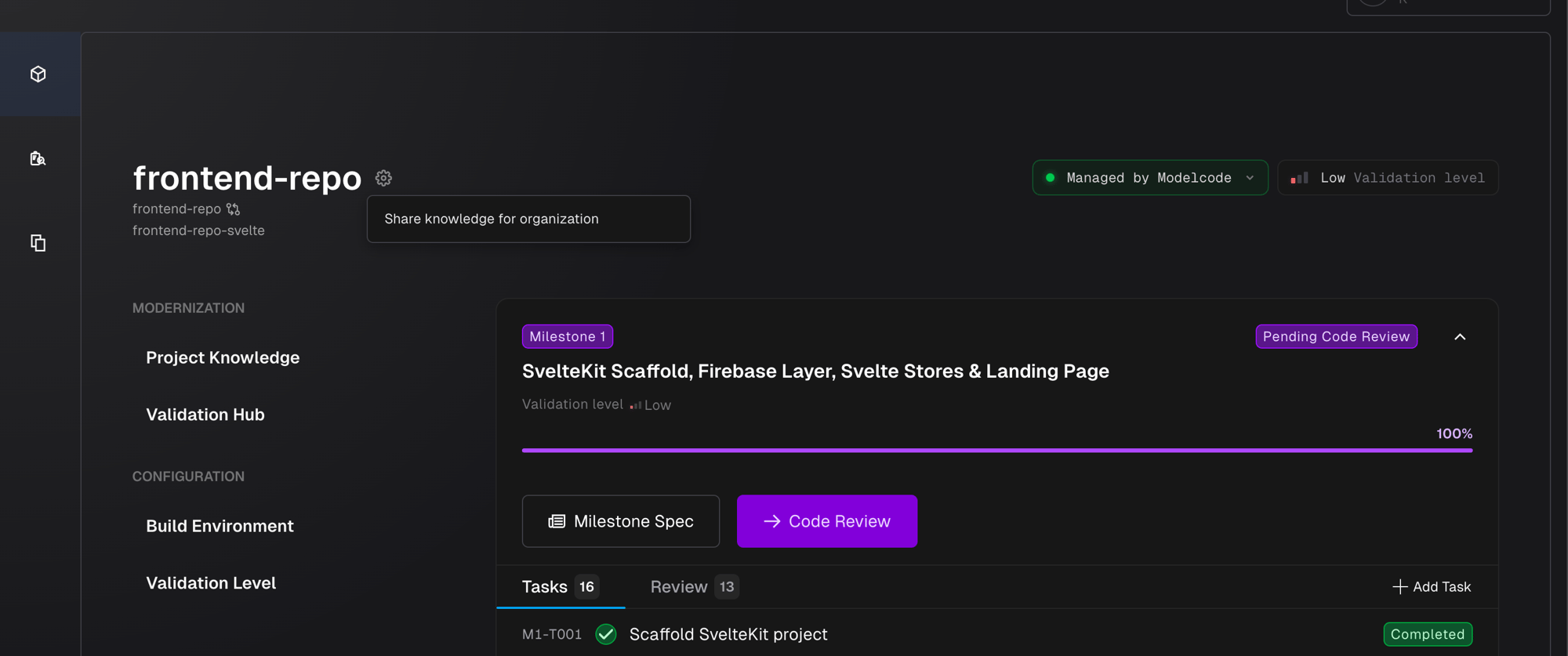
 3. Click **Share knowledge for organization**
 4. Review what will be shared and click **Share**
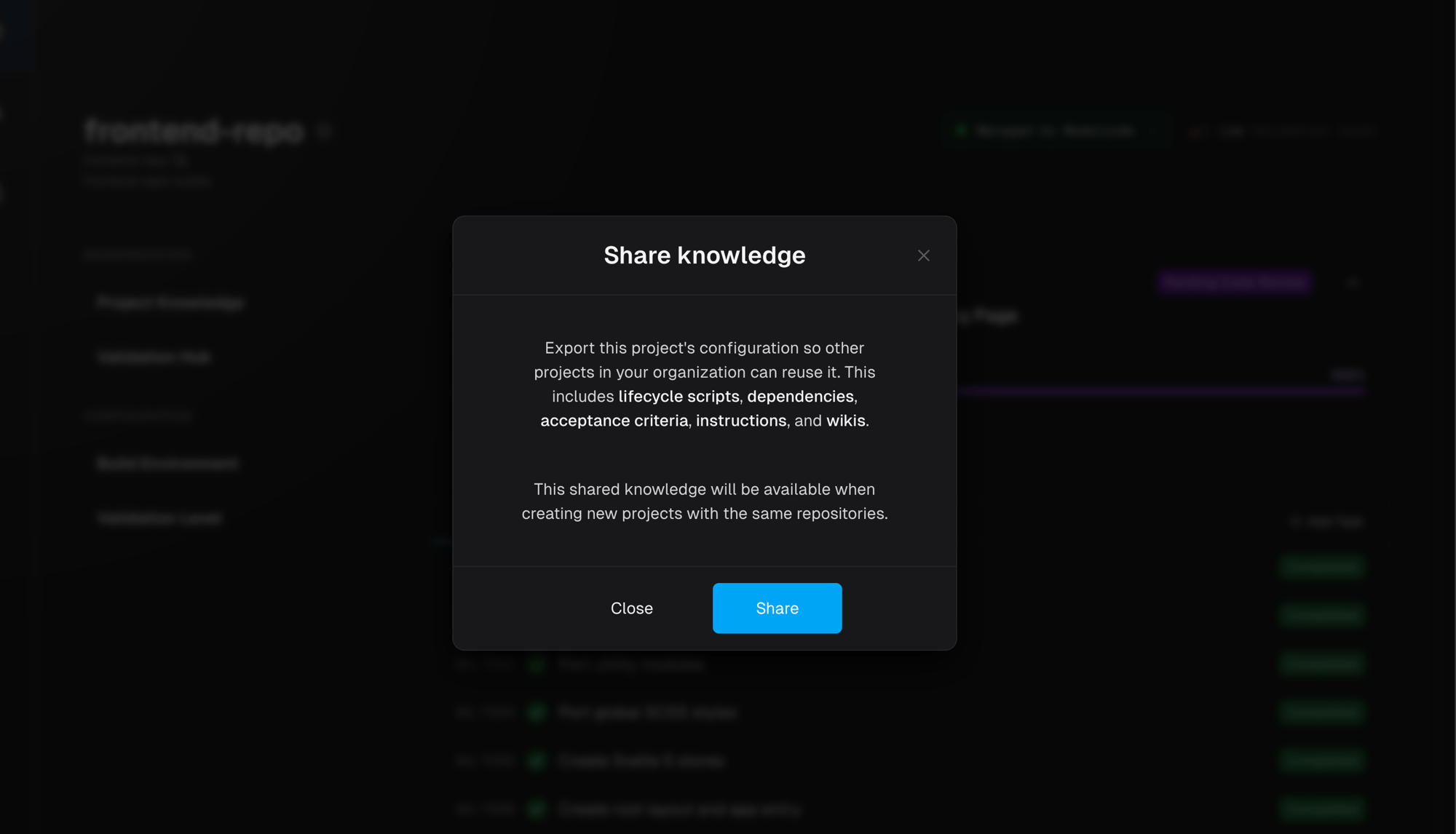 The export dialog lists which artifact types will be included:
| Artifact | What's exported |
| ----------------------- | ----------------------------------------------------------------------------- |
| **Lifecycle scripts** | Install, build, run, healthcheck, and test scripts with their execution order |
| **Dependencies** | The project's dependency manifest |
| **Acceptance criteria** | Origin-side acceptance criteria with their prompts and script references |
| **Instructions** | Published instructions with their content and tags |
| **Wikis** | Project wiki pages |
If shared knowledge already exists for this repository set, the dialog shows a warning that exporting will replace it. Projects that already imported the previous version are not affected.
## Importing During Project Creation
When you create a new project and select repositories, {productName} automatically checks for matching shared knowledge. You see one of three states in the **Organizational Knowledge** section of the create project form:
| State | What you see |
| ----------------- | ---------------------------------------------------------------------------------------------------------------------------------------------------- |
| **Checking** | A loading indicator: "Looking for shared knowledge for selected repositories..." The **Create Project** button is disabled until the check completes |
| **Available** | The available artifact types and counts, with radio buttons to choose **Import knowledge** (selected by default) or **Start fresh** |
| **Not available** | A message confirming no shared knowledge exists for this repository set |
If you choose **Import knowledge**, the configuration is copied into the new project after creation. Onboarding stages that the imported configuration covers (build environment setup and project setup) are marked as complete with an "Imported from org" label, and you proceed directly to later stages.
If you choose **Start fresh**, the project goes through full onboarding as normal.
## Browsing Shared Knowledge
The **Shared Knowledge** page gives you visibility into all exported knowledge across your organization. Access it from the sidebar navigation.
The export dialog lists which artifact types will be included:
| Artifact | What's exported |
| ----------------------- | ----------------------------------------------------------------------------- |
| **Lifecycle scripts** | Install, build, run, healthcheck, and test scripts with their execution order |
| **Dependencies** | The project's dependency manifest |
| **Acceptance criteria** | Origin-side acceptance criteria with their prompts and script references |
| **Instructions** | Published instructions with their content and tags |
| **Wikis** | Project wiki pages |
If shared knowledge already exists for this repository set, the dialog shows a warning that exporting will replace it. Projects that already imported the previous version are not affected.
## Importing During Project Creation
When you create a new project and select repositories, {productName} automatically checks for matching shared knowledge. You see one of three states in the **Organizational Knowledge** section of the create project form:
| State | What you see |
| ----------------- | ---------------------------------------------------------------------------------------------------------------------------------------------------- |
| **Checking** | A loading indicator: "Looking for shared knowledge for selected repositories..." The **Create Project** button is disabled until the check completes |
| **Available** | The available artifact types and counts, with radio buttons to choose **Import knowledge** (selected by default) or **Start fresh** |
| **Not available** | A message confirming no shared knowledge exists for this repository set |
If you choose **Import knowledge**, the configuration is copied into the new project after creation. Onboarding stages that the imported configuration covers (build environment setup and project setup) are marked as complete with an "Imported from org" label, and you proceed directly to later stages.
If you choose **Start fresh**, the project goes through full onboarding as normal.
## Browsing Shared Knowledge
The **Shared Knowledge** page gives you visibility into all exported knowledge across your organization. Access it from the sidebar navigation.
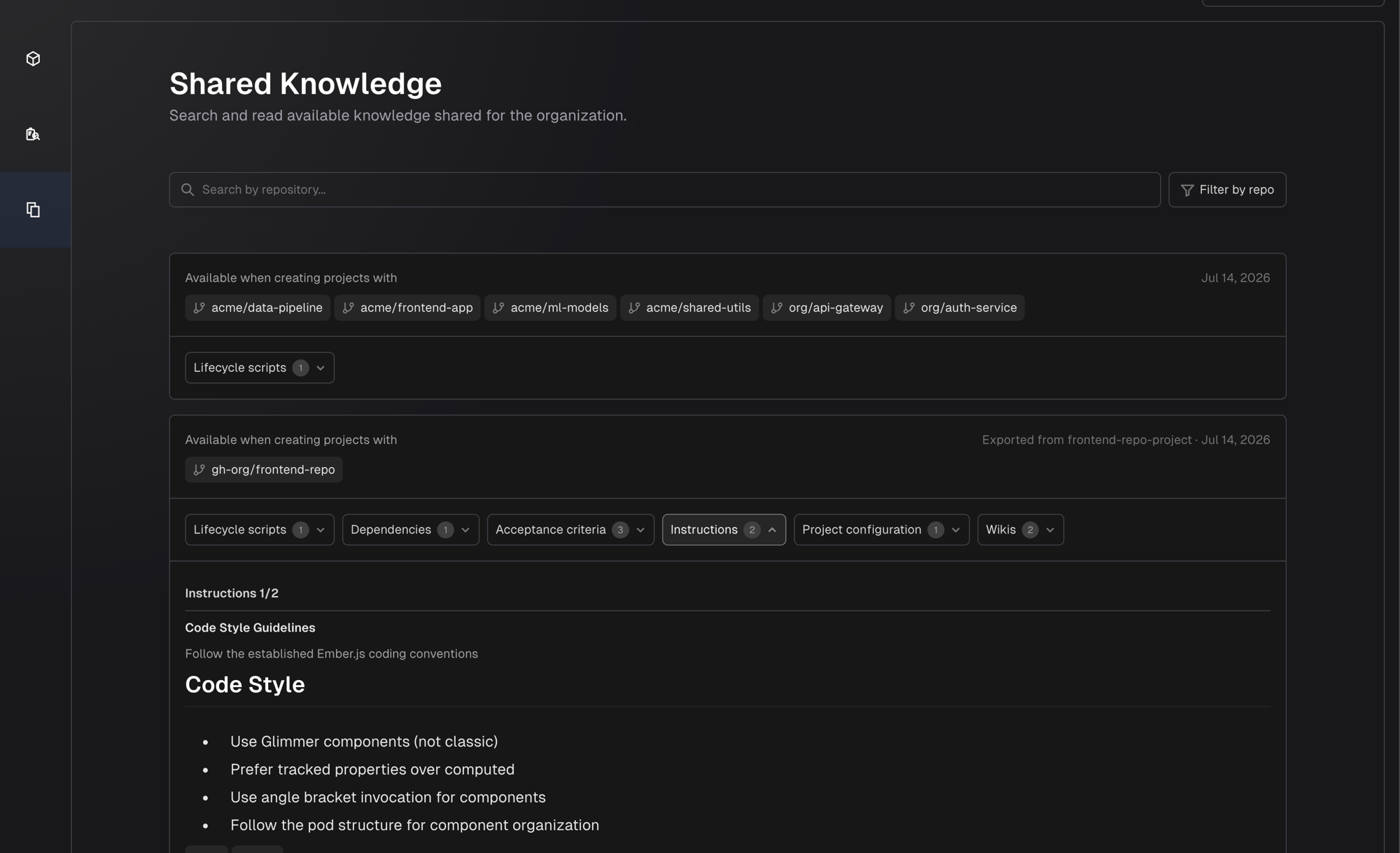
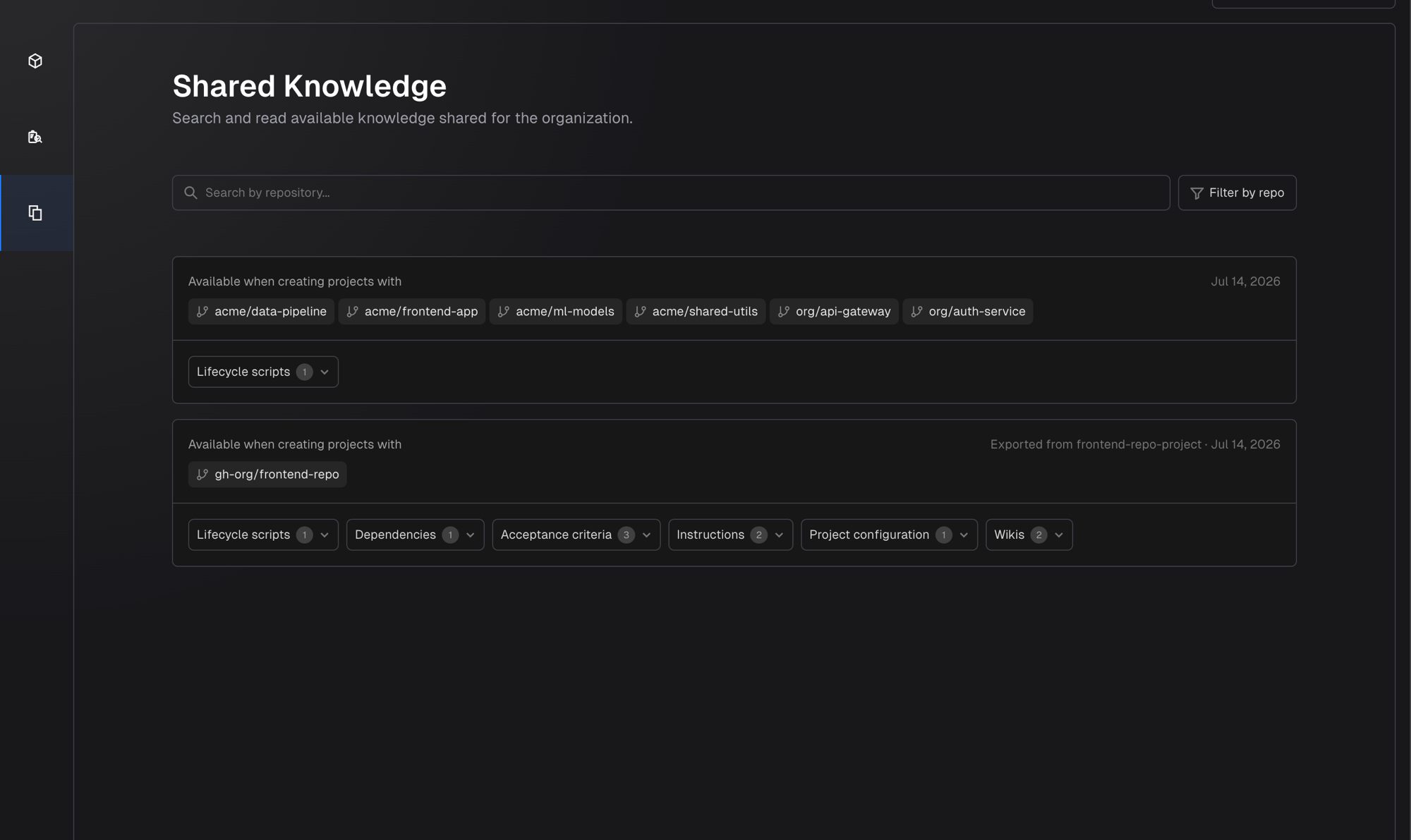 The page shows a card for each repository set that has exported knowledge. Each card displays:
* The repository handles the knowledge applies to
* Which project exported it and when
* Artifact type buttons with counts you can expand to read the full content
### Reading Artifact Content
Click any artifact type button on a card to expand and read its content. The content renders in the same format used in the project's own knowledge views.
The page shows a card for each repository set that has exported knowledge. Each card displays:
* The repository handles the knowledge applies to
* Which project exported it and when
* Artifact type buttons with counts you can expand to read the full content
### Reading Artifact Content
Click any artifact type button on a card to expand and read its content. The content renders in the same format used in the project's own knowledge views.
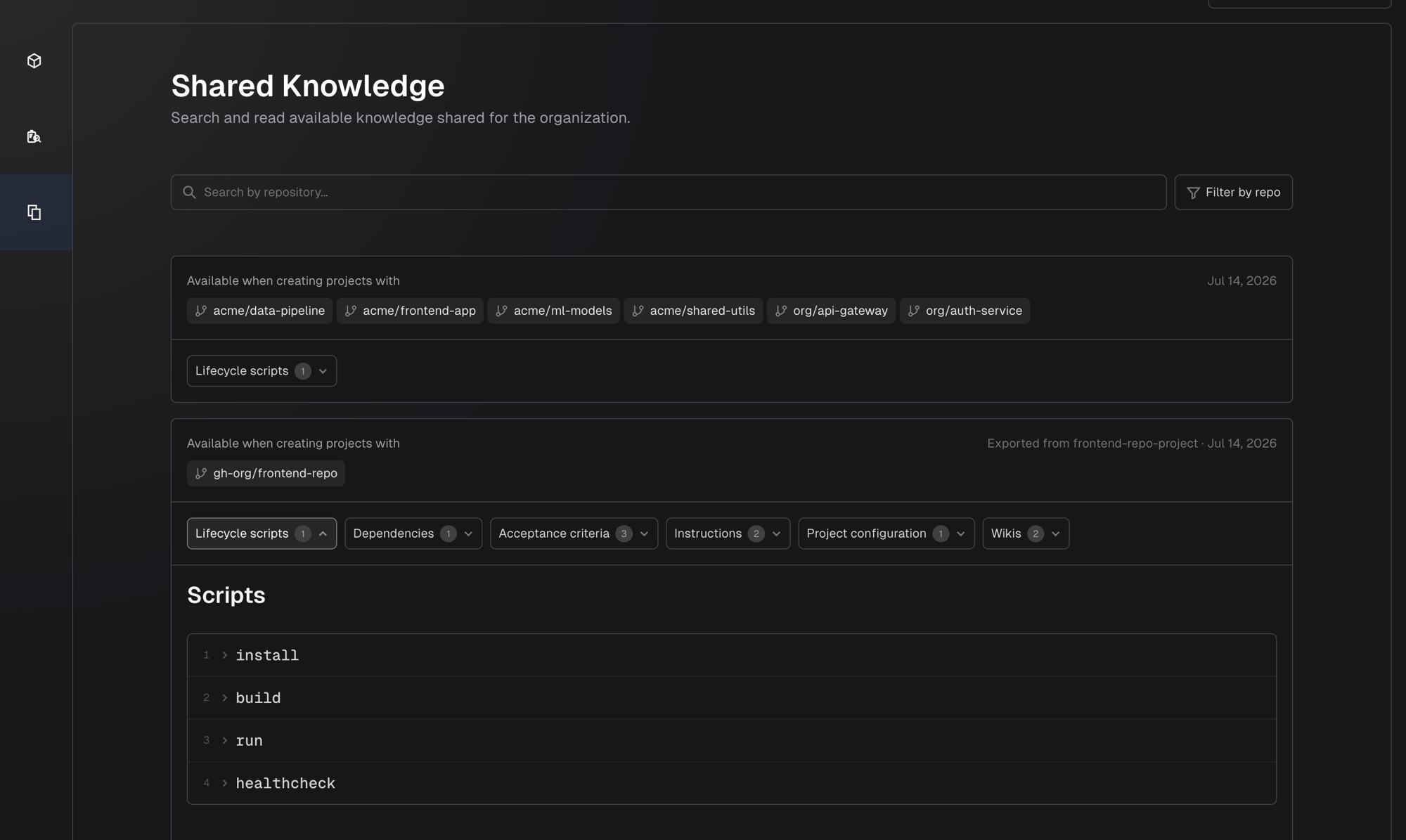 When an artifact type has multiple items (for example, 2 instructions), each item is numbered (e.g., "Instructions 1/2", "Instructions 2/2") with a divider between them.
 ### Searching and Filtering
Use the **search bar** to find knowledge by repository name. Matching text is highlighted in the results.
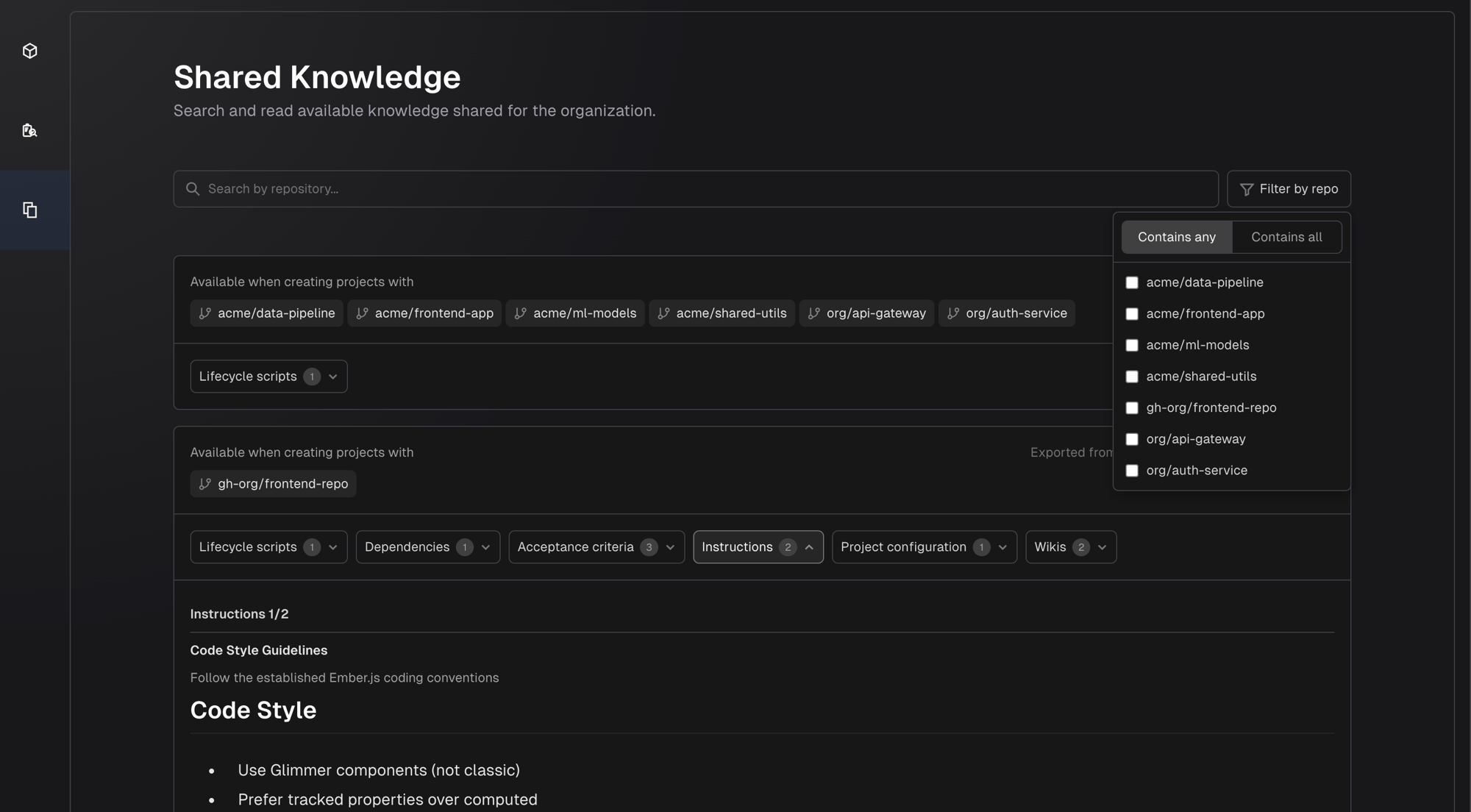
Use the **Filter by repo** dropdown to narrow the list to cards containing specific repositories. The filter supports two modes:
### Searching and Filtering
Use the **search bar** to find knowledge by repository name. Matching text is highlighted in the results.
Use the **Filter by repo** dropdown to narrow the list to cards containing specific repositories. The filter supports two modes:
 | Mode | Behavior |
| ---------------- | --------------------------------------------------------------------------------- |
| **Contains any** | Shows cards where at least one selected repository appears |
| **Contains all** | Shows only cards where every selected repository appears together in the same set |
## Matching Rules
Shared knowledge matches on the exact repository set. A knowledge export tagged with repositories `[A, B]` only appears when creating a project with exactly `[A, B]` - not `[A]` alone, not `[A, B, C]`.
Repository matching uses normalized handles (`org/repo` format), so the same repository matches regardless of the protocol or URL format used during project creation.
| Mode | Behavior |
| ---------------- | --------------------------------------------------------------------------------- |
| **Contains any** | Shows cards where at least one selected repository appears |
| **Contains all** | Shows only cards where every selected repository appears together in the same set |
## Matching Rules
Shared knowledge matches on the exact repository set. A knowledge export tagged with repositories `[A, B]` only appears when creating a project with exactly `[A, B]` - not `[A]` alone, not `[A, B, C]`.
Repository matching uses normalized handles (`org/repo` format), so the same repository matches regardless of the protocol or URL format used during project creation.